

Apple Mail
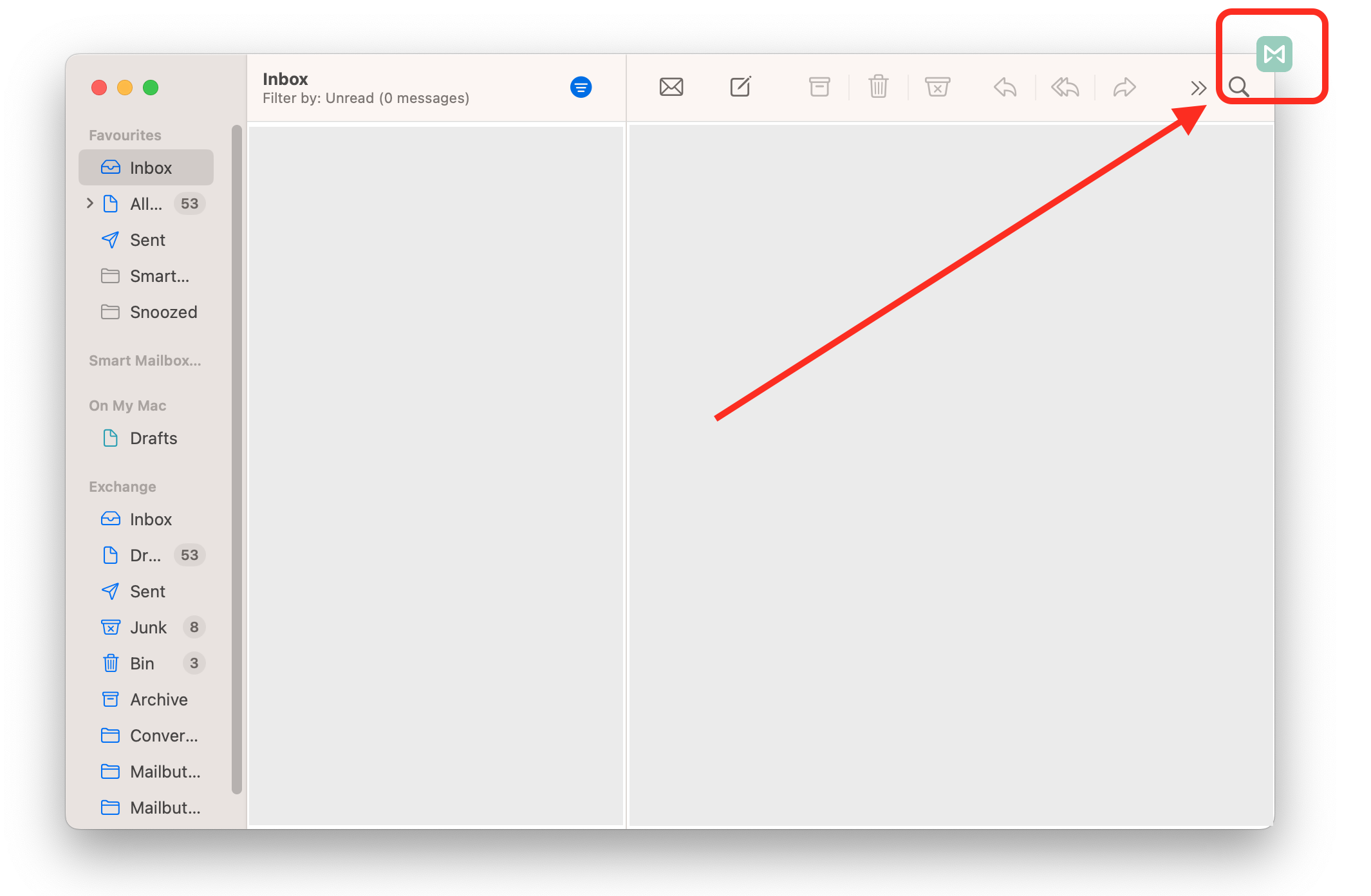
Open the Mailbutler Sidebar by clicking the Mailbutler icon.
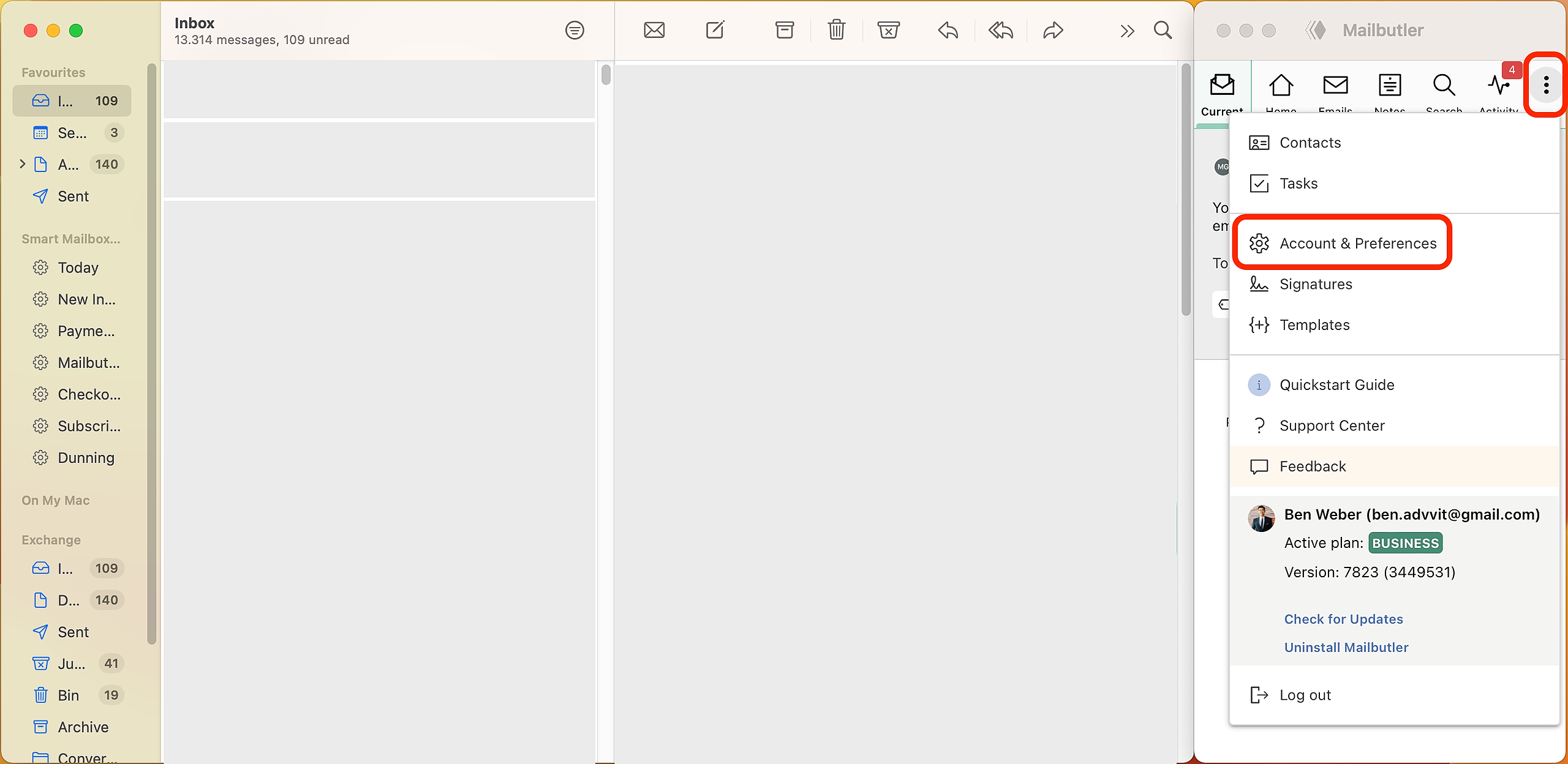
2. In the Mailbutler Sidebar, click the three dots, then select Account & Preferences.
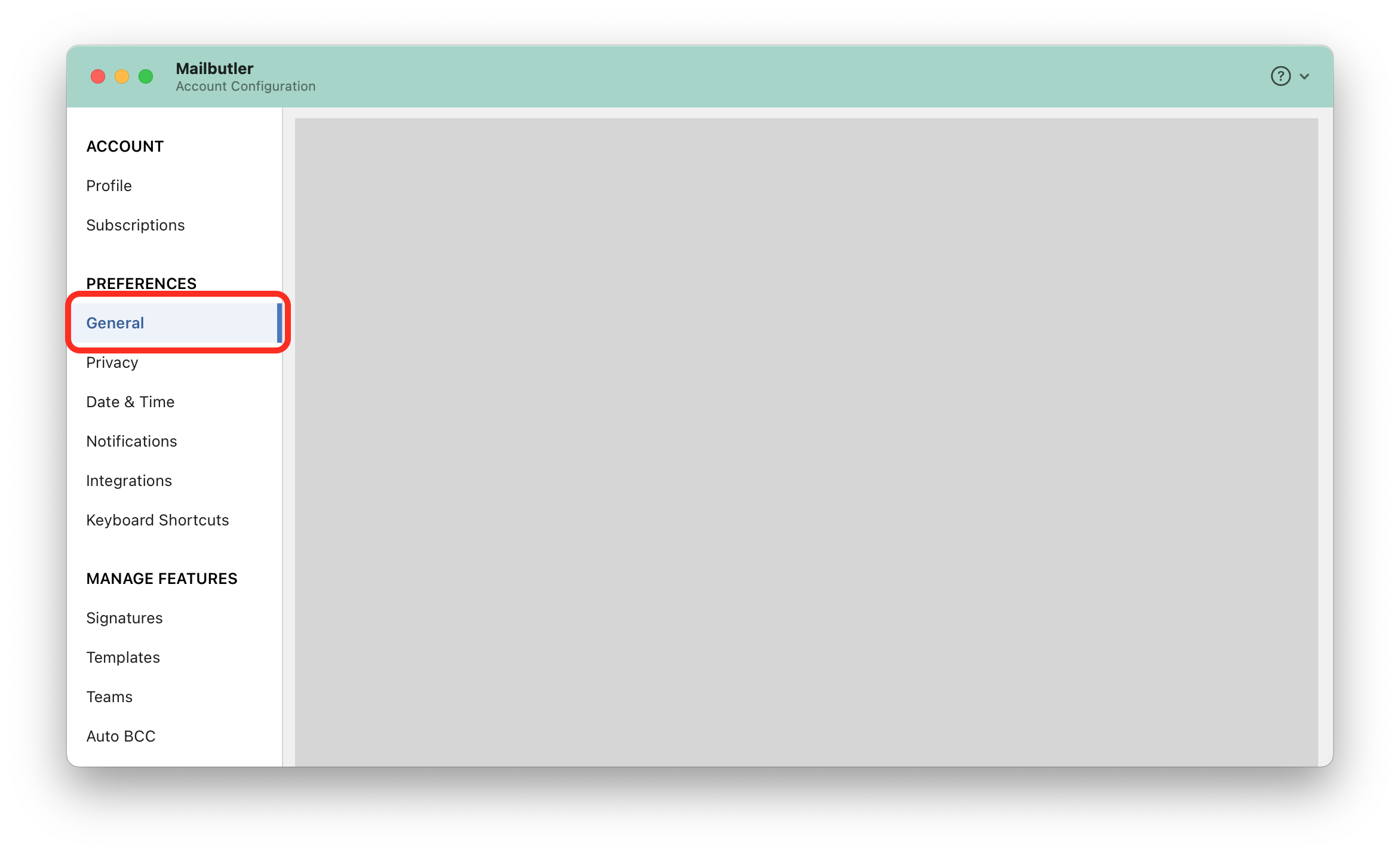
3. A new window will open. Under Preferences, select General in the sidebar on the left.
4. Scroll down to the Export tracking events as CSV file section, select the date range you want to export, and click Request CSV.
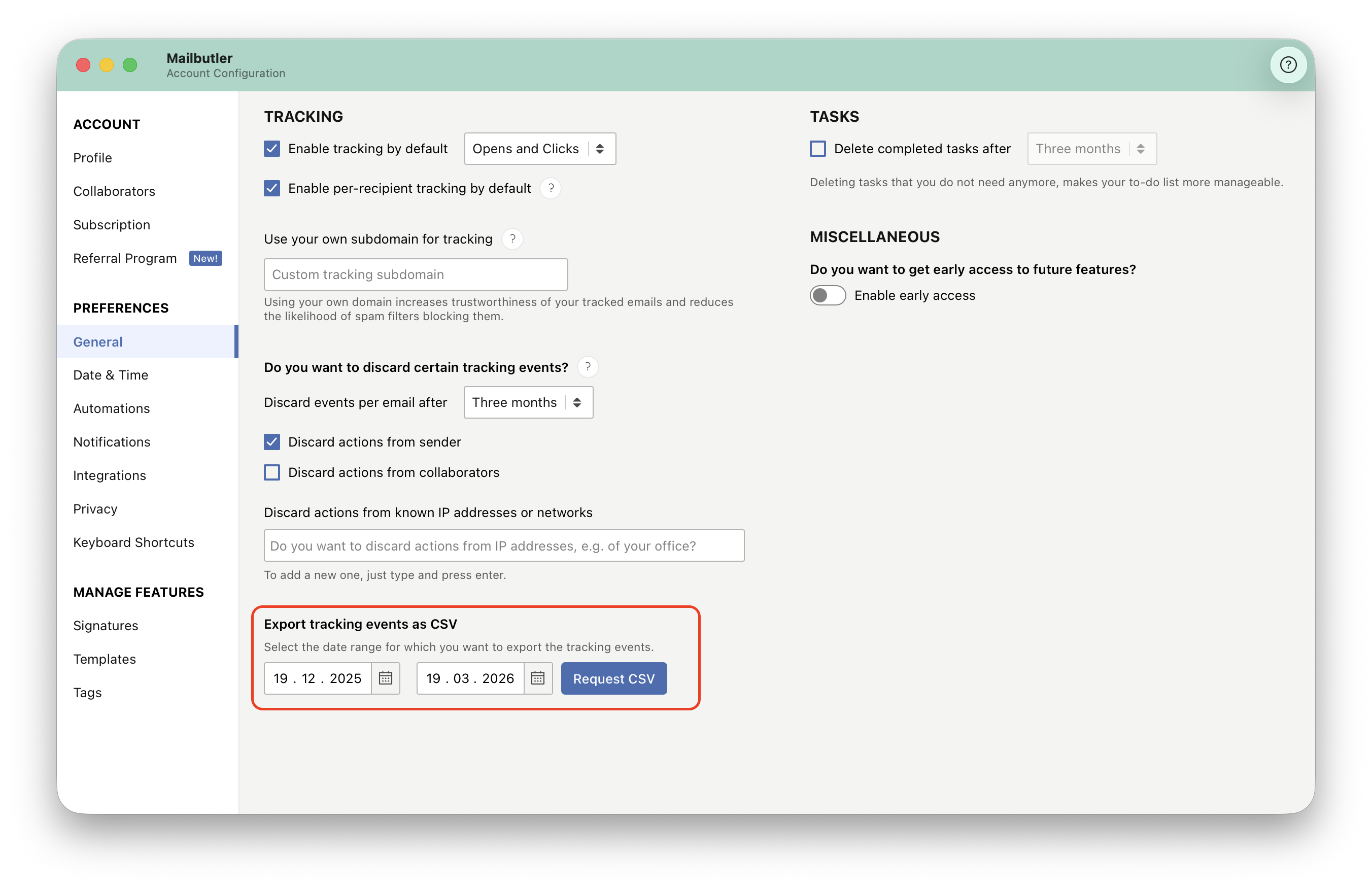
After you click Request CSV, the CSV file will be sent to the email address associated with your Mailbutler account.
Please note: The tracking events export lists every individual tracking event. If a single email triggers multiple events, the same email will appear multiple times—once for each event recorded.
Gmail
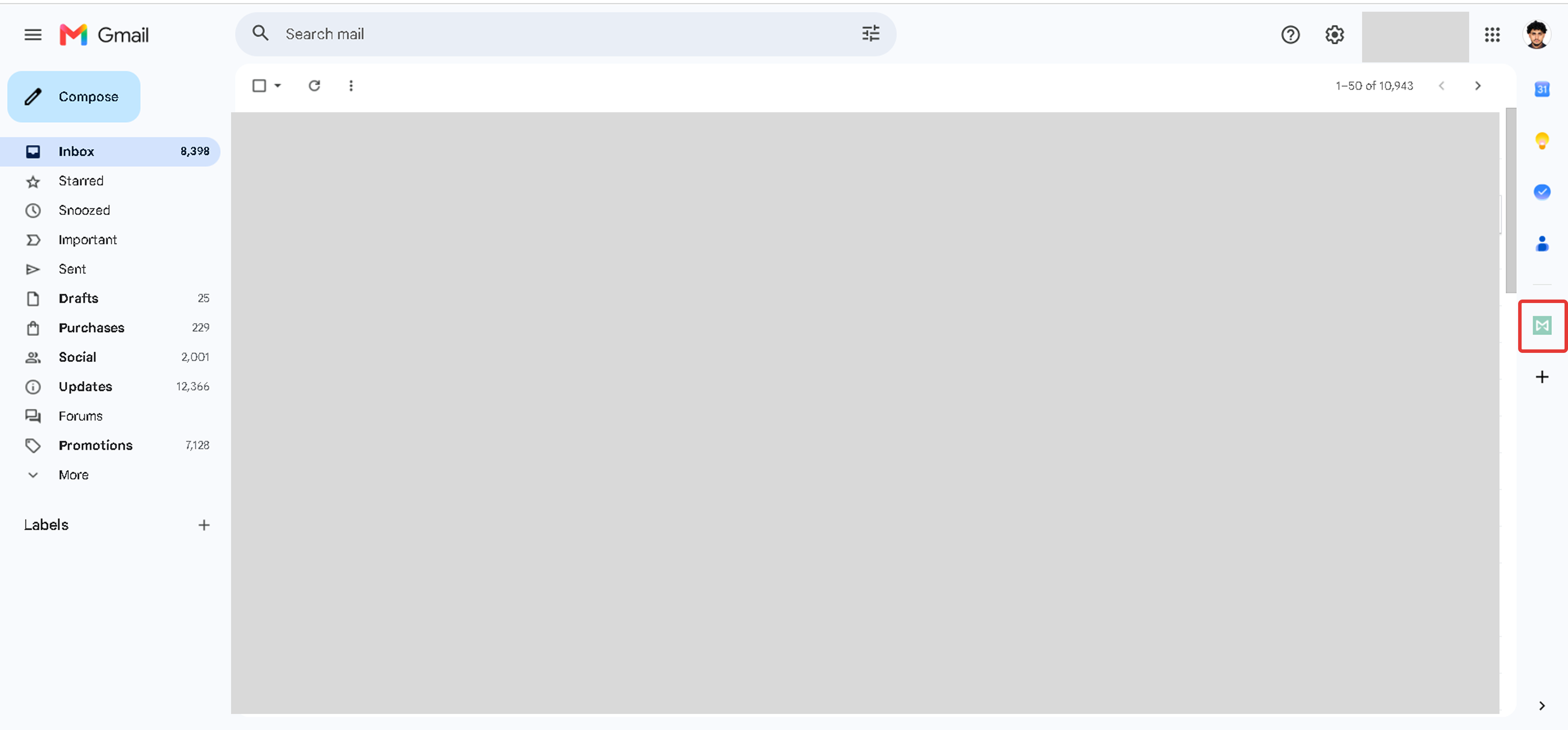
Open the Mailbutler Sidebar by clicking the Mailbutler icon on the right side of Gmail.
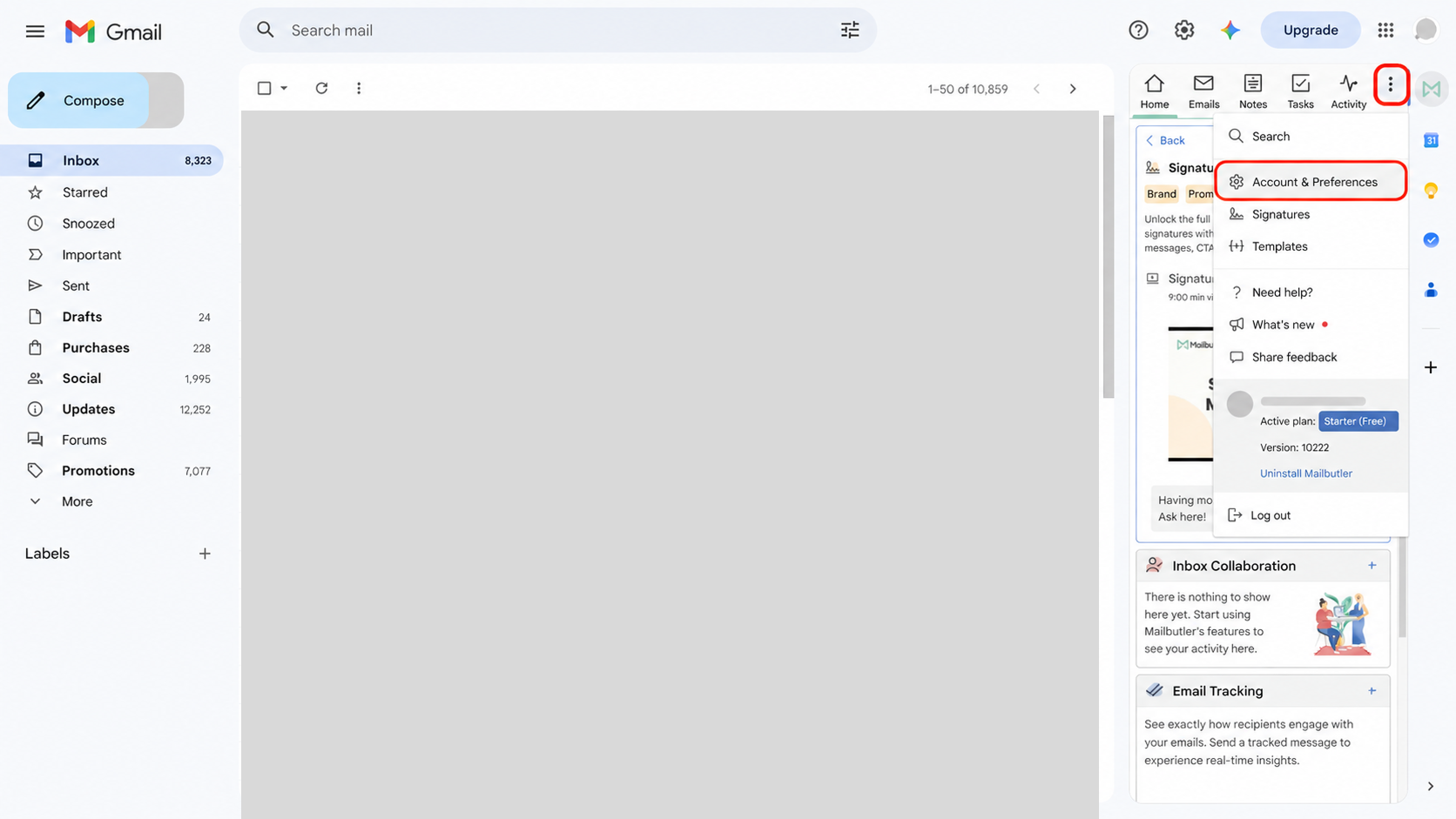
In the Mailbutler Sidebar, click the three dots, then select Account & Preferences.
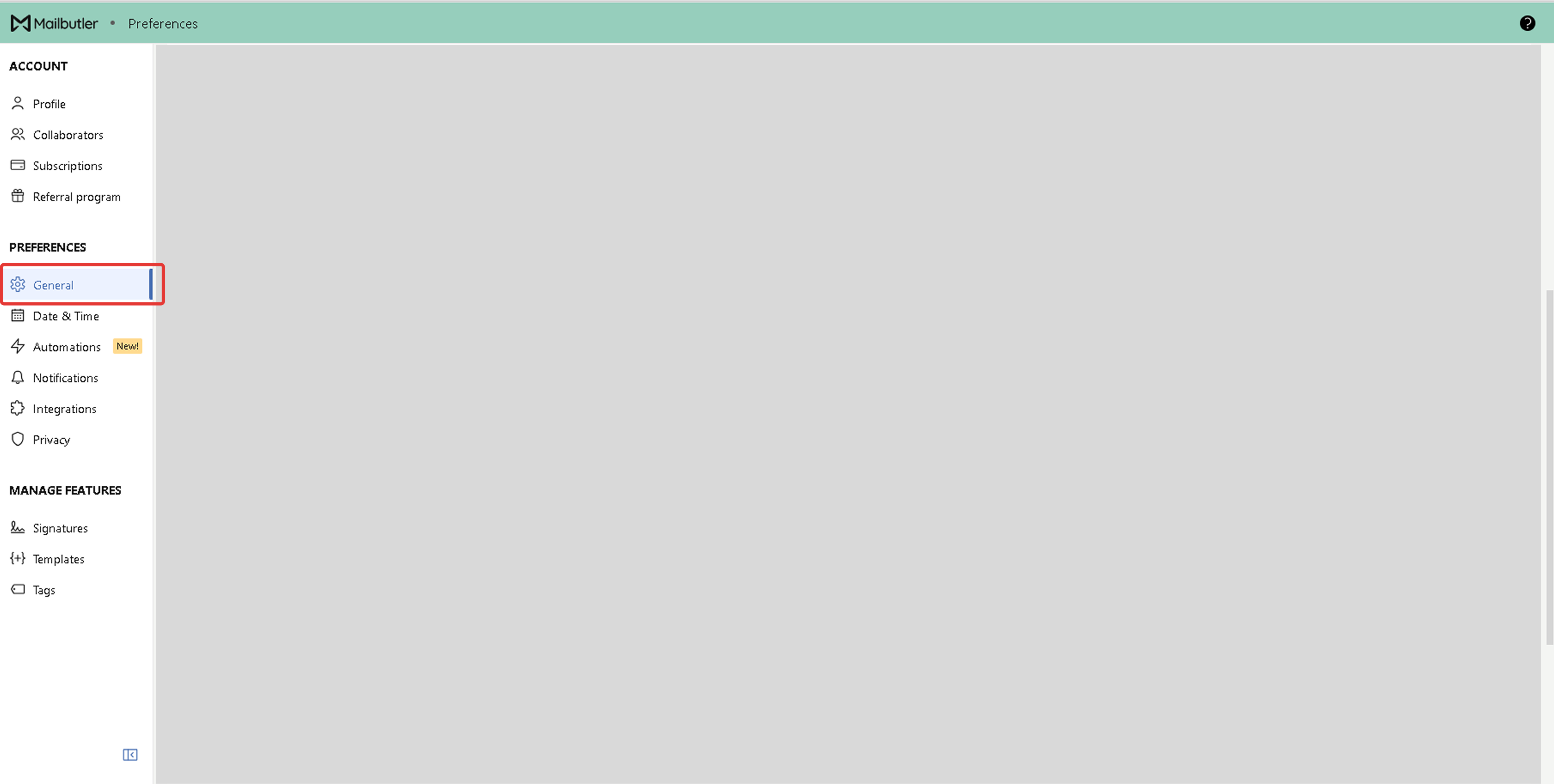
A new window will open. Under Preferences, select General in the sidebar on the left.
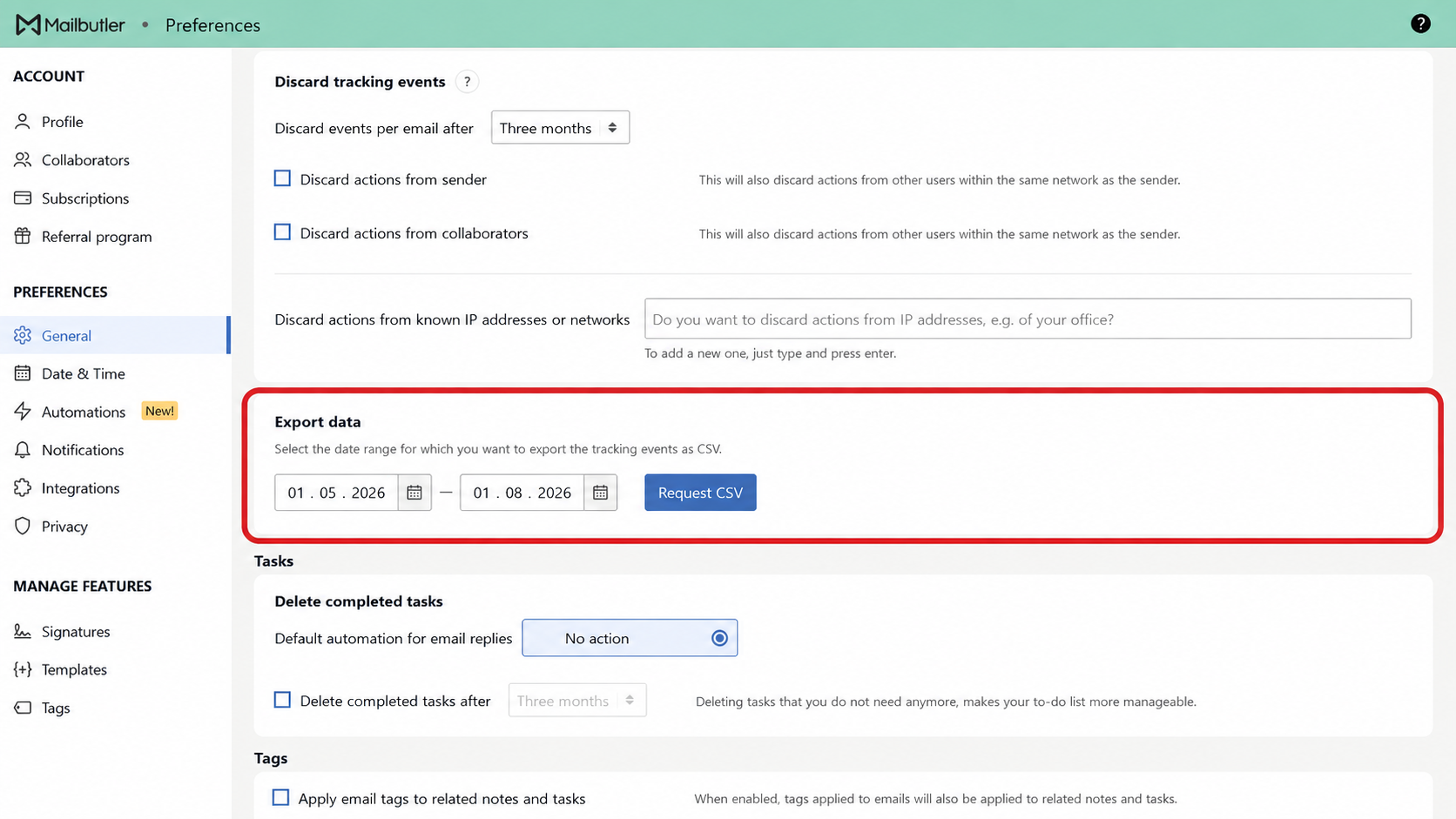
Scroll down to the Export Data section, select the date range you want to export, and click Request CSV.
After you click Request CSV, the CSV file will be sent to the email address associated with your Mailbutler account.
Please note: The tracking events export lists every individual tracking event. If a single email triggers multiple events, the same email will appear multiple times—once for each event recorded.
Outlook
Open the Mailbutler Sidebar in Outlook. For detailed instructions for your Outlook version, see How do I open the Mailbutler Sidebar in Outlook?
In the Mailbutler Sidebar, click the three dots, then select Account & Preferences.
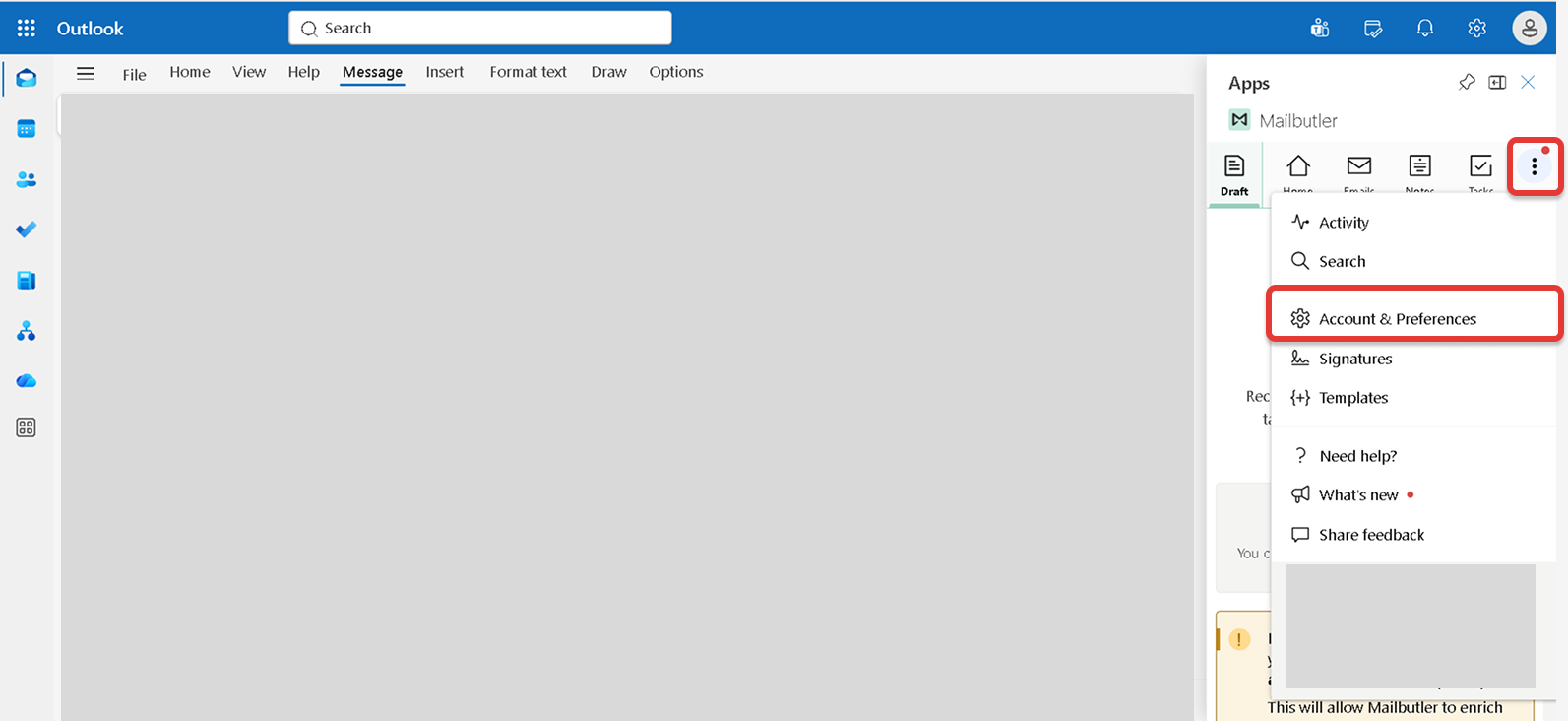
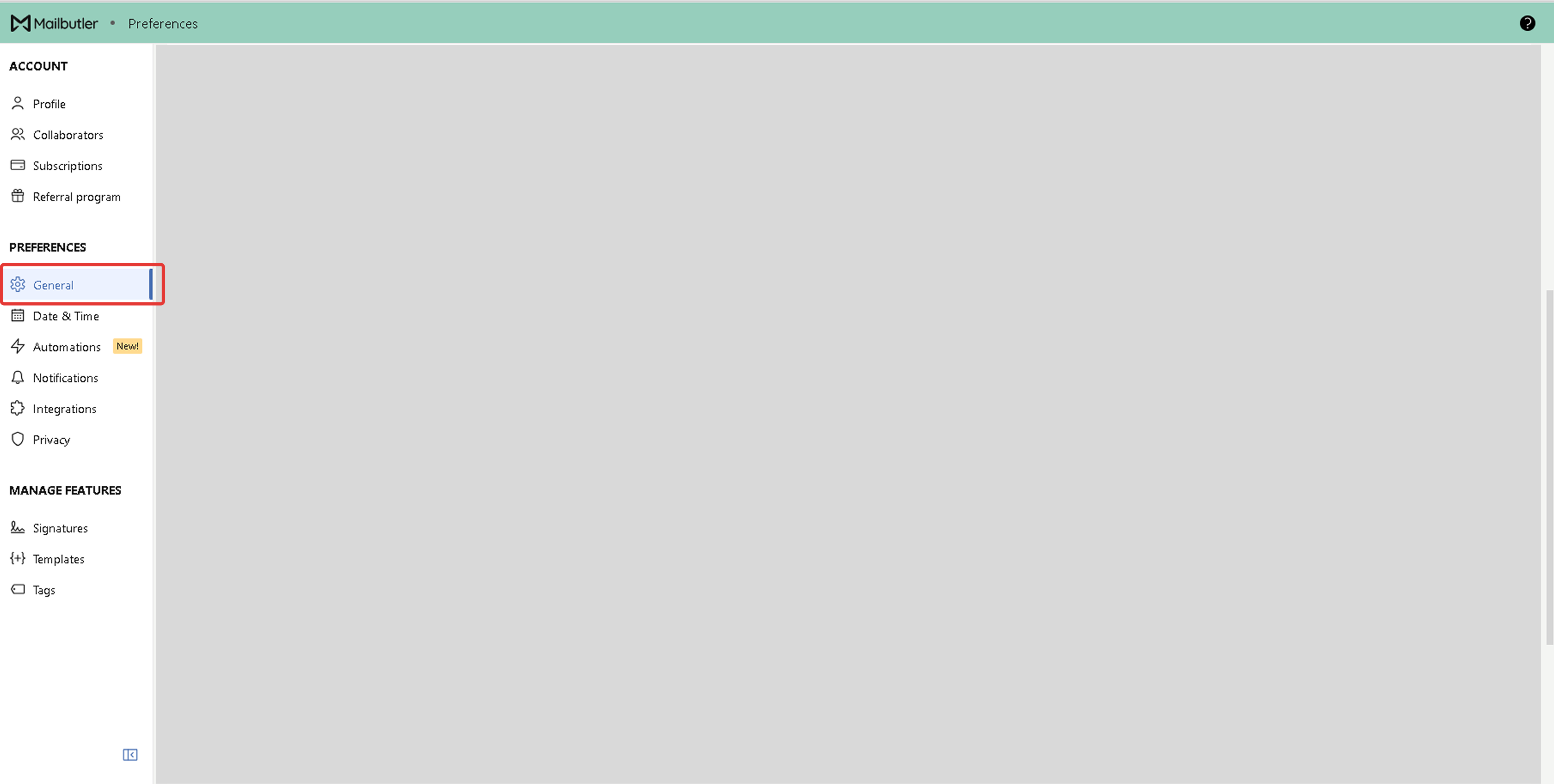
A new window will open. Under Preferences, select General in the sidebar on the left.
Scroll down to the Export Data section, select the date range you want to export, and click Request CSV.
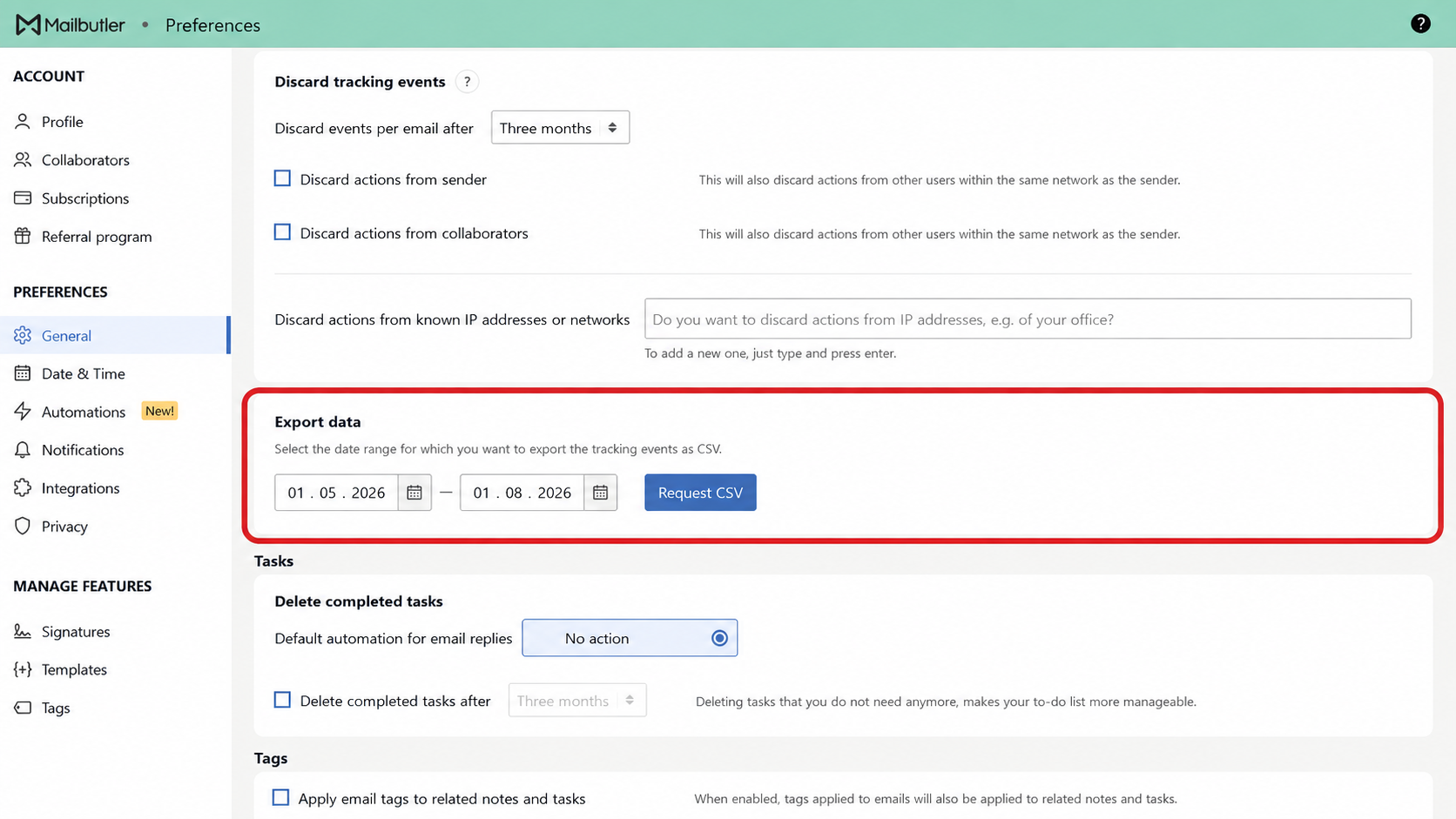
After you click Request CSV, the CSV file will be sent to the email address associated with your Mailbutler account.
Please note: The tracking events export lists every individual tracking event. If a single email triggers multiple events, the same email will appear multiple times—once for each event recorded.
For general information about Tracking, check out our feature page.