

HubSpot
1. Open the Mailbutler Sidebar in your email client.
2. In the Mailbutler Sidebar, click the three dots and then Account & Preferences.
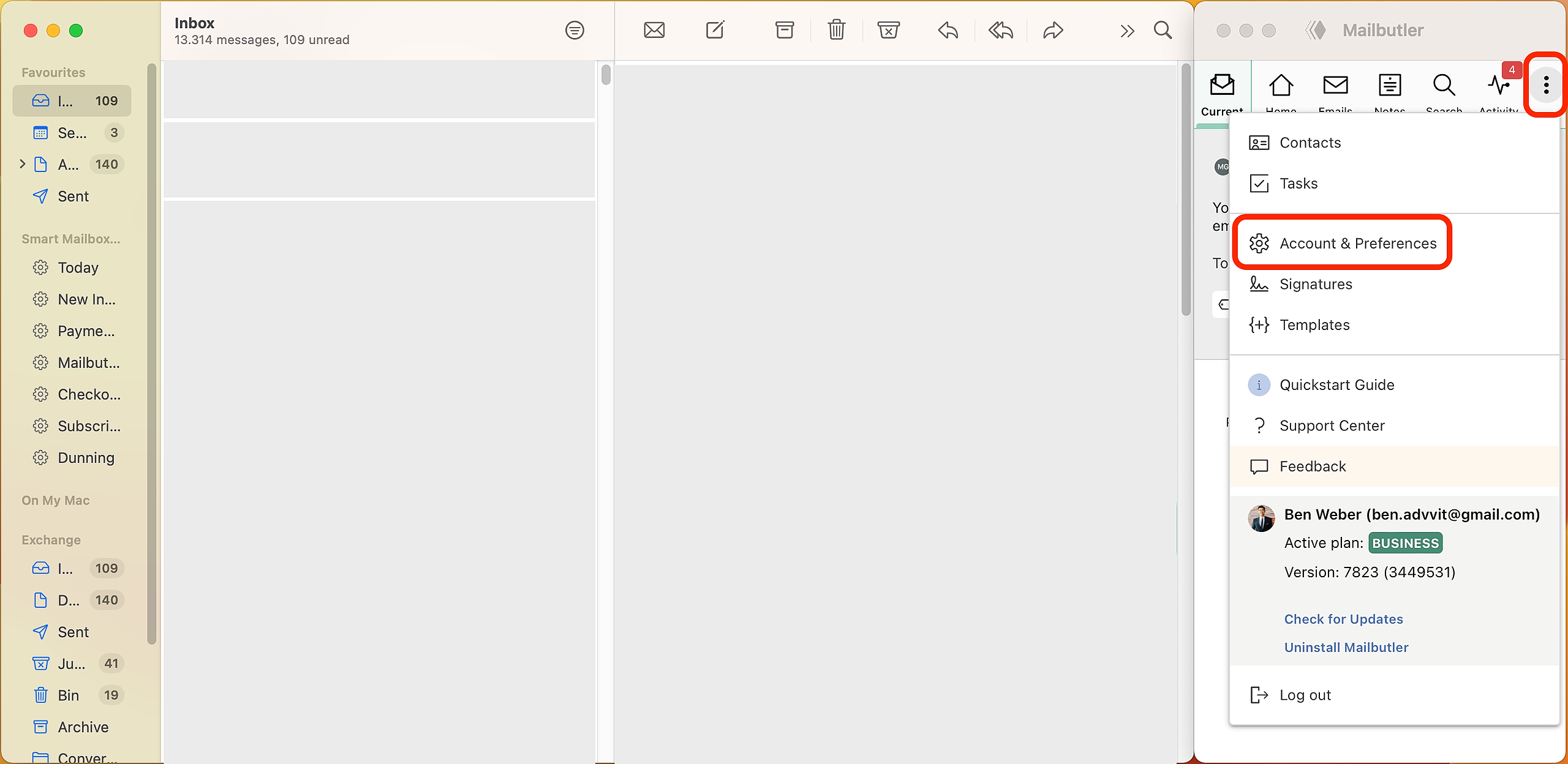
3. A new window will open. Select Integrations under Preferences in the sidebar on the left.
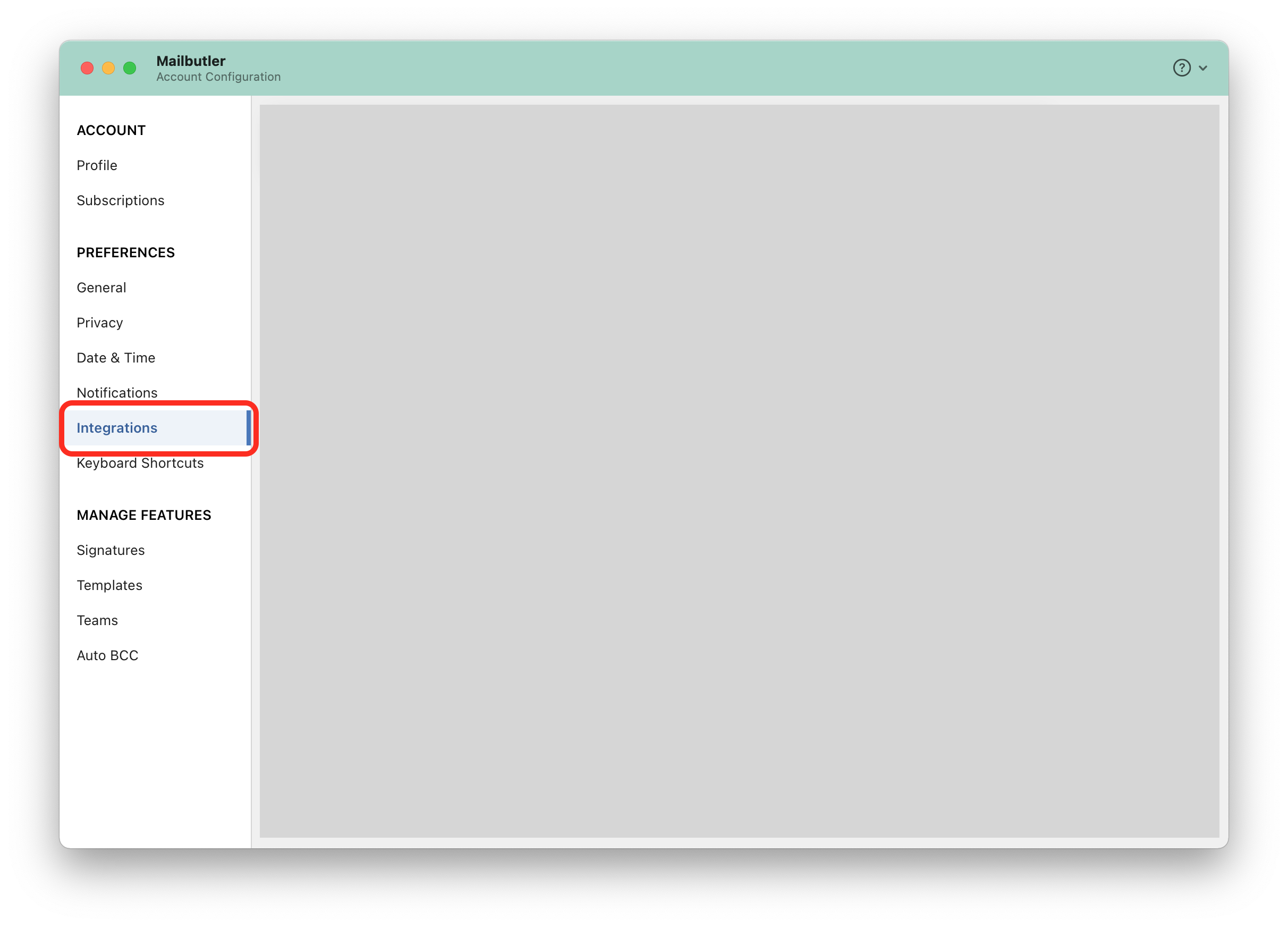
4. Click the plus button, then select HubSpot under CRM Tools.

5. Follow the on-screen instructions to complete the integration setup.
6. From now on, whenever you send an email to a HubSpot contact using your native email client with Mailbutler installed, tracking information—including email opens and link clicks—will automatically appear in the contact’s Activity section in HubSpot.

Salesforce
1. Open the Mailbutler Sidebar in your email client.
2. In the Mailbutler Sidebar, click the three dots and then Account & Preferences.
3. A new window will open. Select Integrations under Preferences in the sidebar on the left.
4. Click the plus button, then select Salesforce under CRM Tools.

5. Follow the on-screen instructions to complete the integration setup.
6. Click this link to install Mailbutler inside Salesforce. Please note that installation can only be performed by a Salesforce administrator.
7. Follow the on-screen instructions to complete the installation.

8. From now on, whenever you send an email to a Salesforce contact using your native email client with Mailbutler installed, tracking information—including email opens and link clicks—will automatically appear in the contact’s Activity section in Salesforce.
