

How do I use Smart Follow-ups?
Open the Mailbutler Sidebar.
Go to the Home tab.
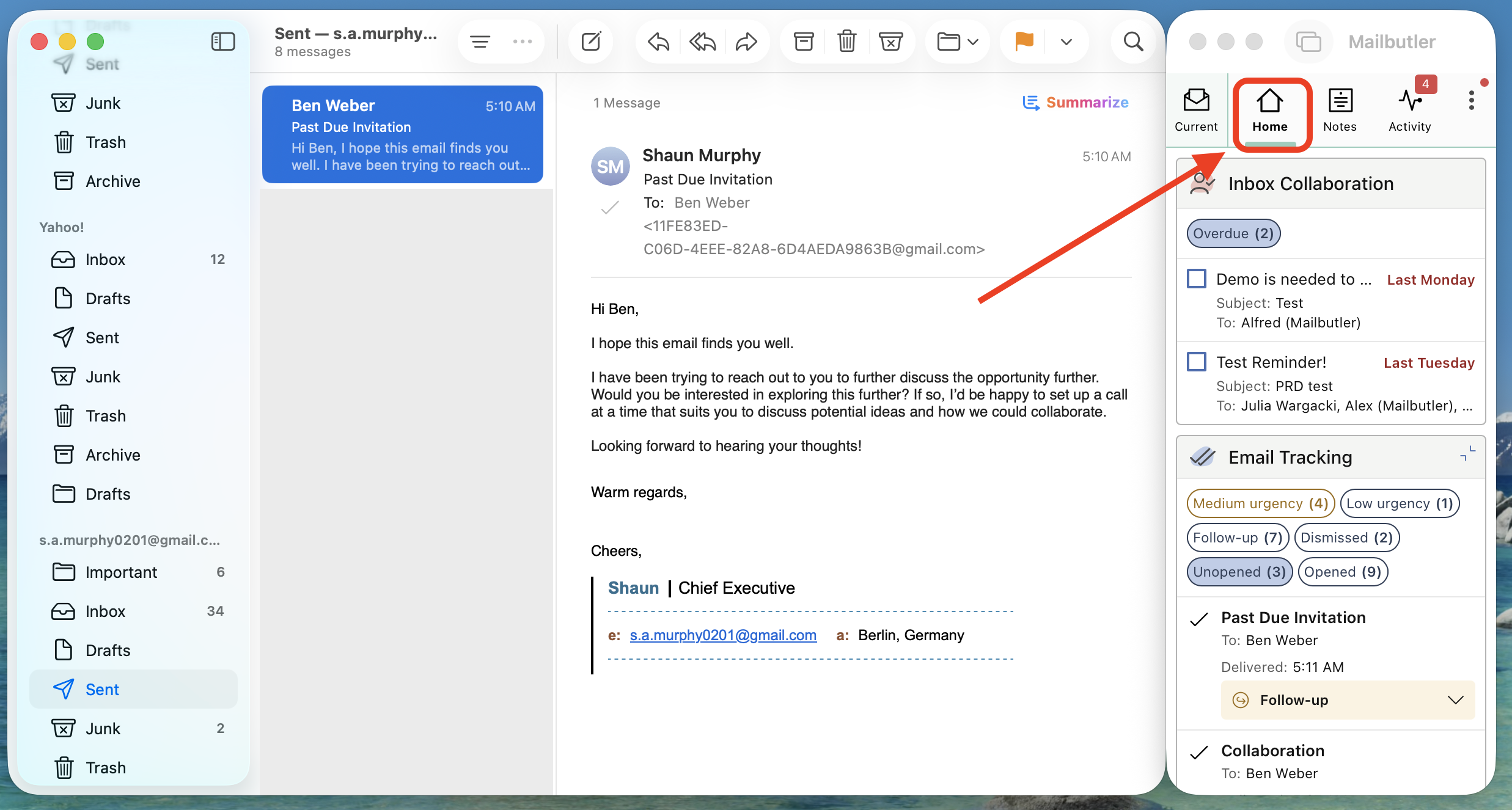
Open the Email Tracking widget.
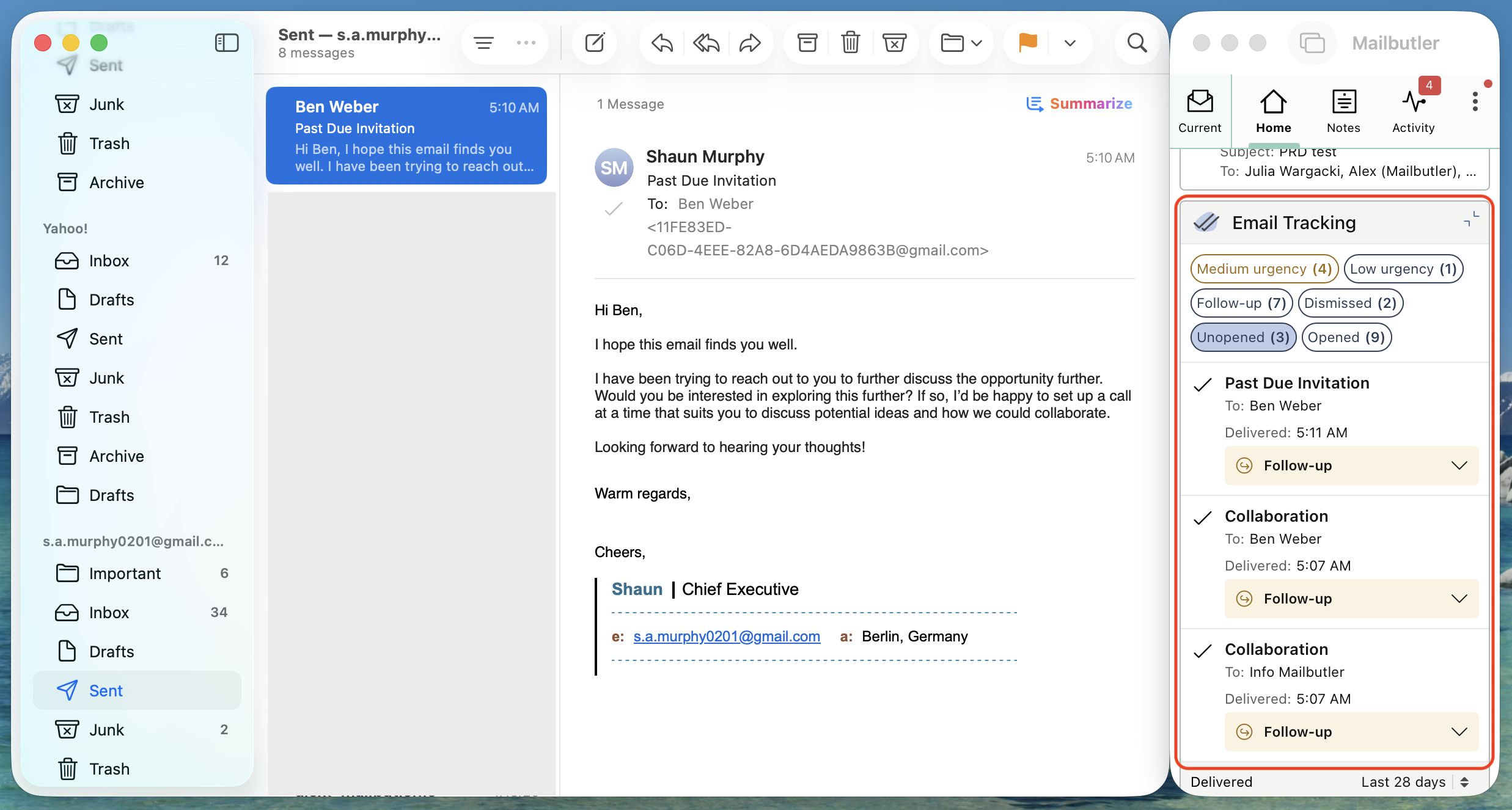
Smart Follow-up suggestions are marked with low, medium, or high urgency. You can also view the reason for each urgency level.

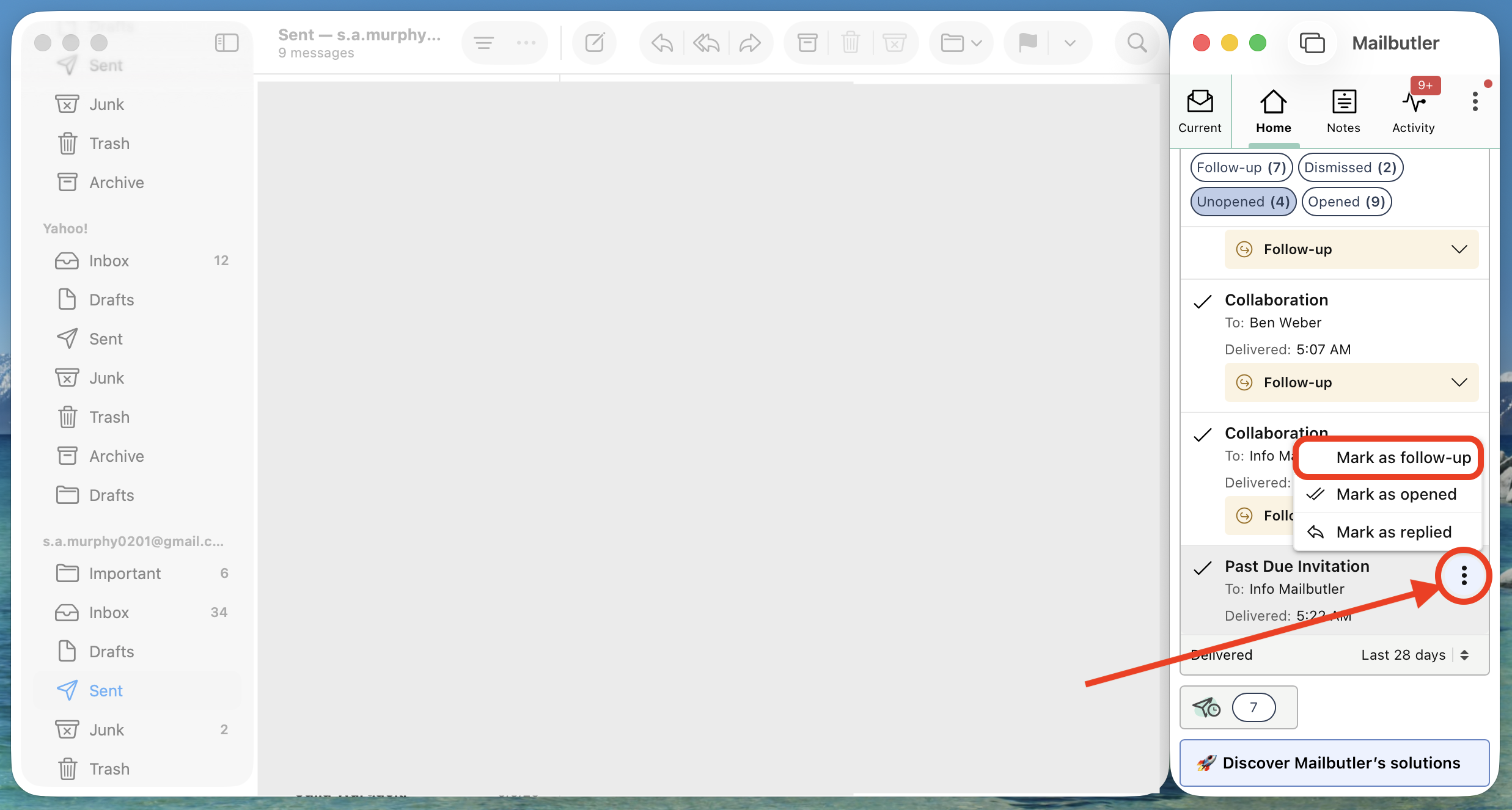
To manually flag a tracked email that has not been suggested as a Smart Follow-up by Mailbutler, click the three dots next to the email and select Mark as follow up.
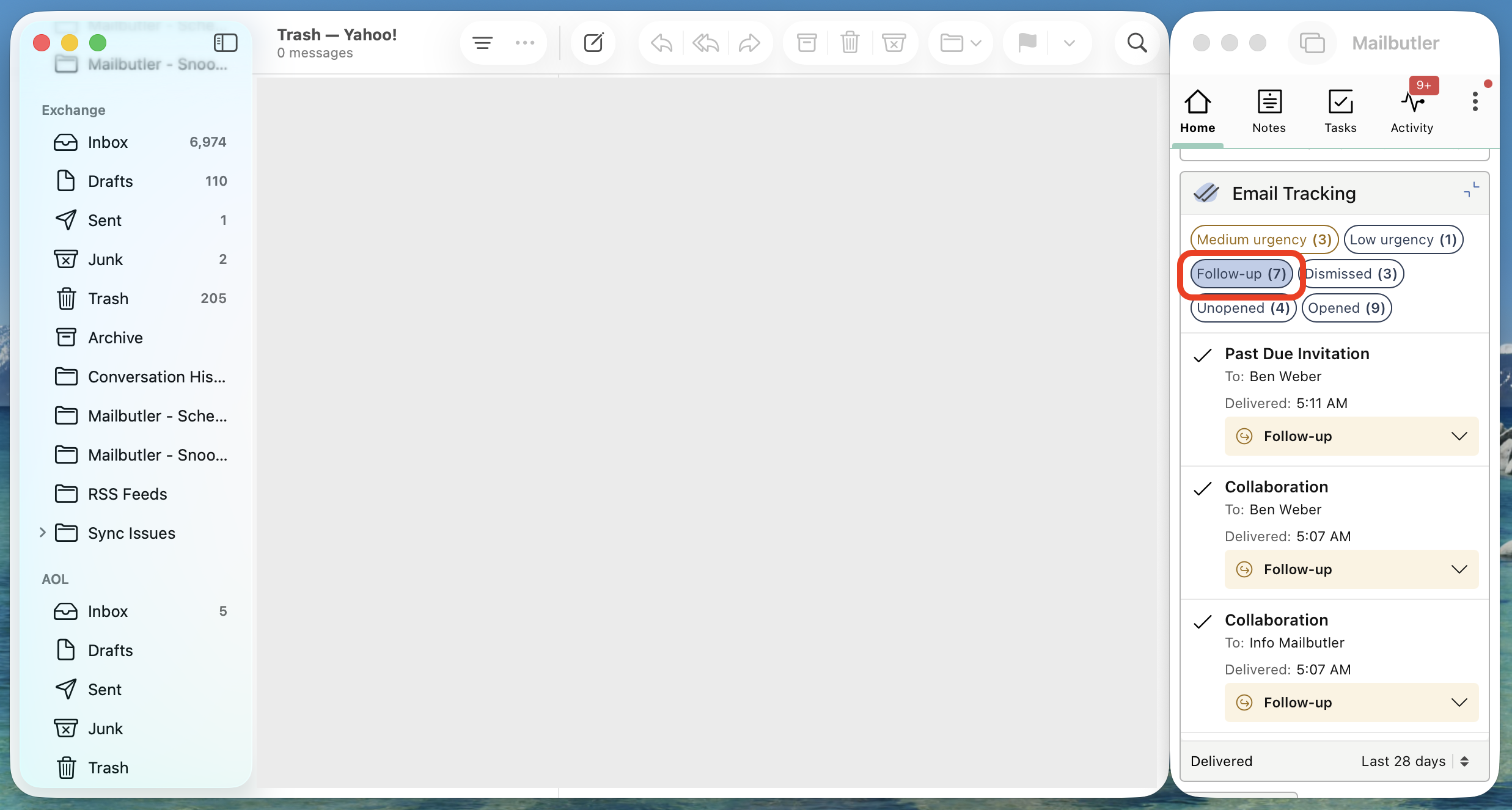
Select Follow-up from the list to view all Follow-ups.
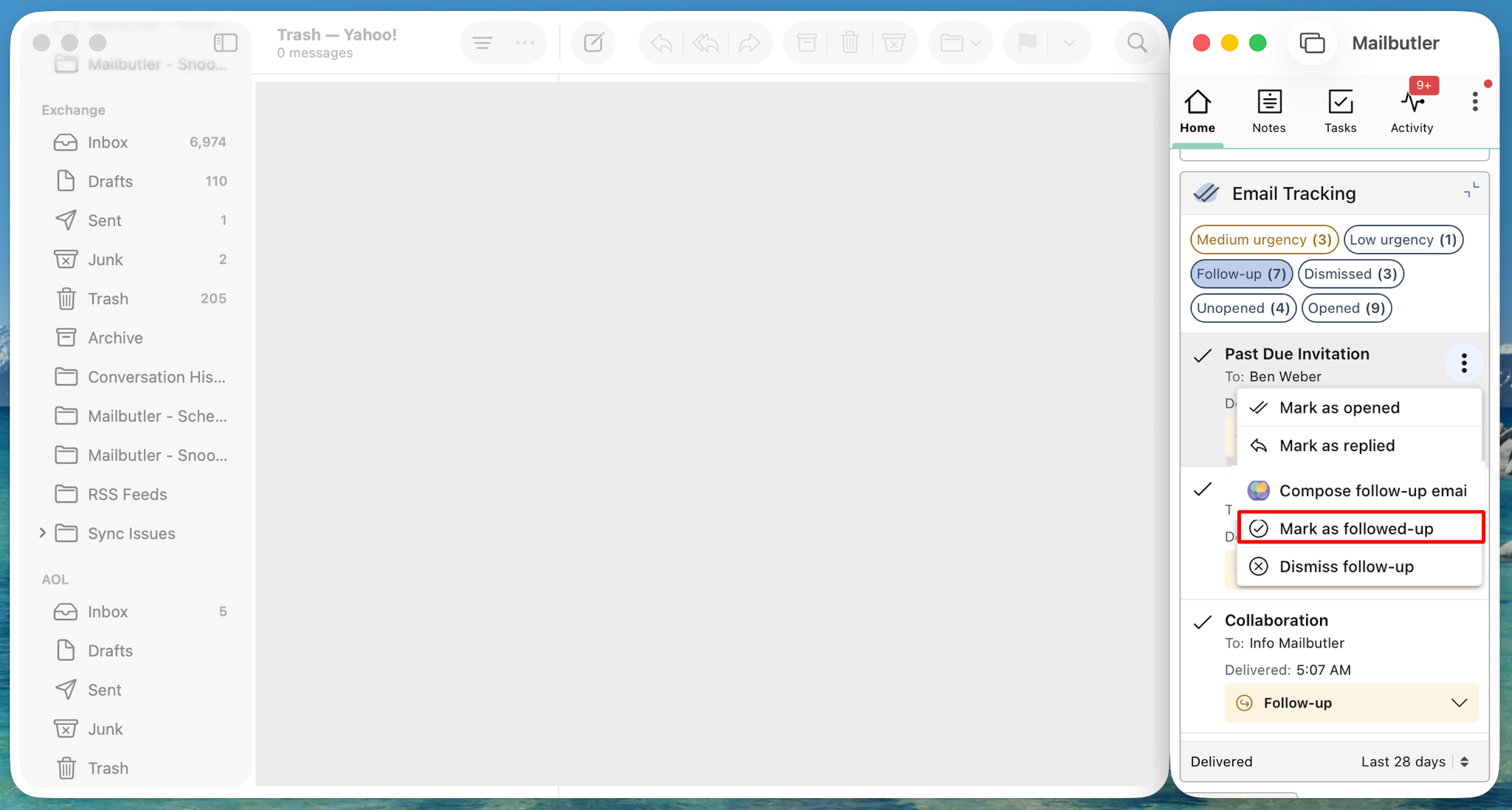
Click the three dots next to the email you want to follow up on.
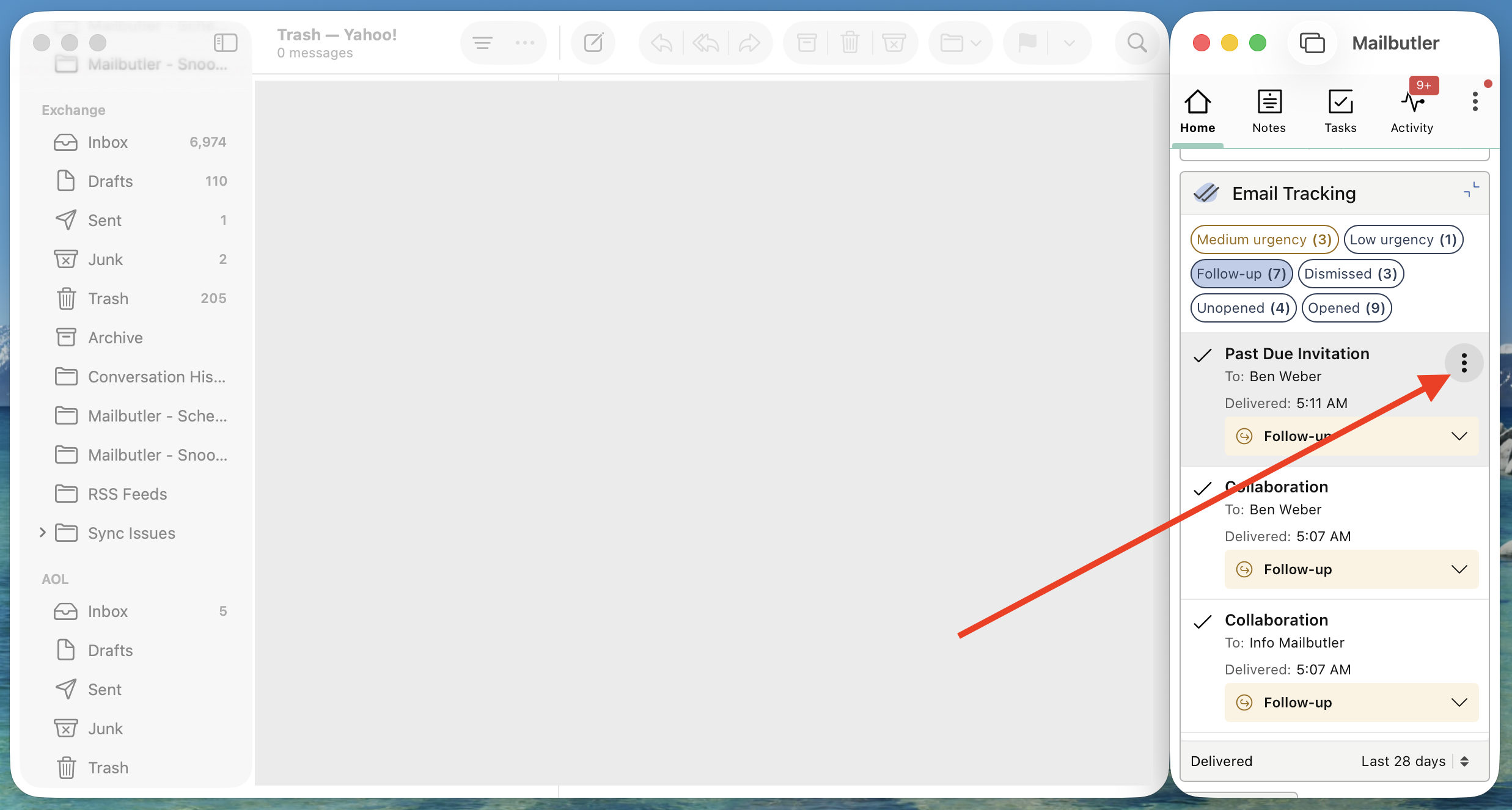
Select Compose follow-up email.
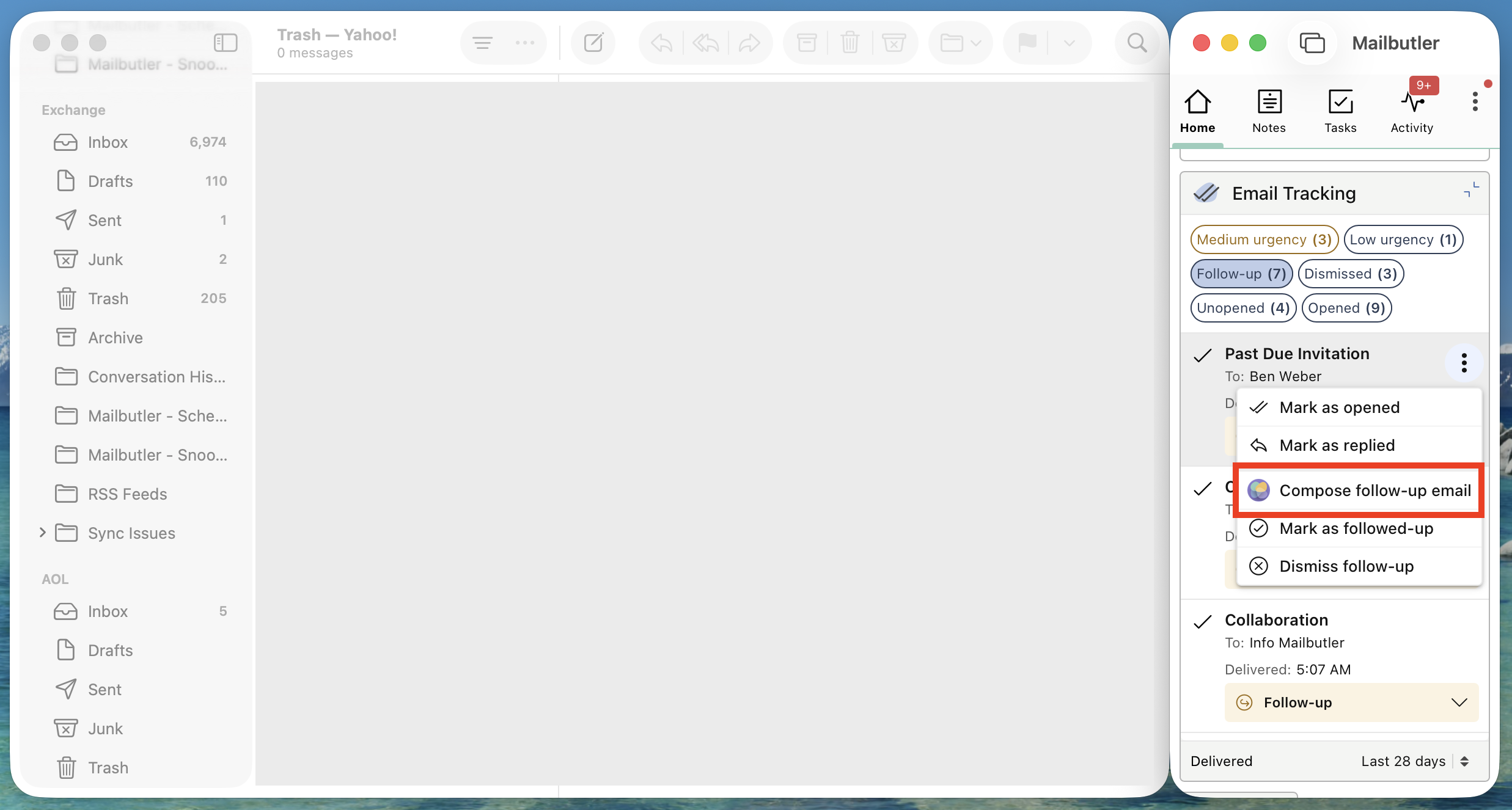
Smart Assistant will generate a drafted follow-up email. Select Open draft to open the message in a new compose window.
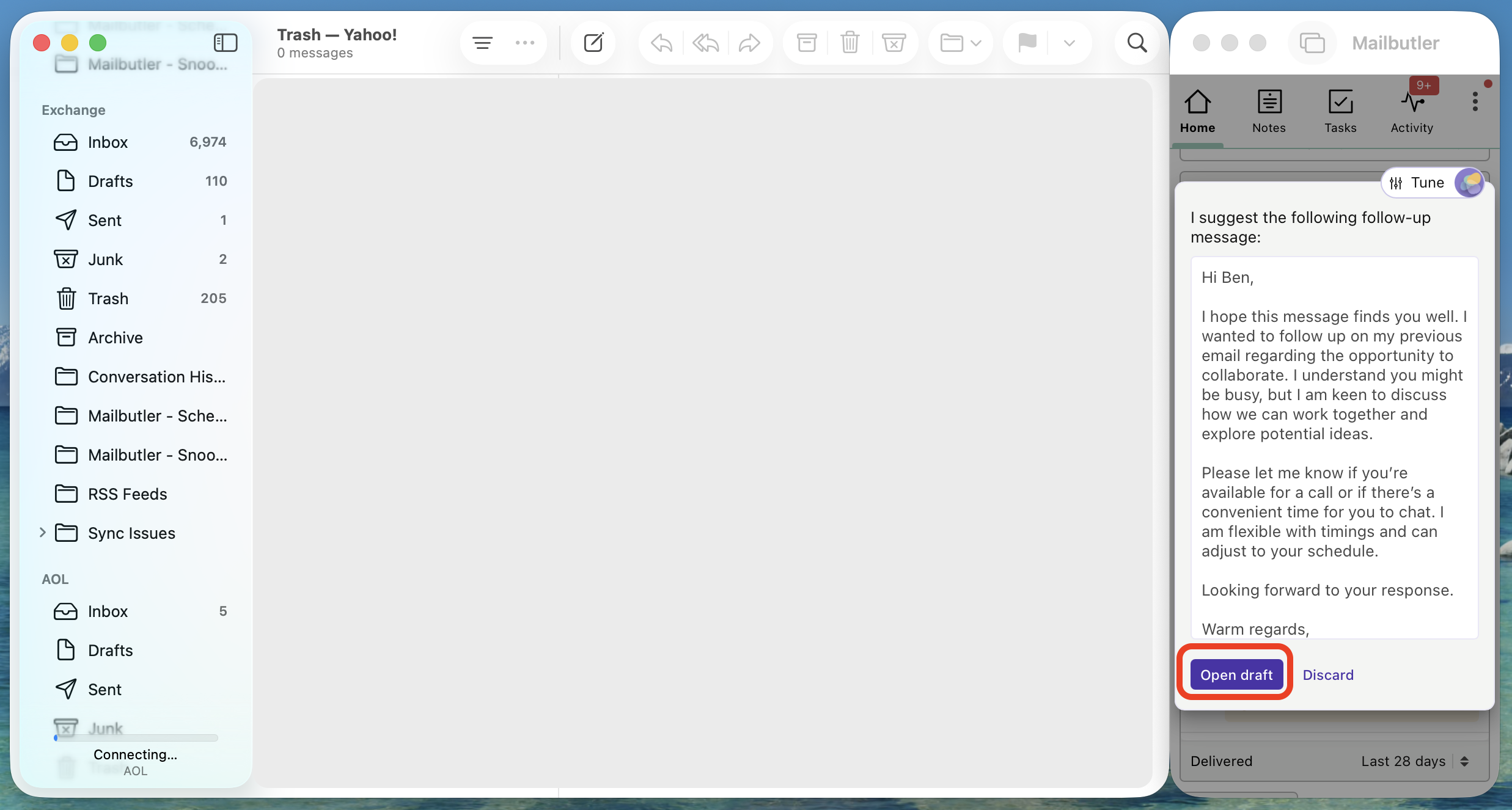
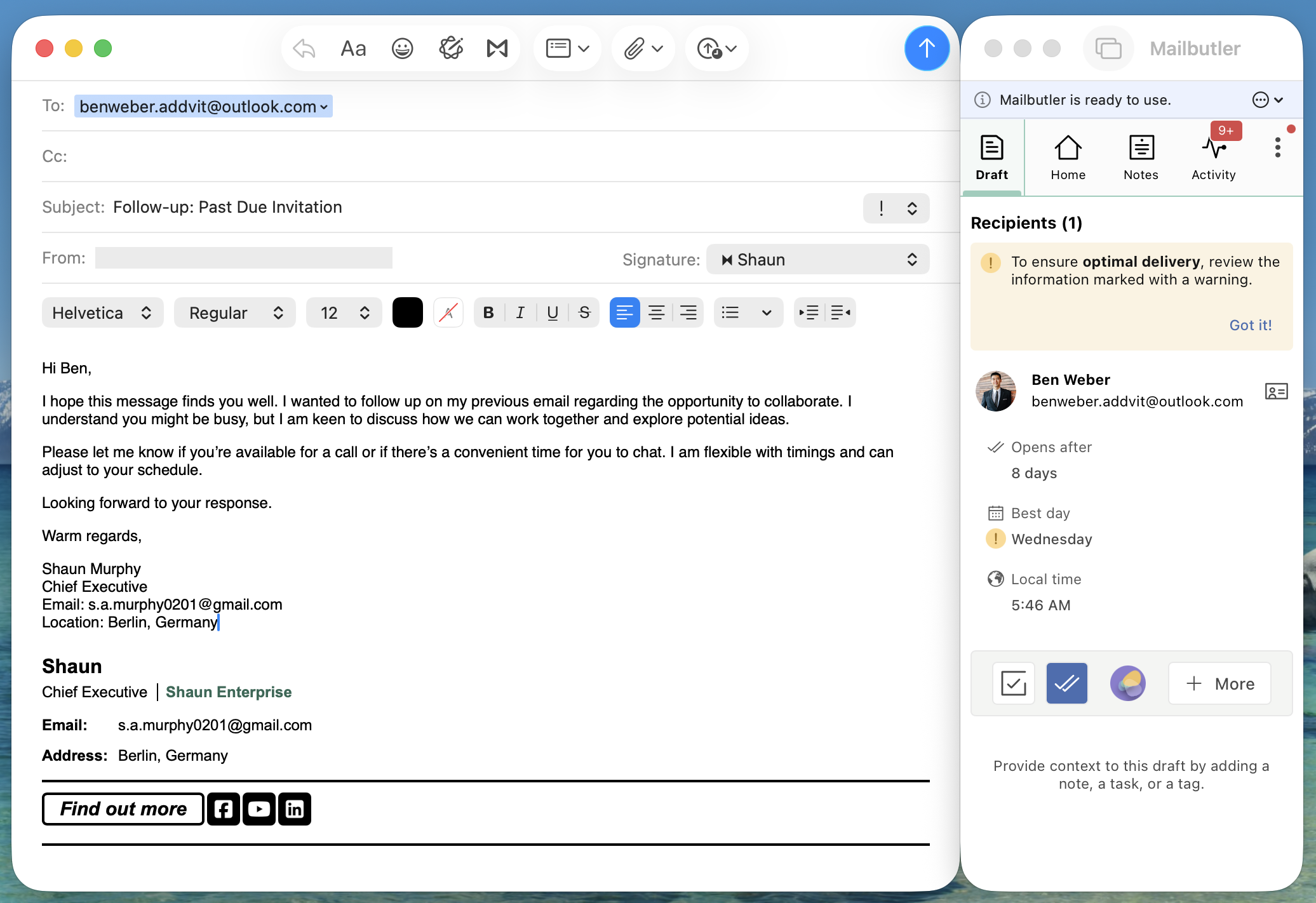
To mark a follow-up as completed, click the three dots next to the email and select Mark as followed-up.
How do I customize Smart Follow-ups?
Open Account & Preferences.
Go to General.
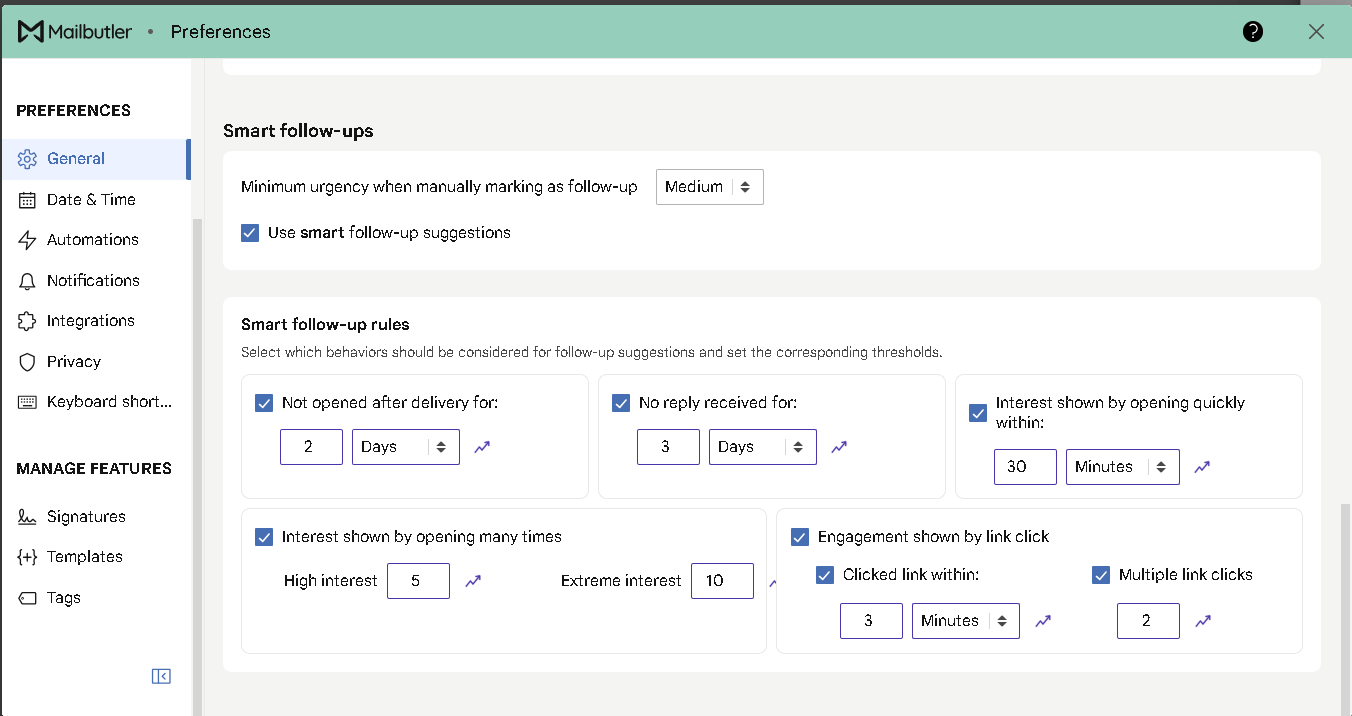
Under Smart follow-ups, you can enable or disable Use smart follow-up suggestions and choose the minimum urgency when manually marking an email as follow-up.
Under Smart follow-up rules, you can choose which email-tracking behaviors Mailbutler should consider when suggesting follow-ups and adjust their thresholds.