

Apple Mail
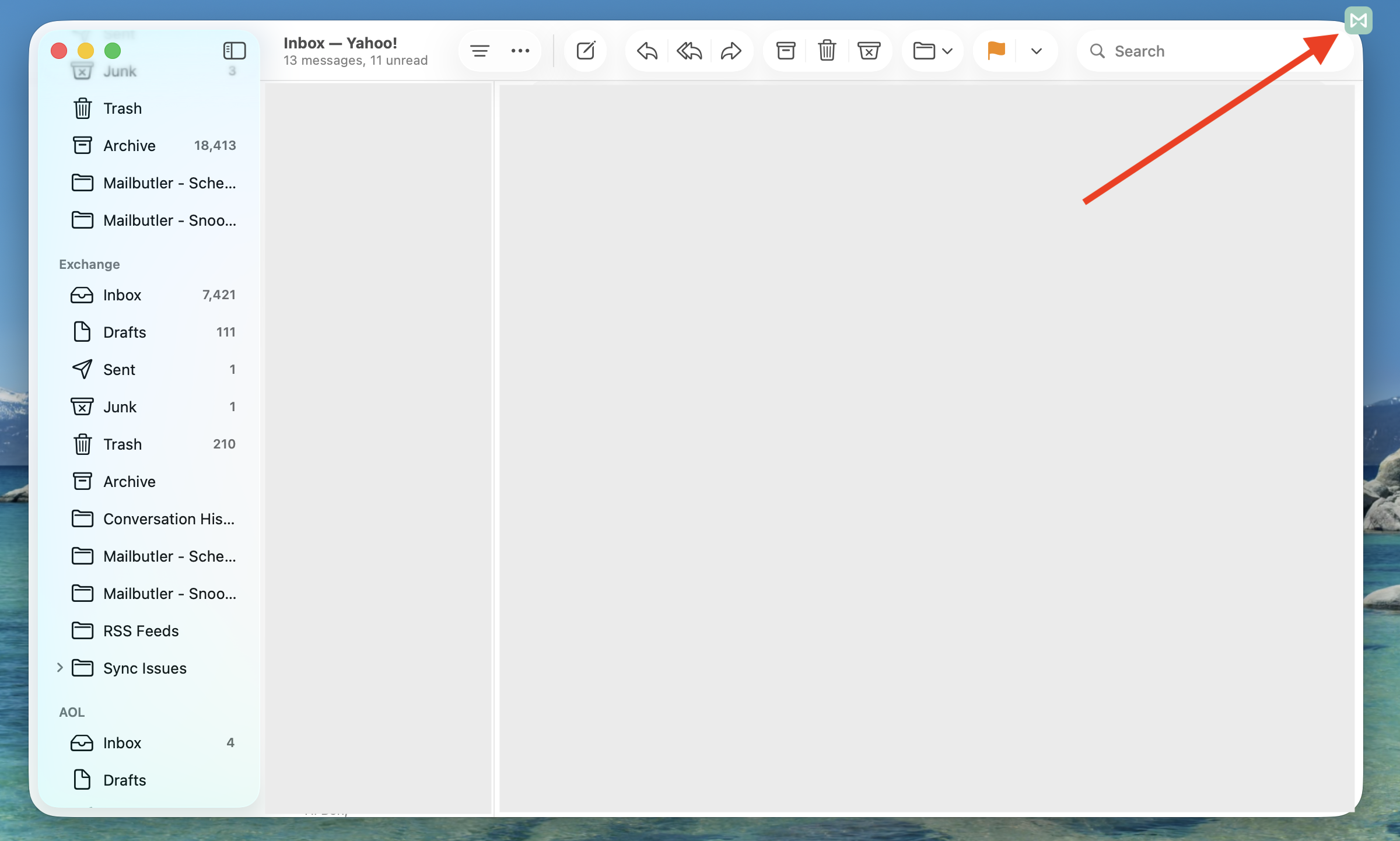
Click the Mailbutler icon at the top of your Apple Mail window to open the Mailbutler Sidebar.
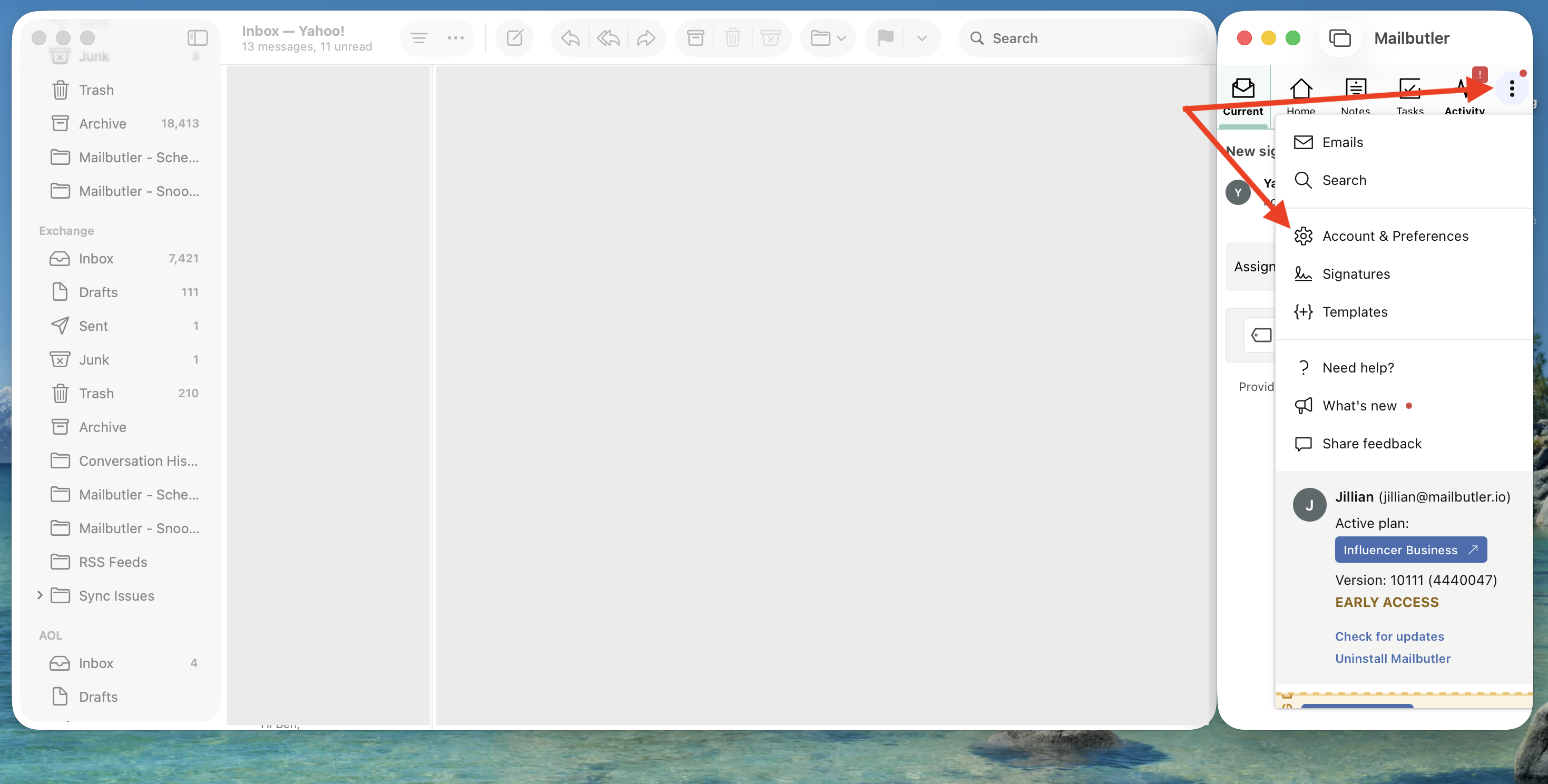
In the Mailbutler Sidebar, click the three dots and then Account & Preferences.
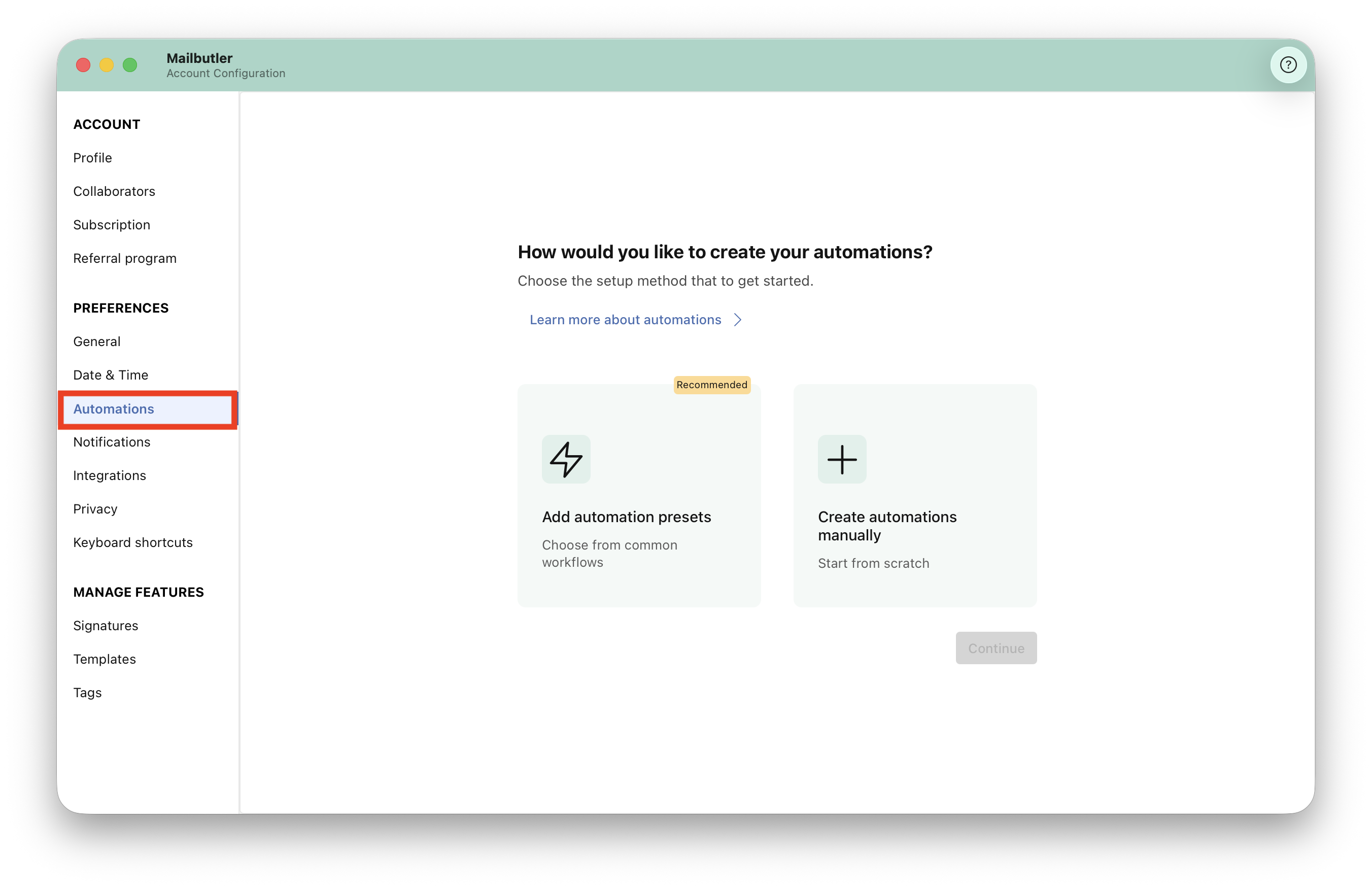
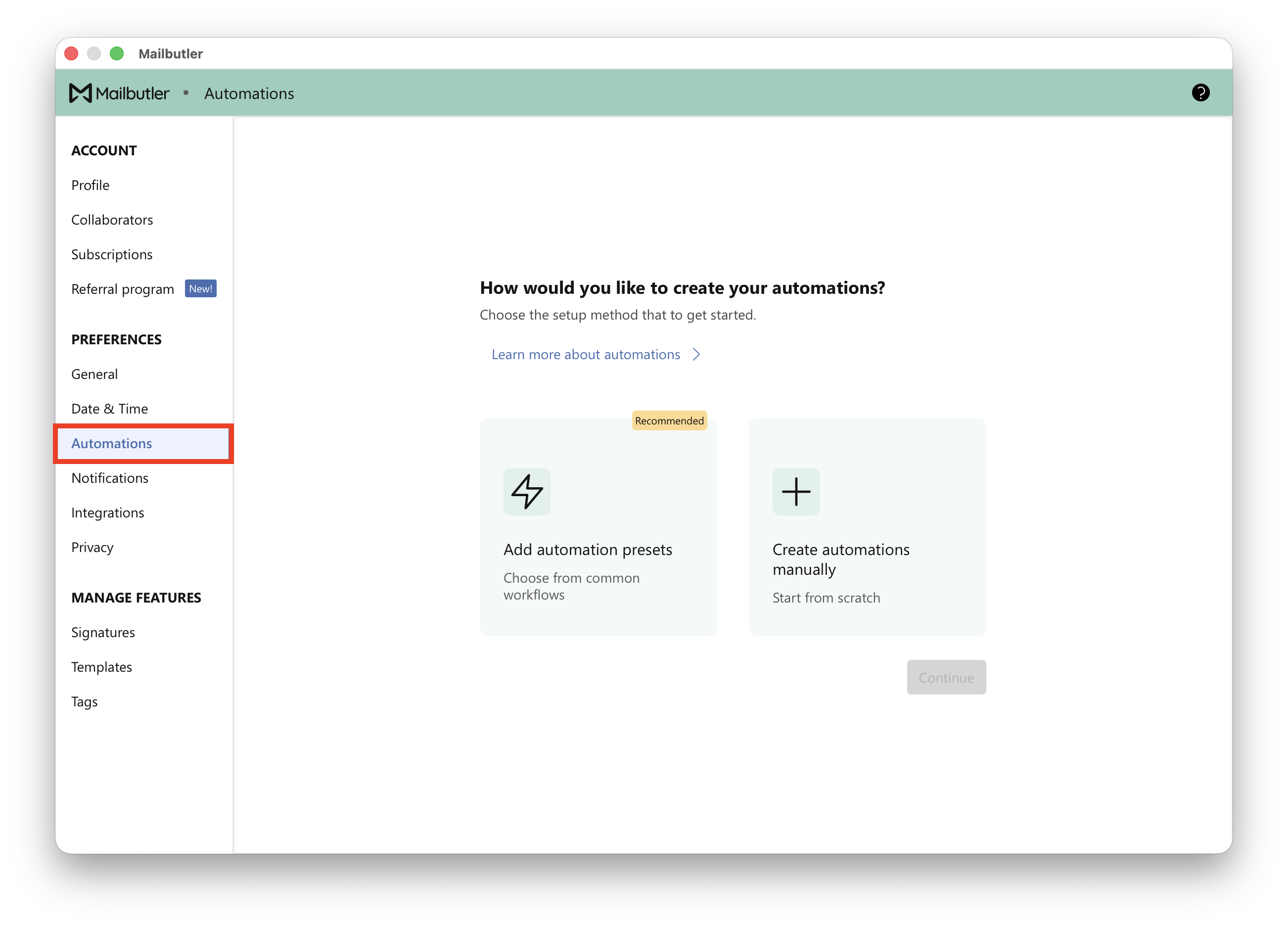
Select Automations under Preferences in the sidebar on the left menu panel.
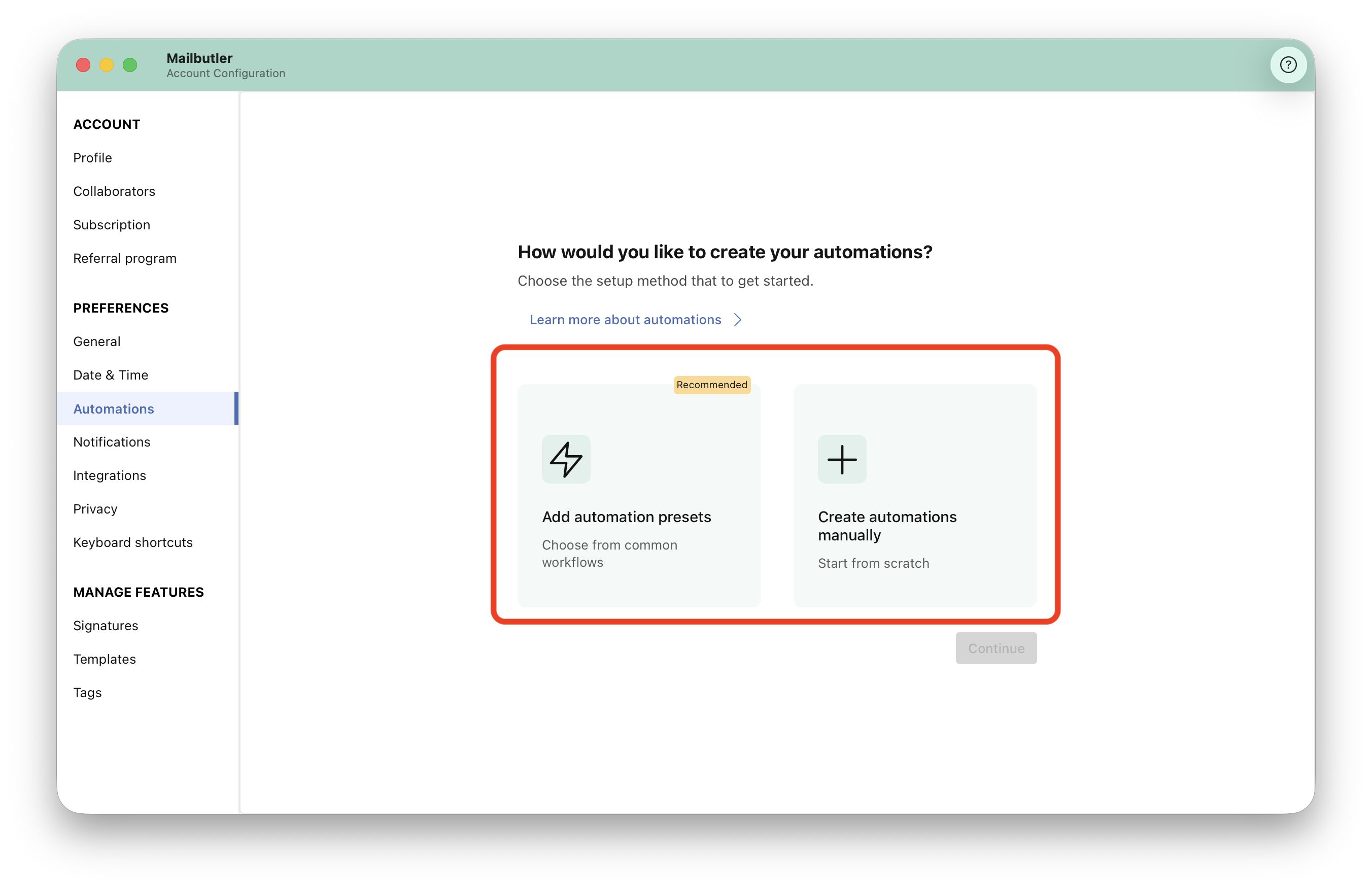
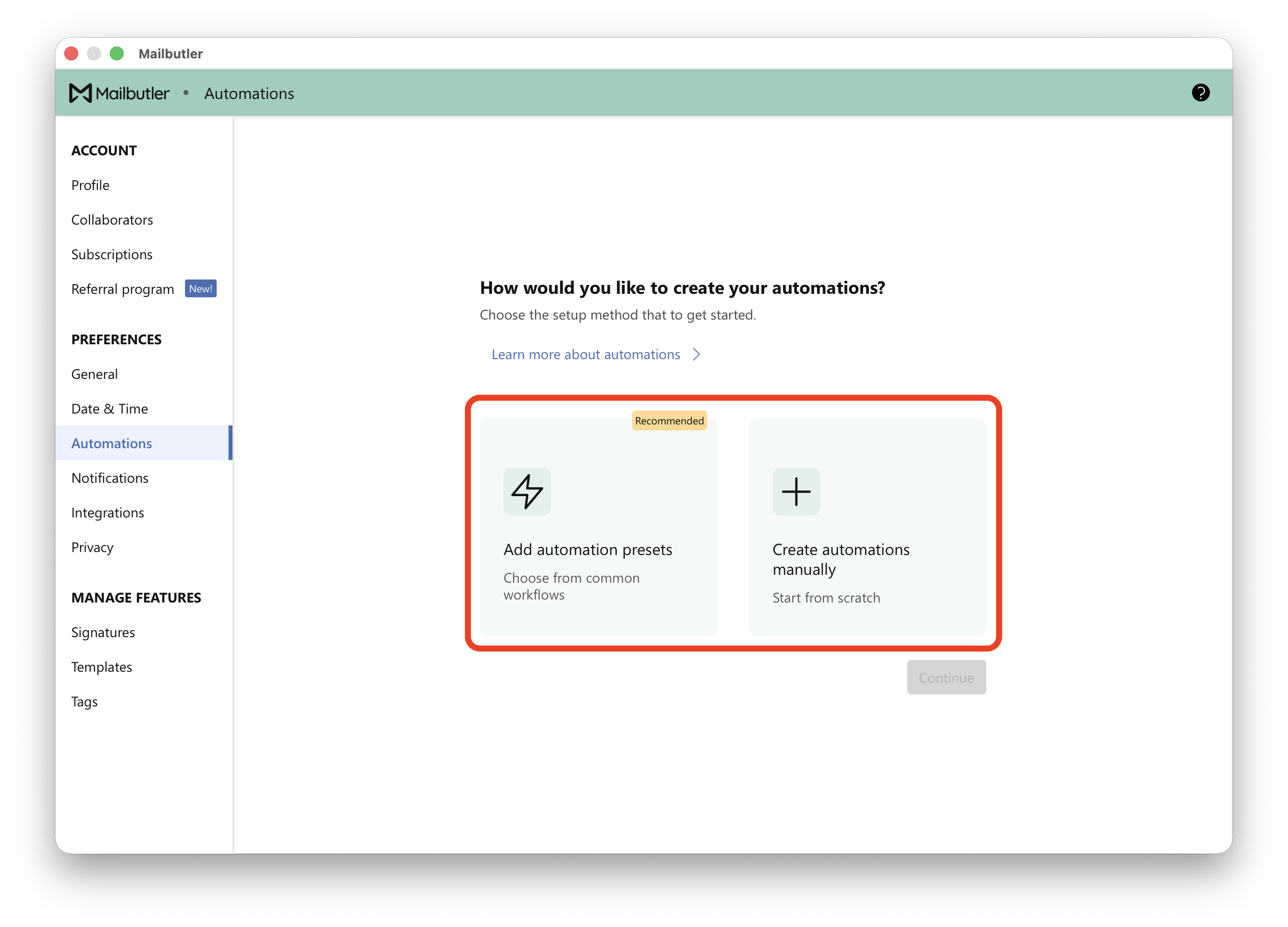
To create an automation, select Add automation presets or Create automations manually
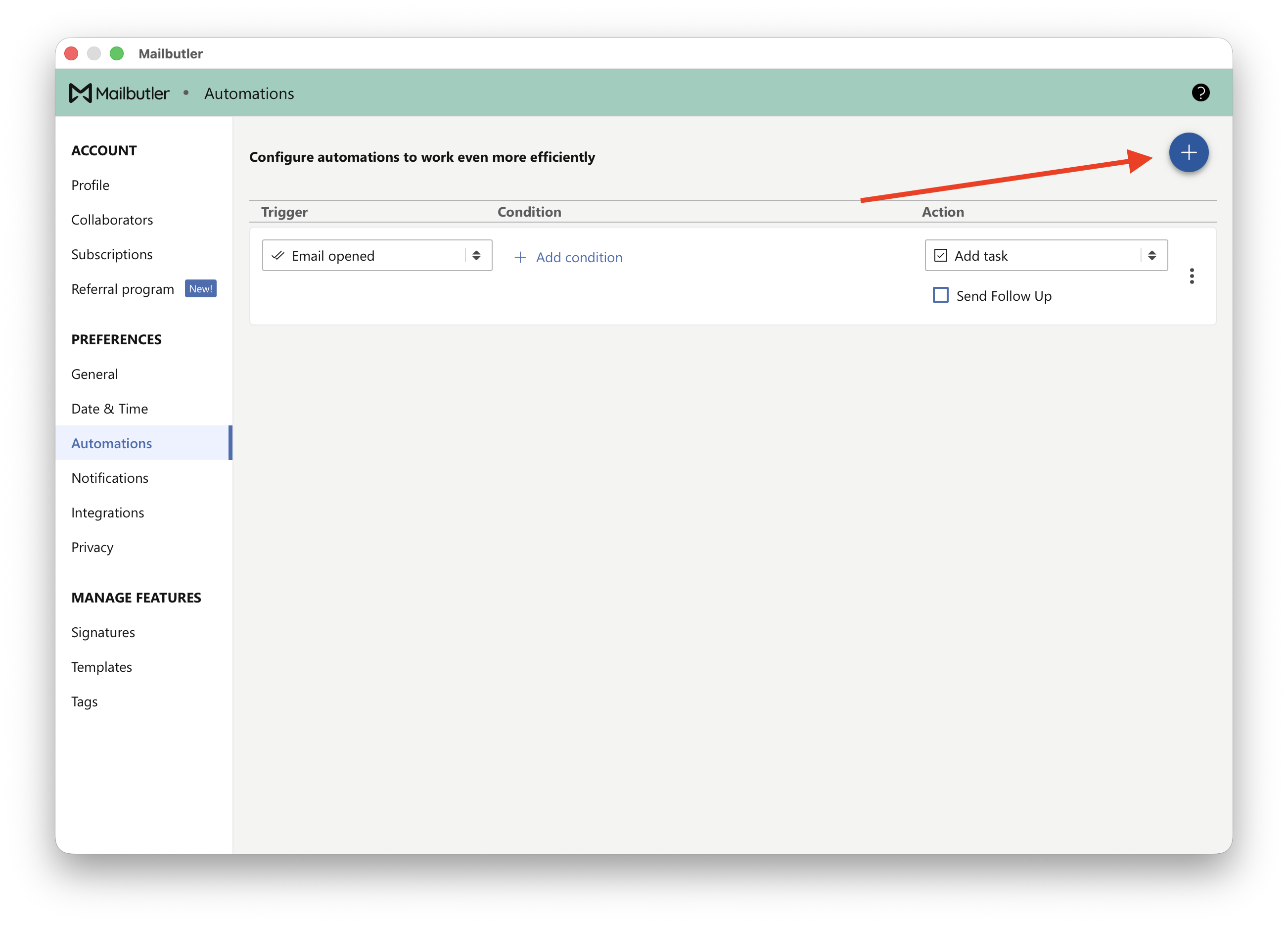
If you already have an automation and want to add another one, select (+) icon in the top right hand corner.
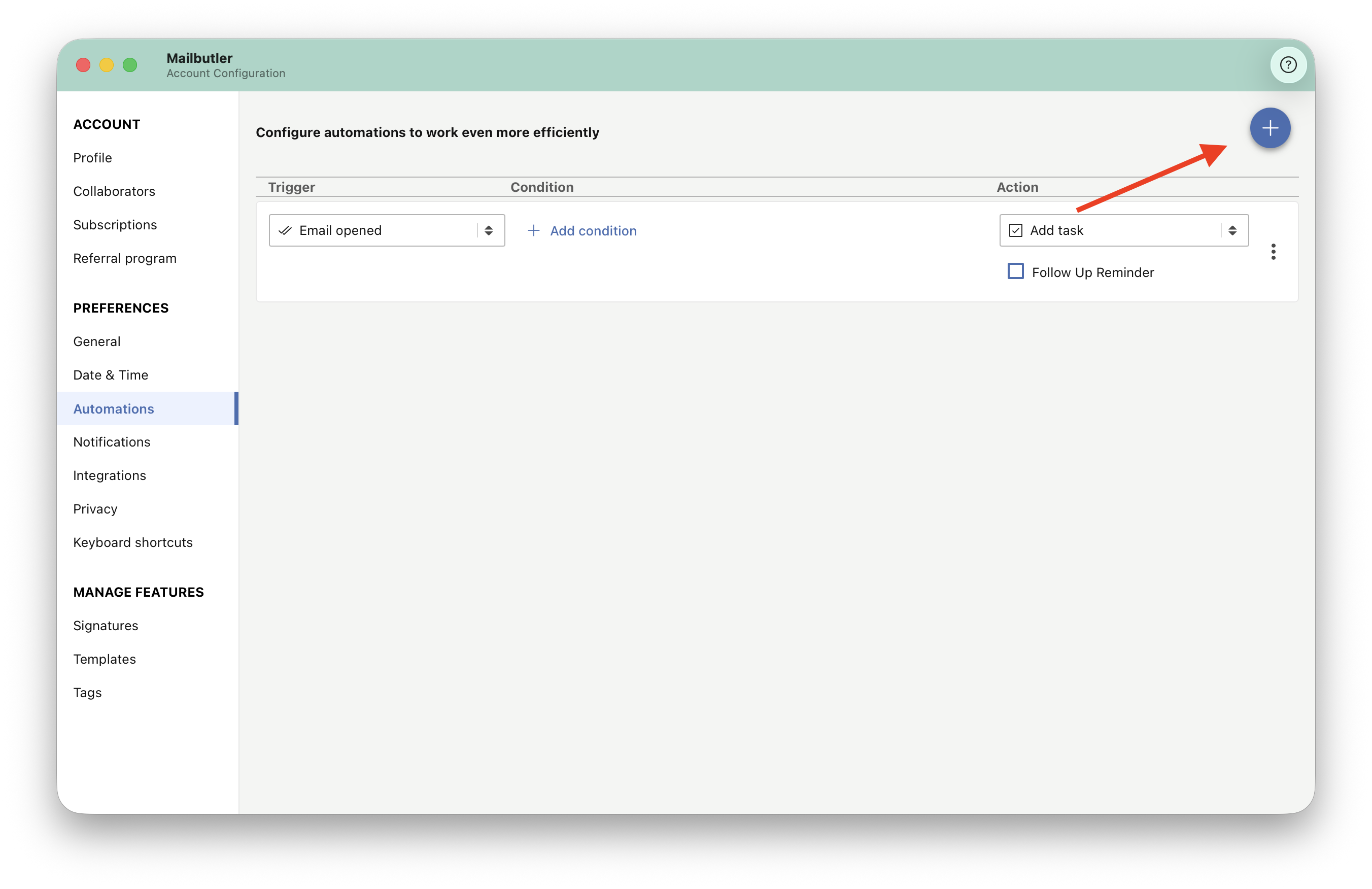
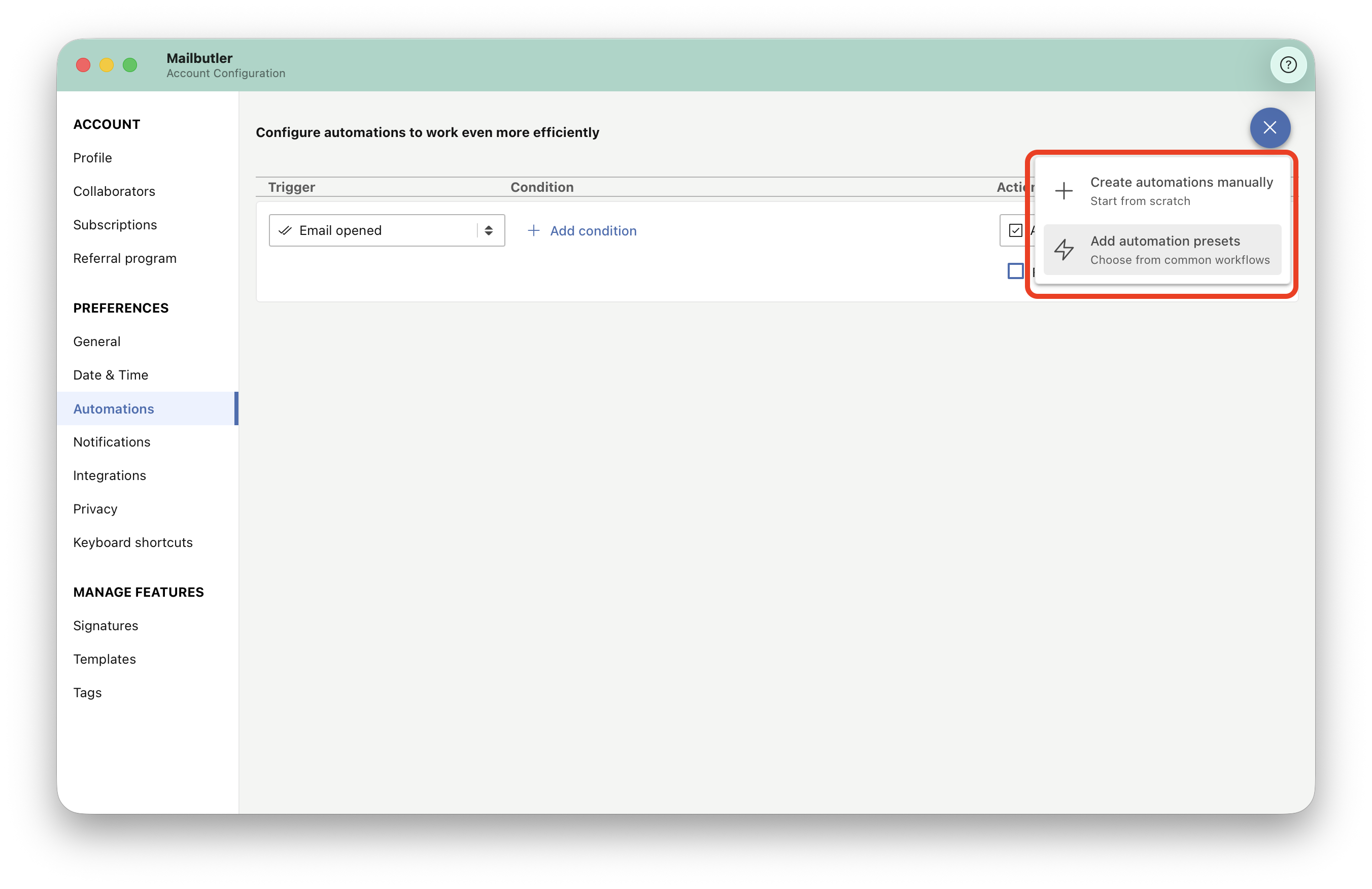
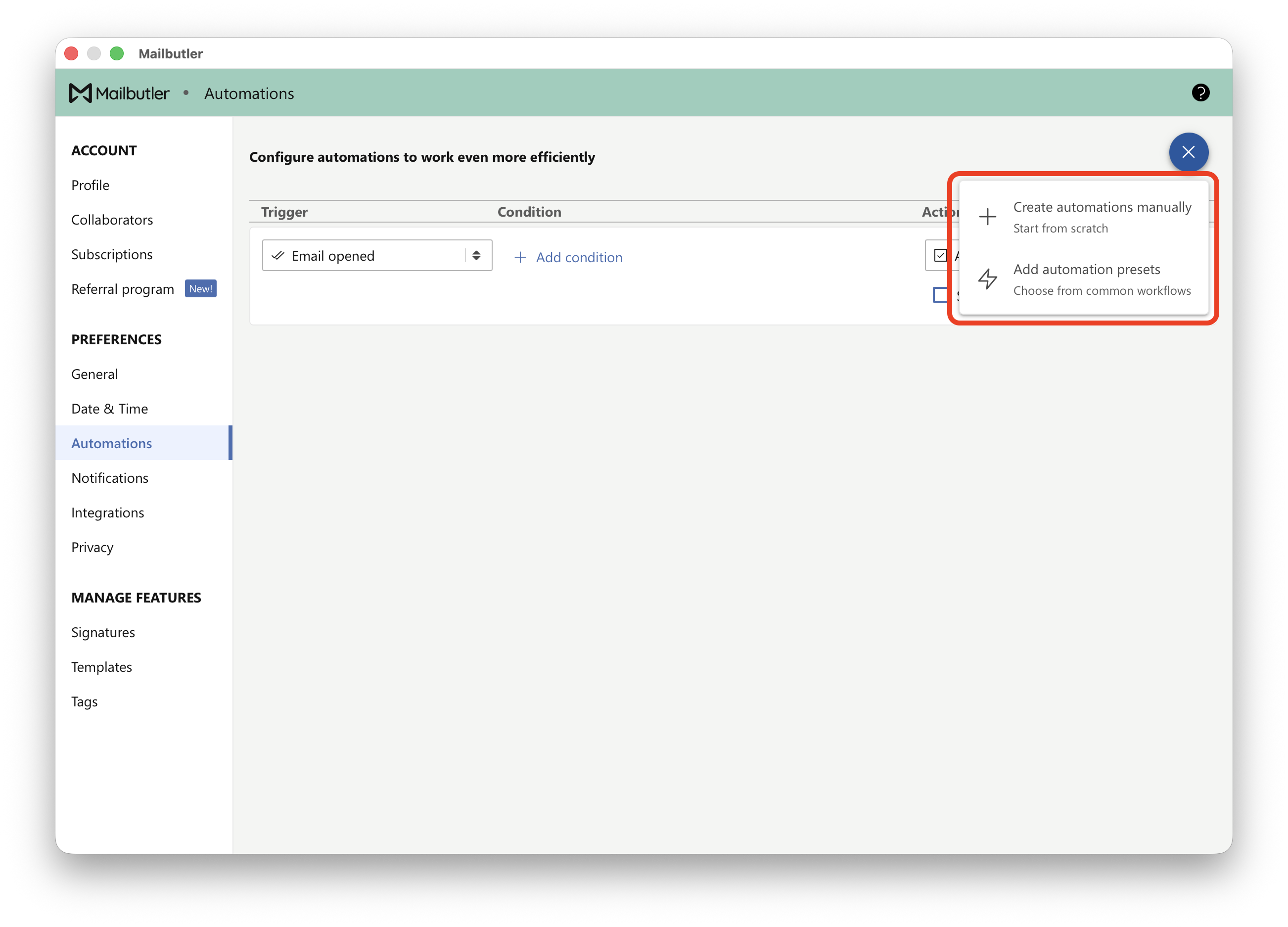
Choose Add automation presets to use a ready-to-use workflow, or Create automations manually to build your own automation from scratch.
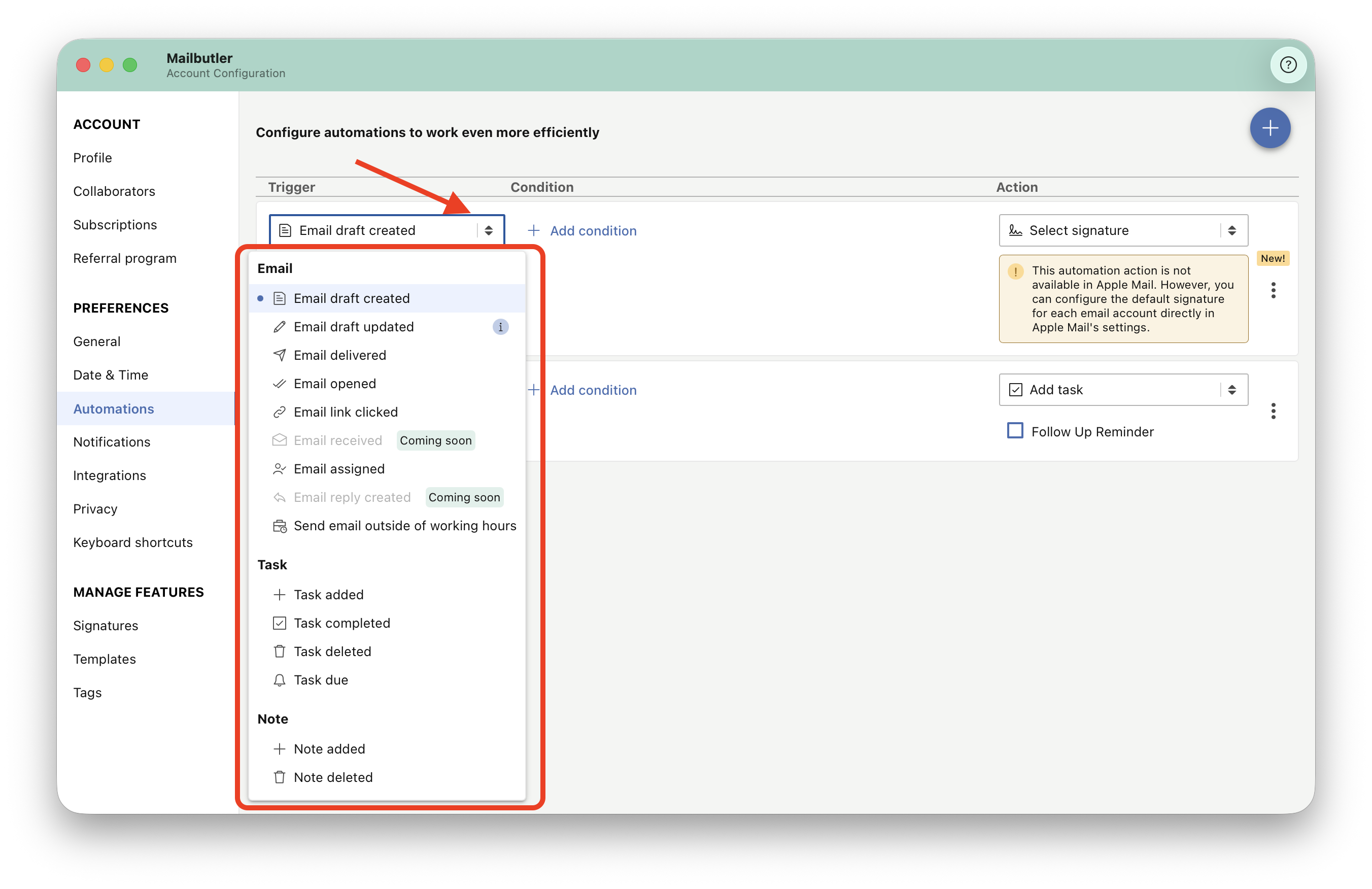
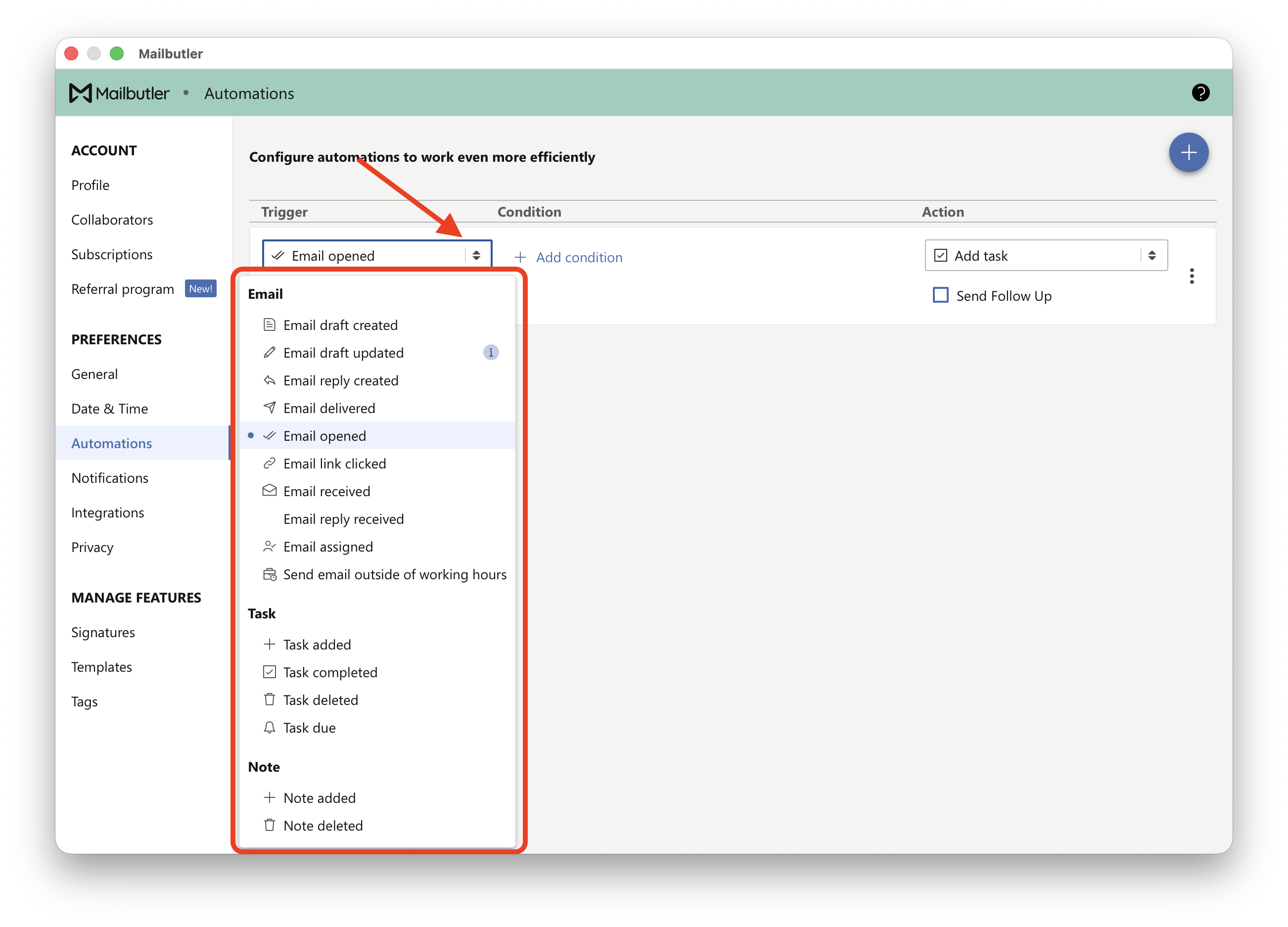
If you select create an automations manually, select a trigger from the dropdown list:
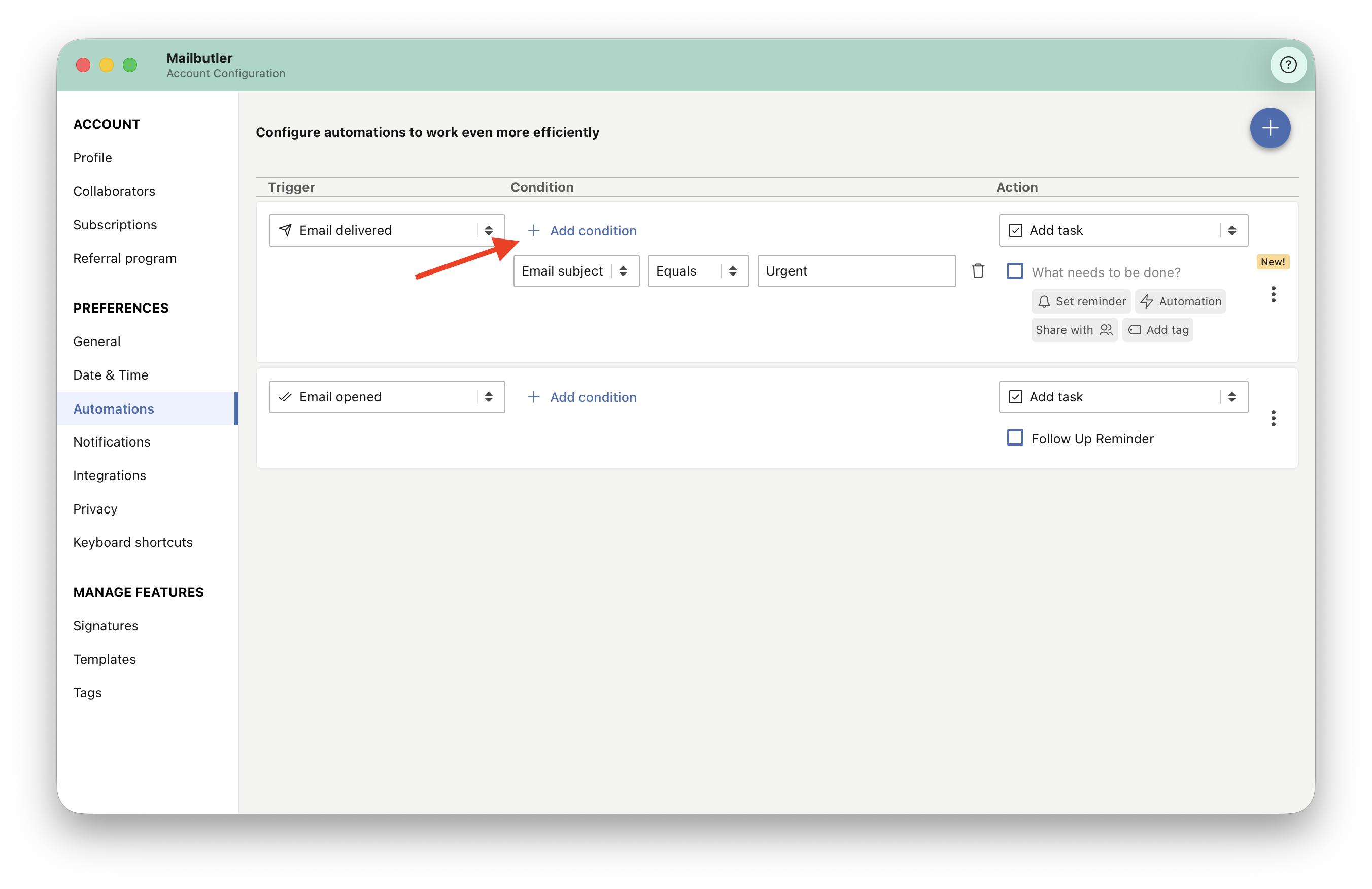
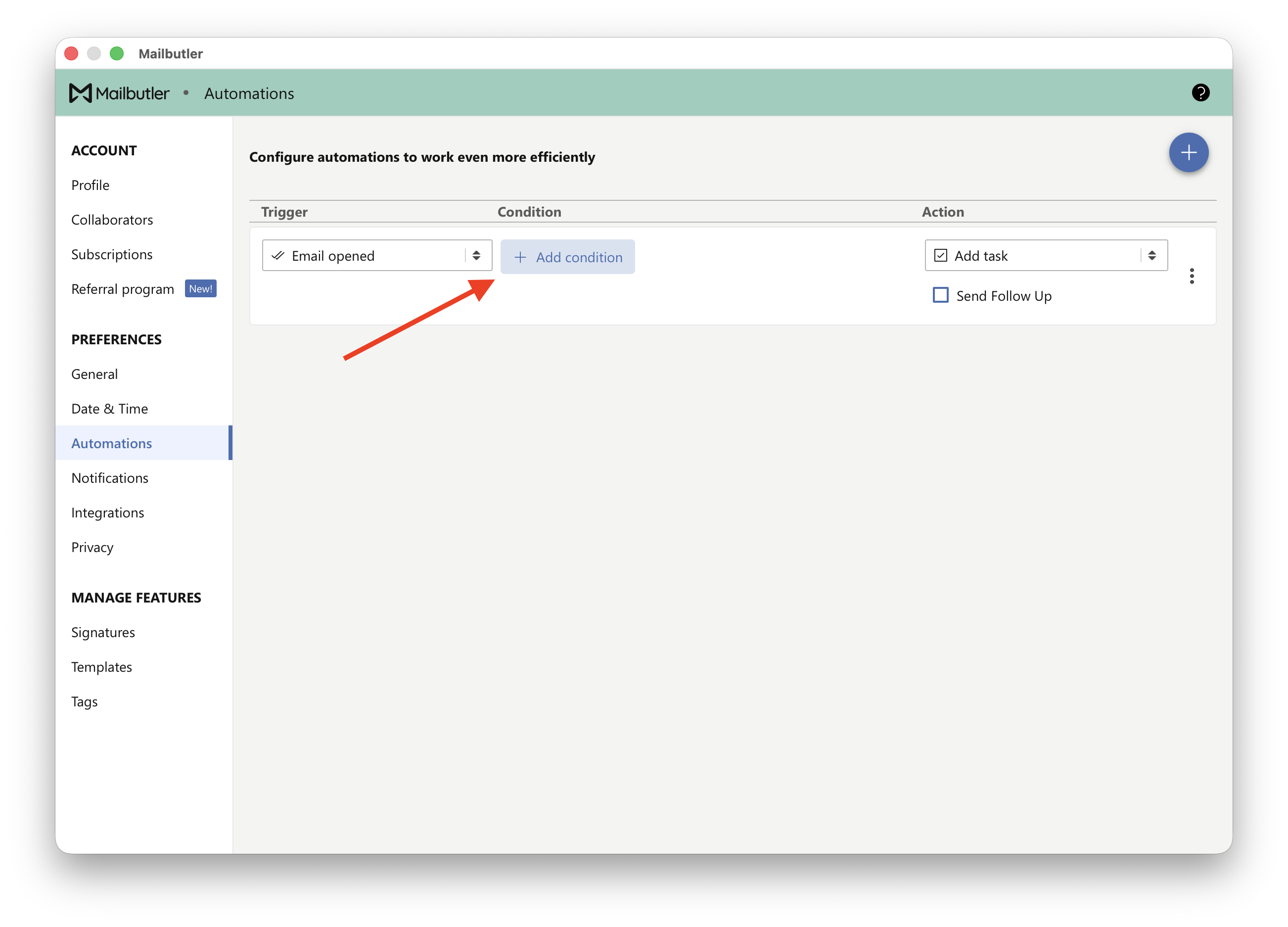
Optionally, click +Add a condition if the automation should only run in a specific situations.
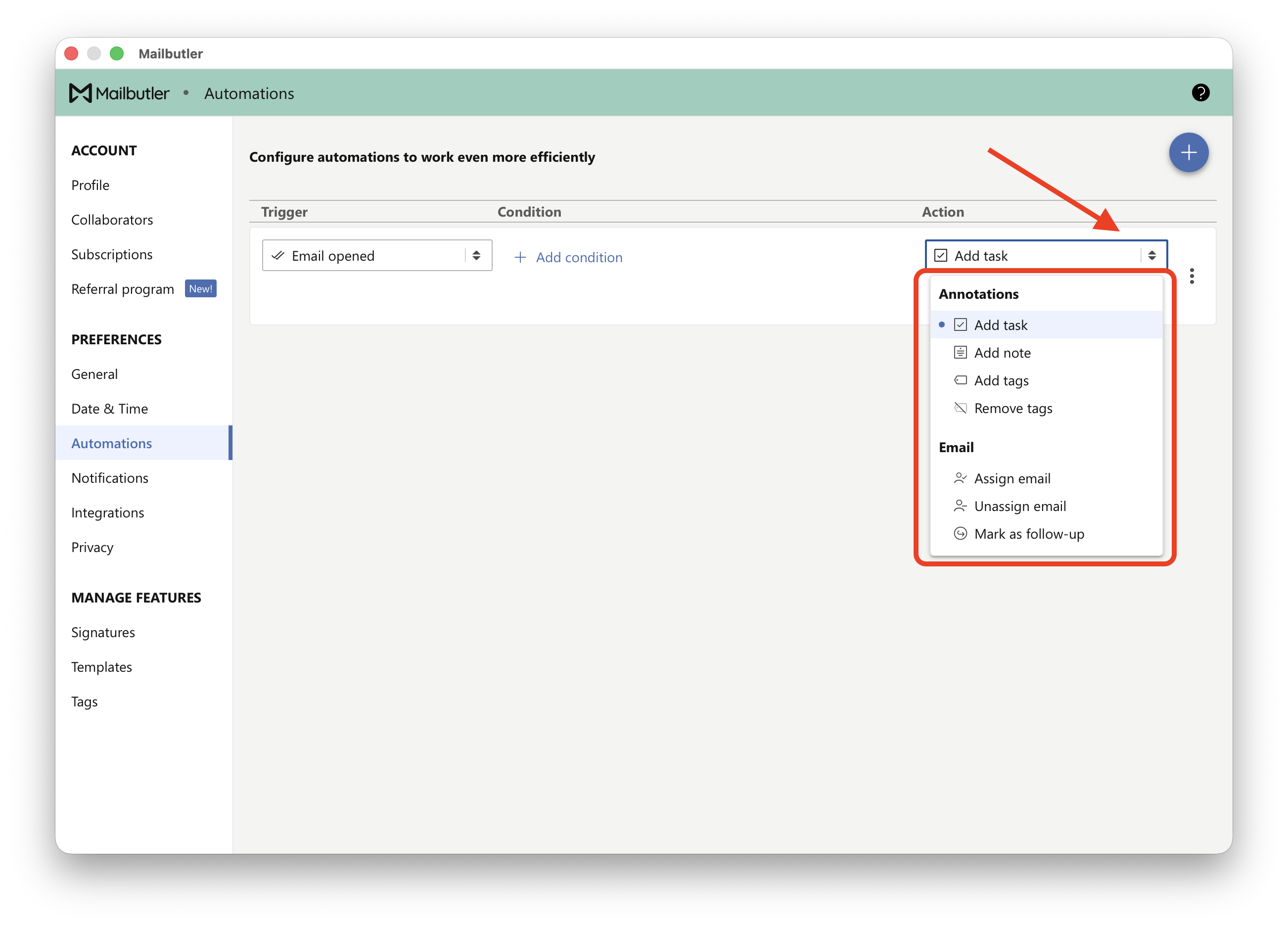
Choose an Action Mailbutler should perform
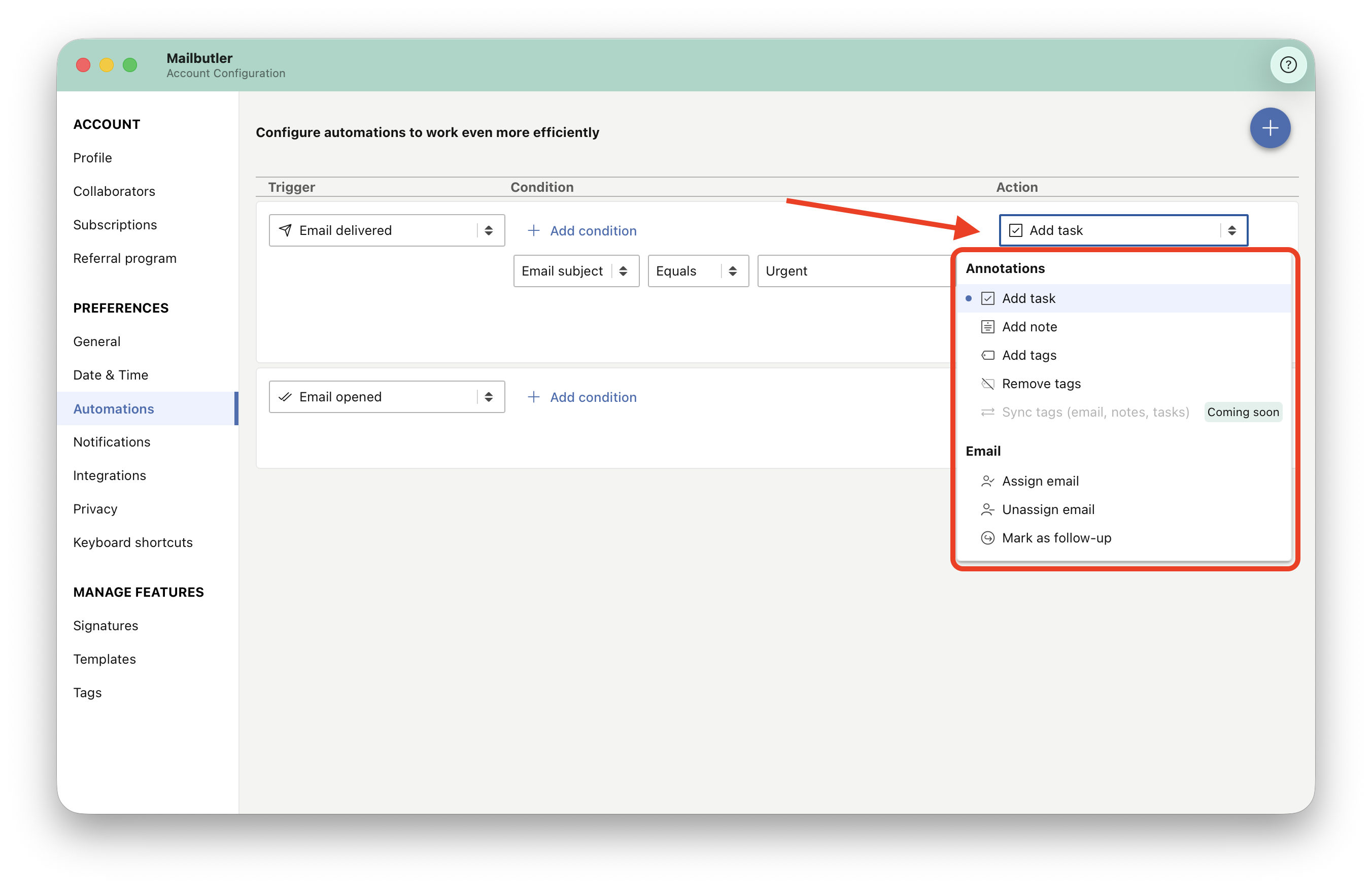
Once the trigger and action are set up, the automation is saved automatically
Gmail
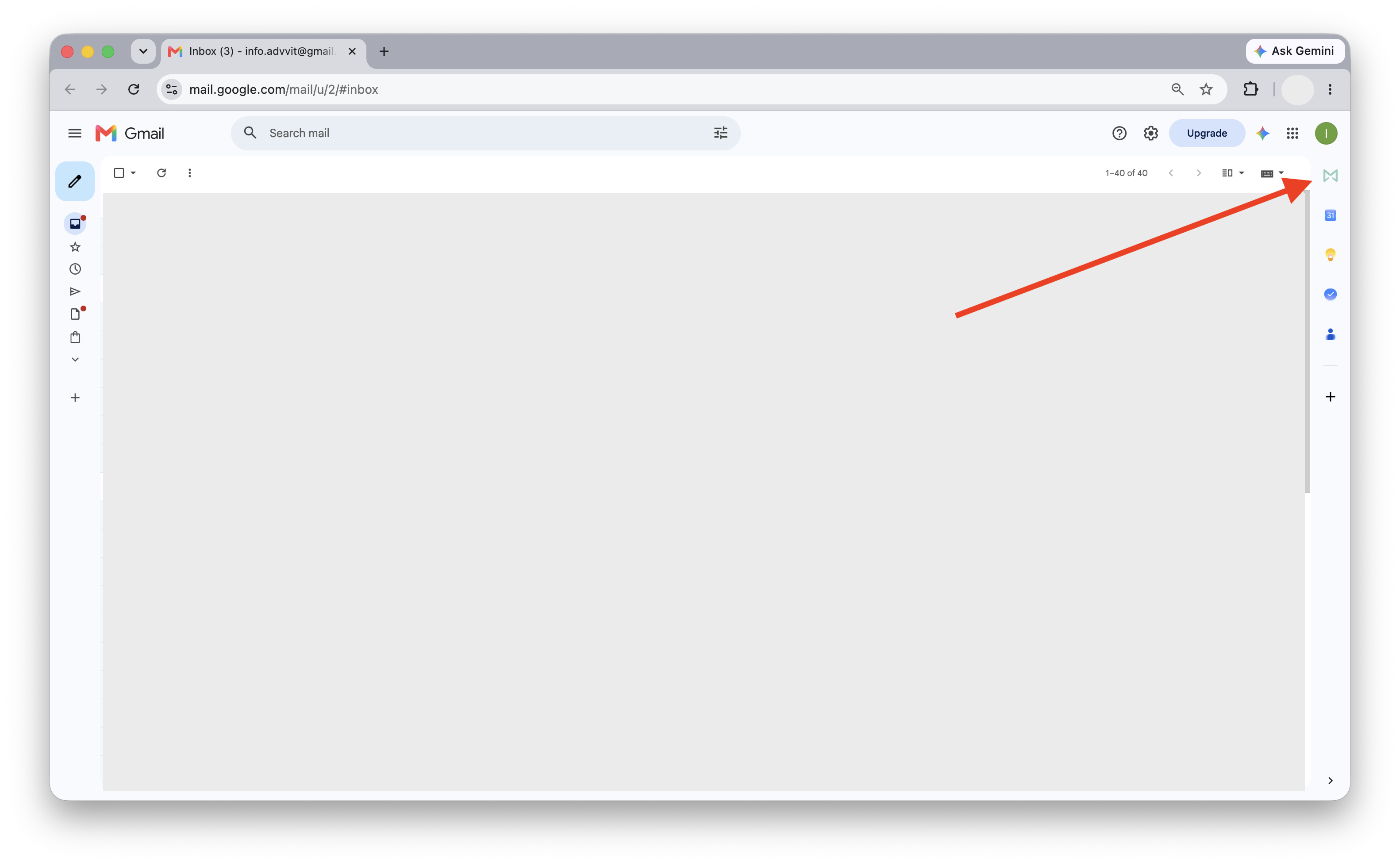
1. Click on the Mailbutler icon to open the Mailbutler Sidebar.
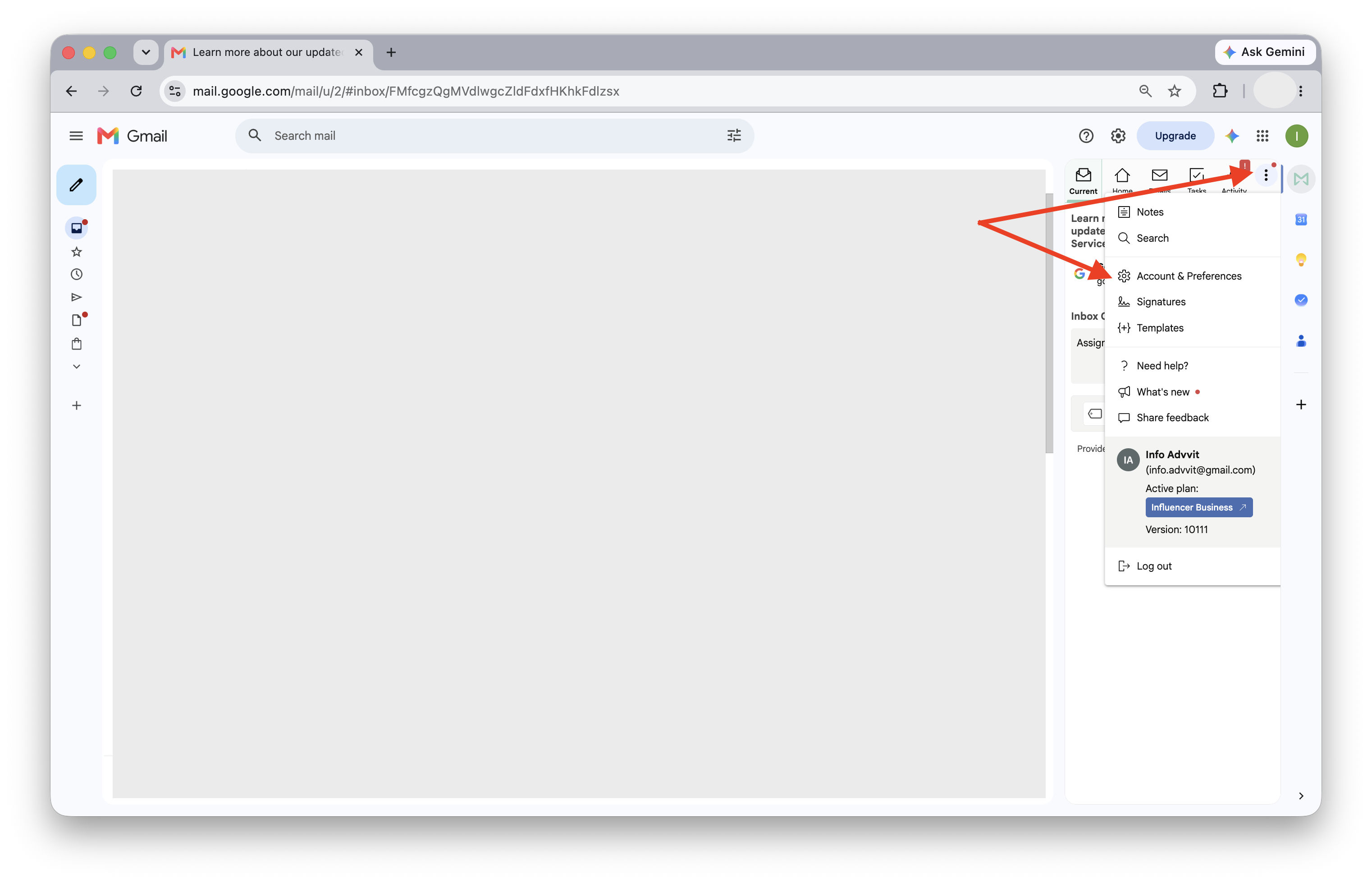
2. In the Mailbutler Sidebar, click the three dots and then Account & Preferences.
A new window will open. Select Automations under Preferences in the sidebar on the left.
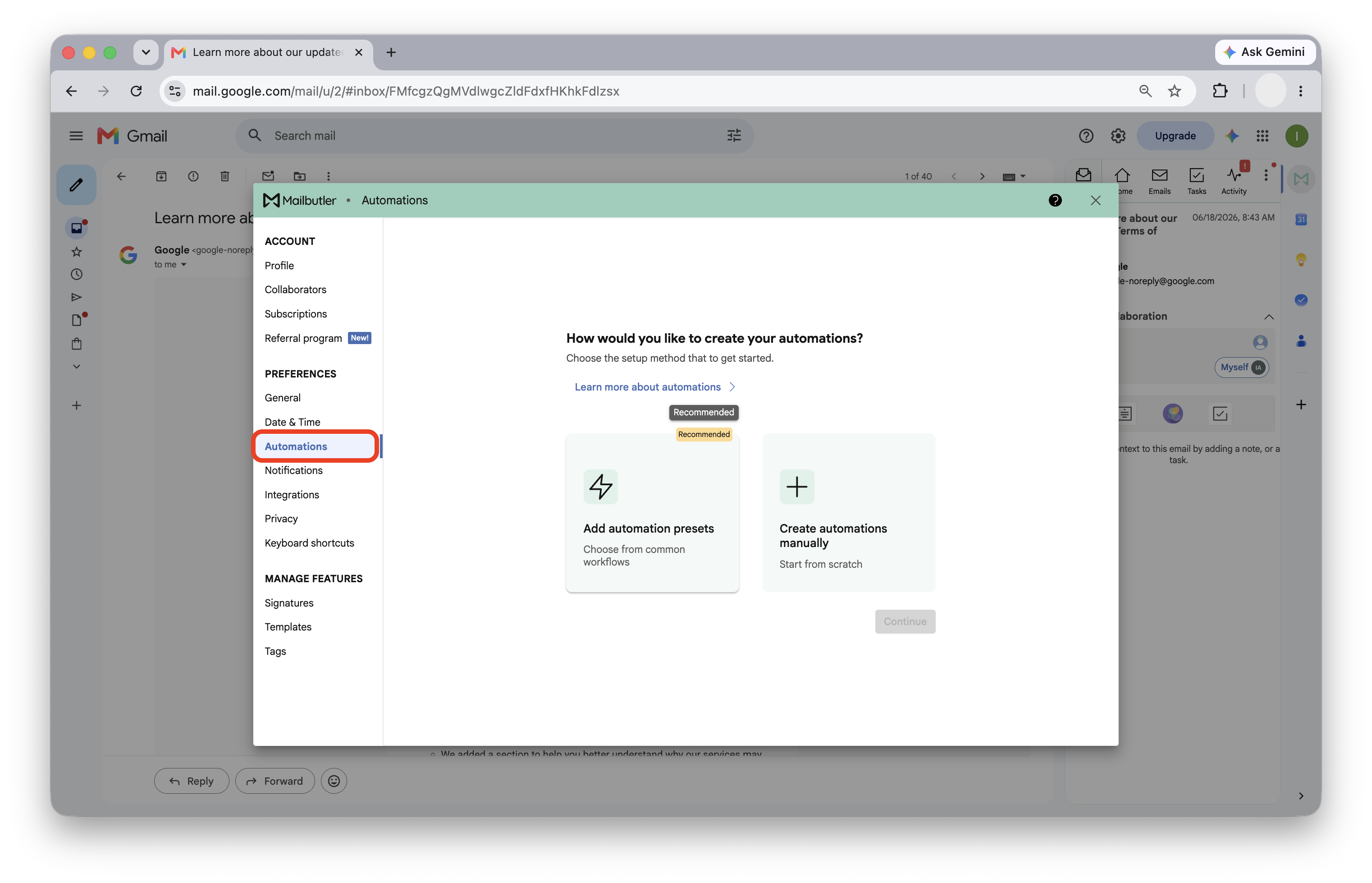
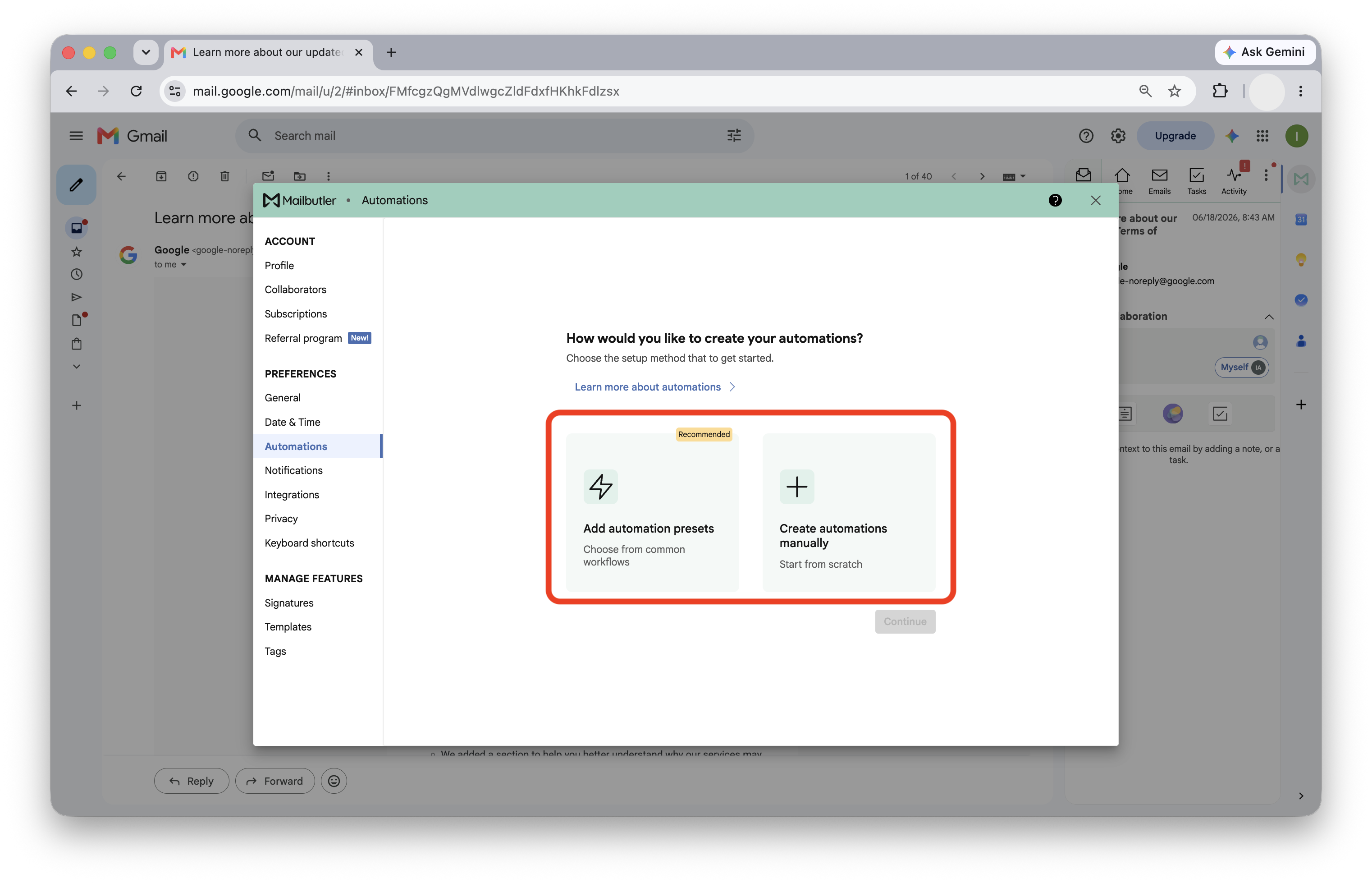
To create an automation, select Add automation presets or Create automations manually
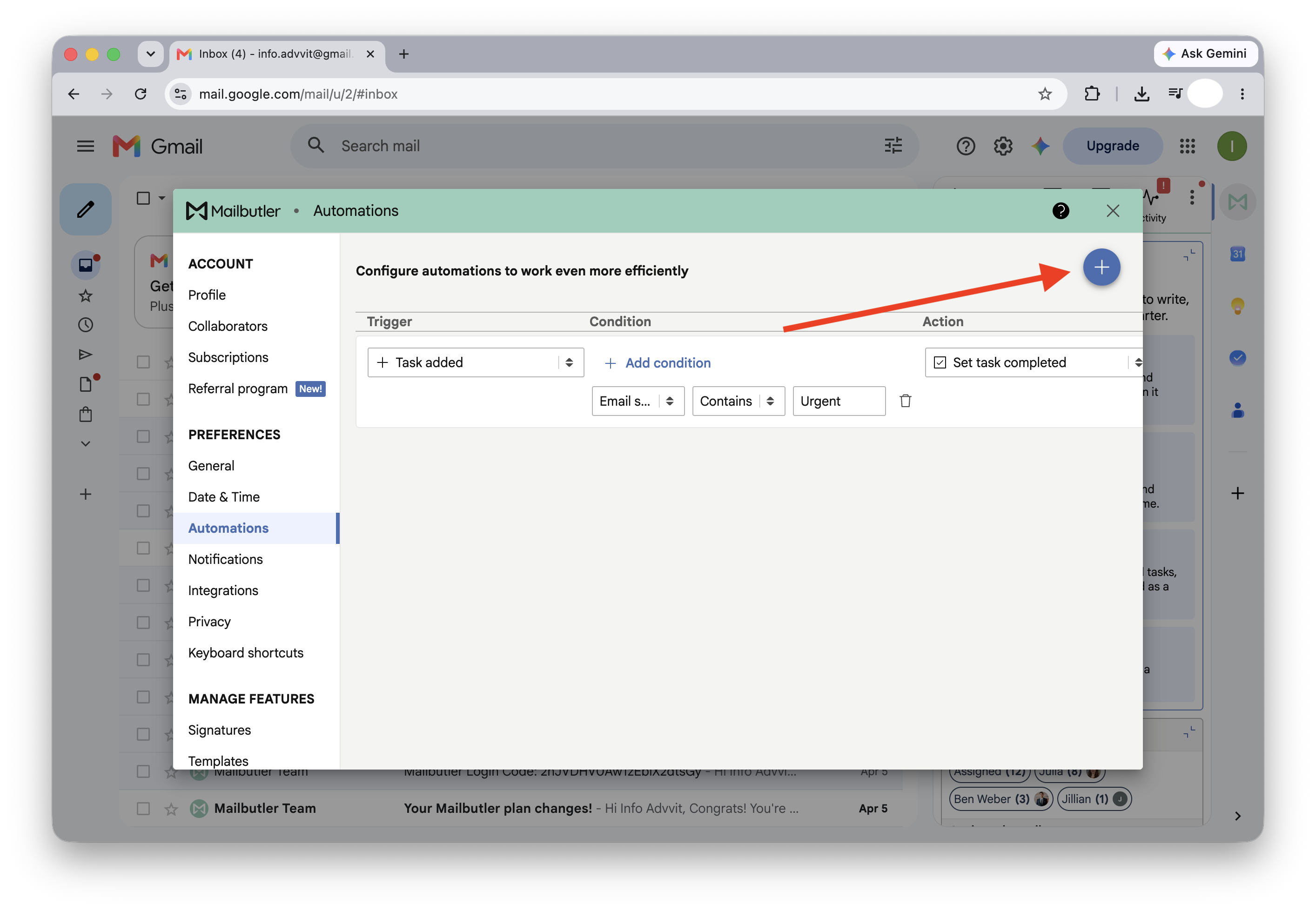
If you already have an automation and want to add another one, select (+) icon in the top right hand corner.
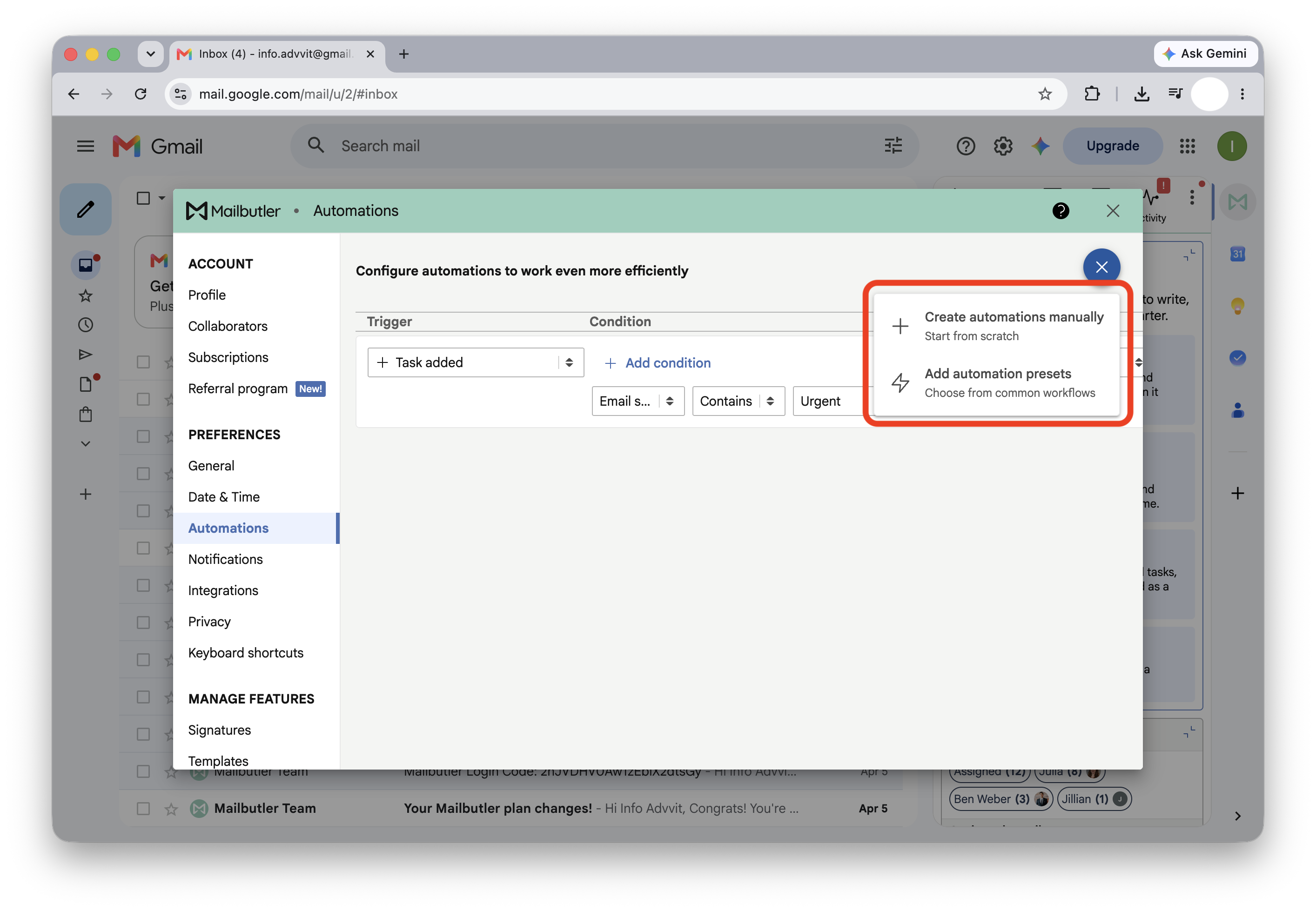
Choose Add automation presets to use a ready-to-use workflow, or Create automations manually to build your own automation from scratch.
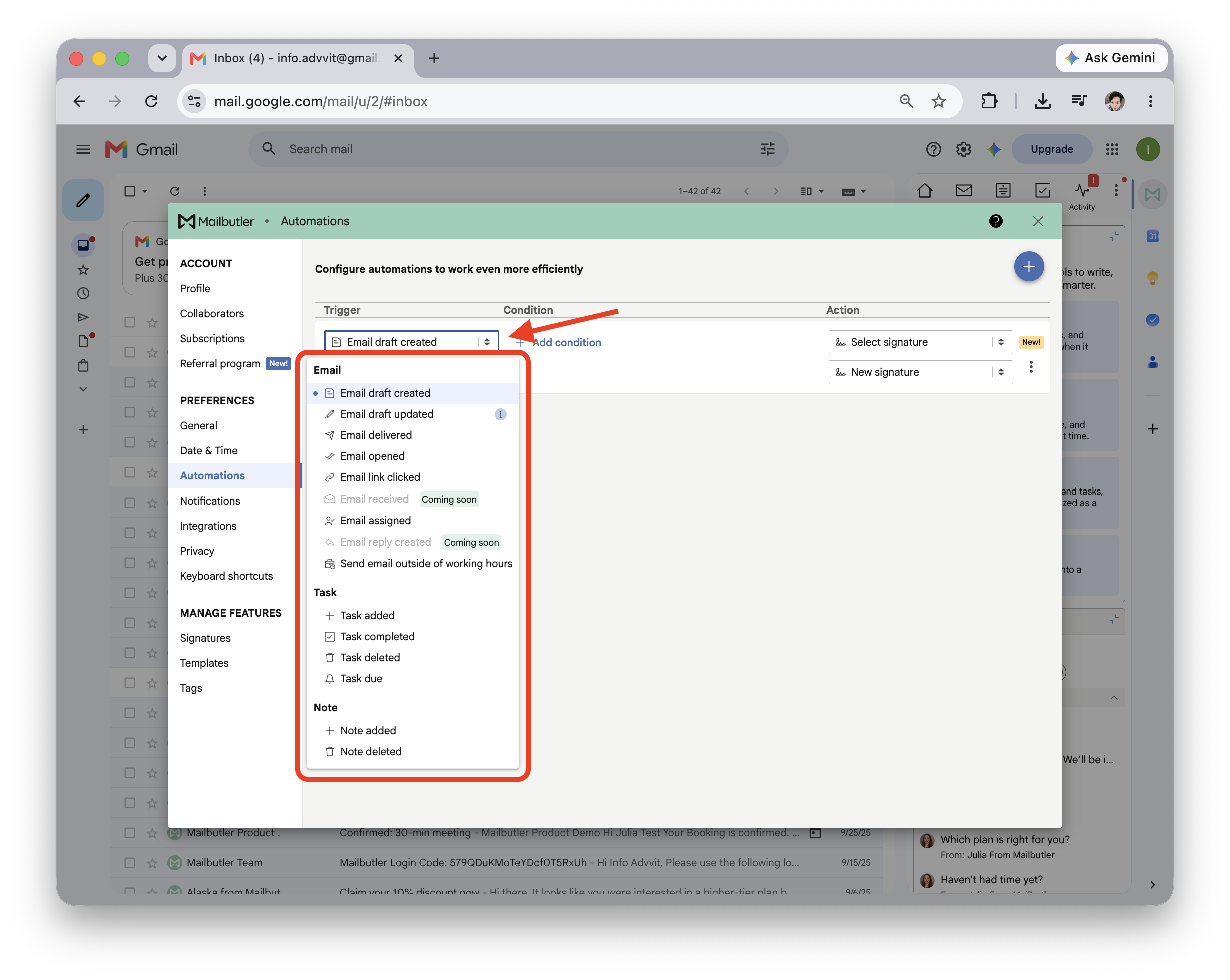
If you select create an automations manually, select a trigger from the dropdown list:
Optionally, click +Add a condition if the automation should only run in a specific situations.
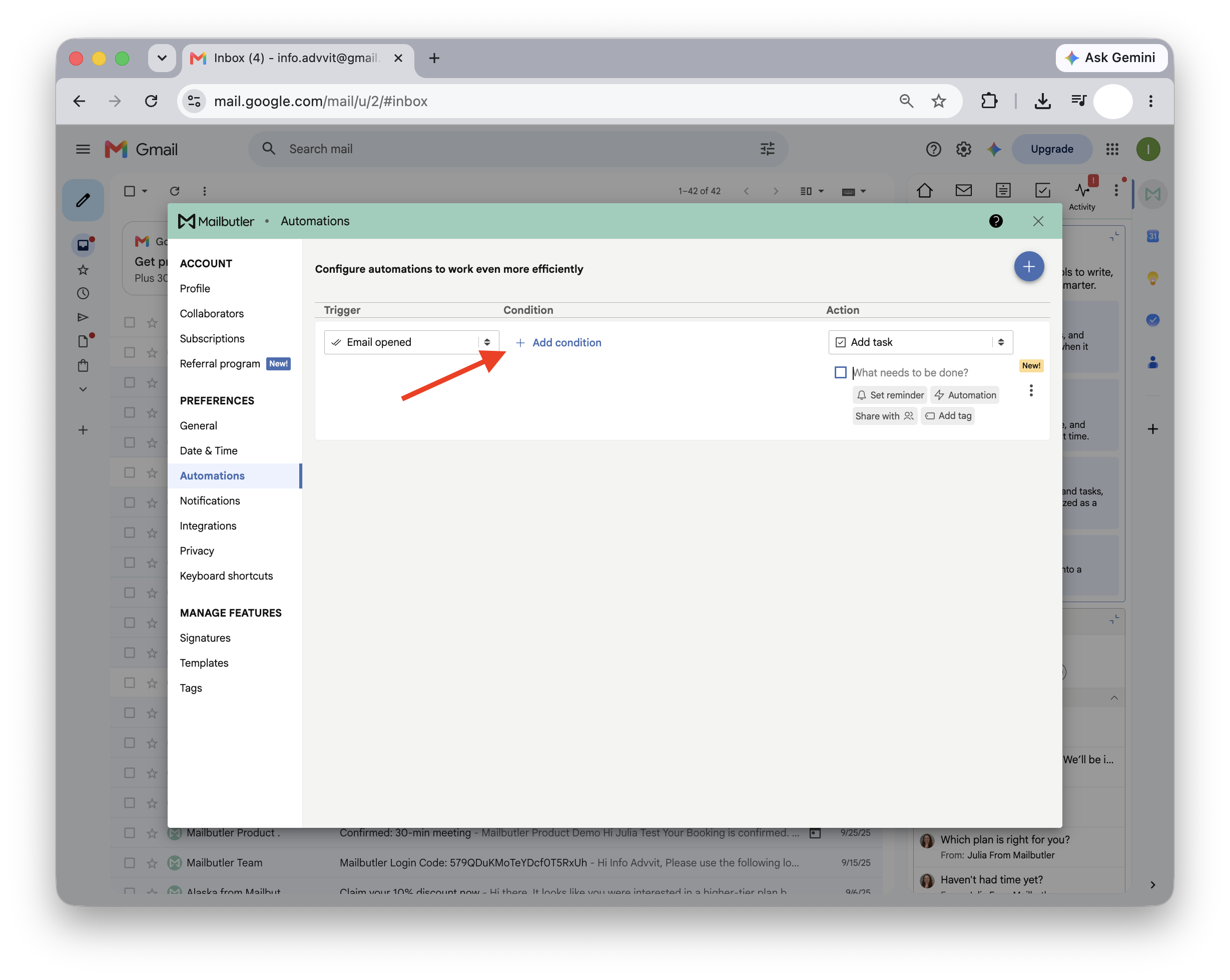
Choose an Action Mailbutler should perform
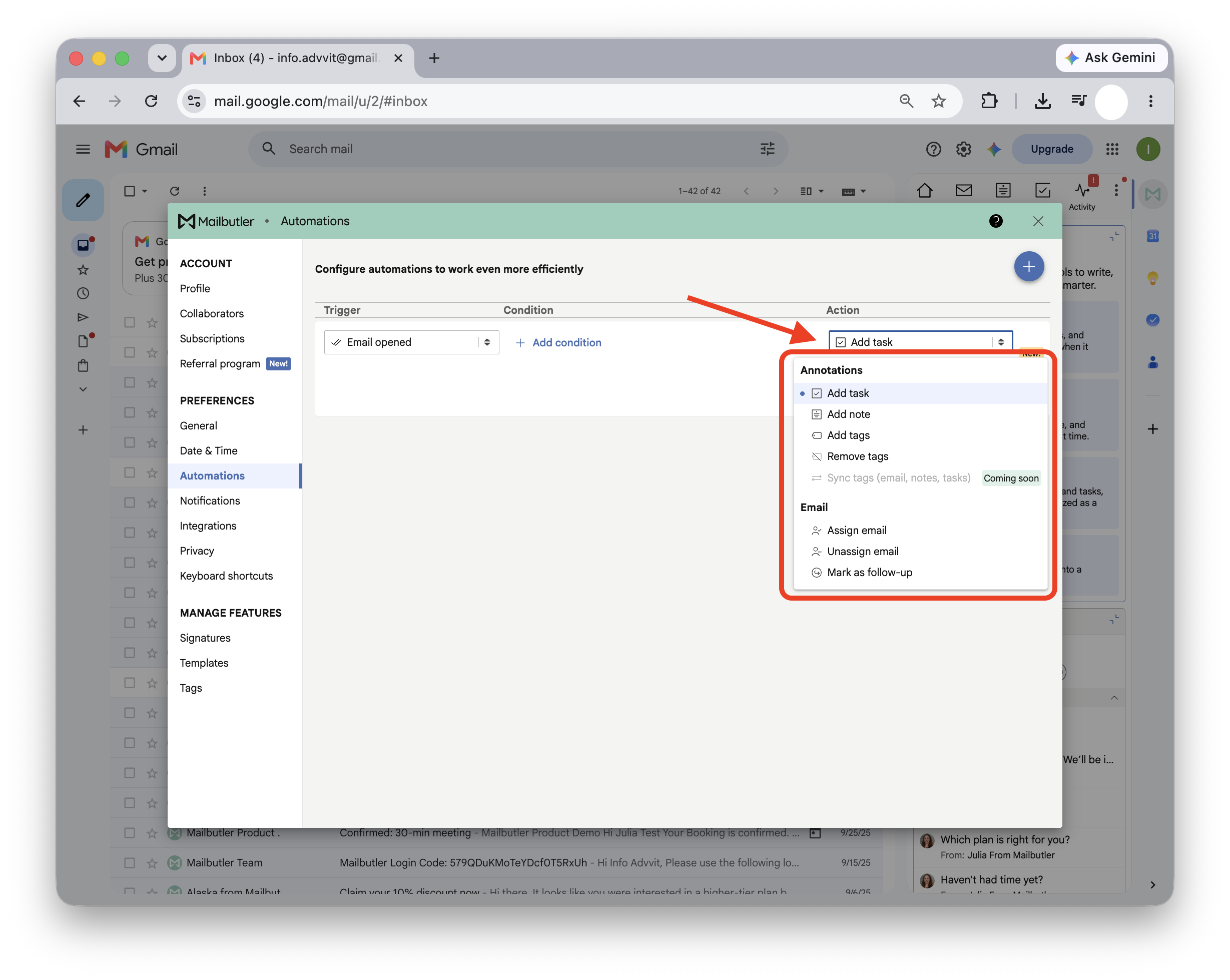
Once the trigger and action are set up, the automation is saved automatically.
Outlook
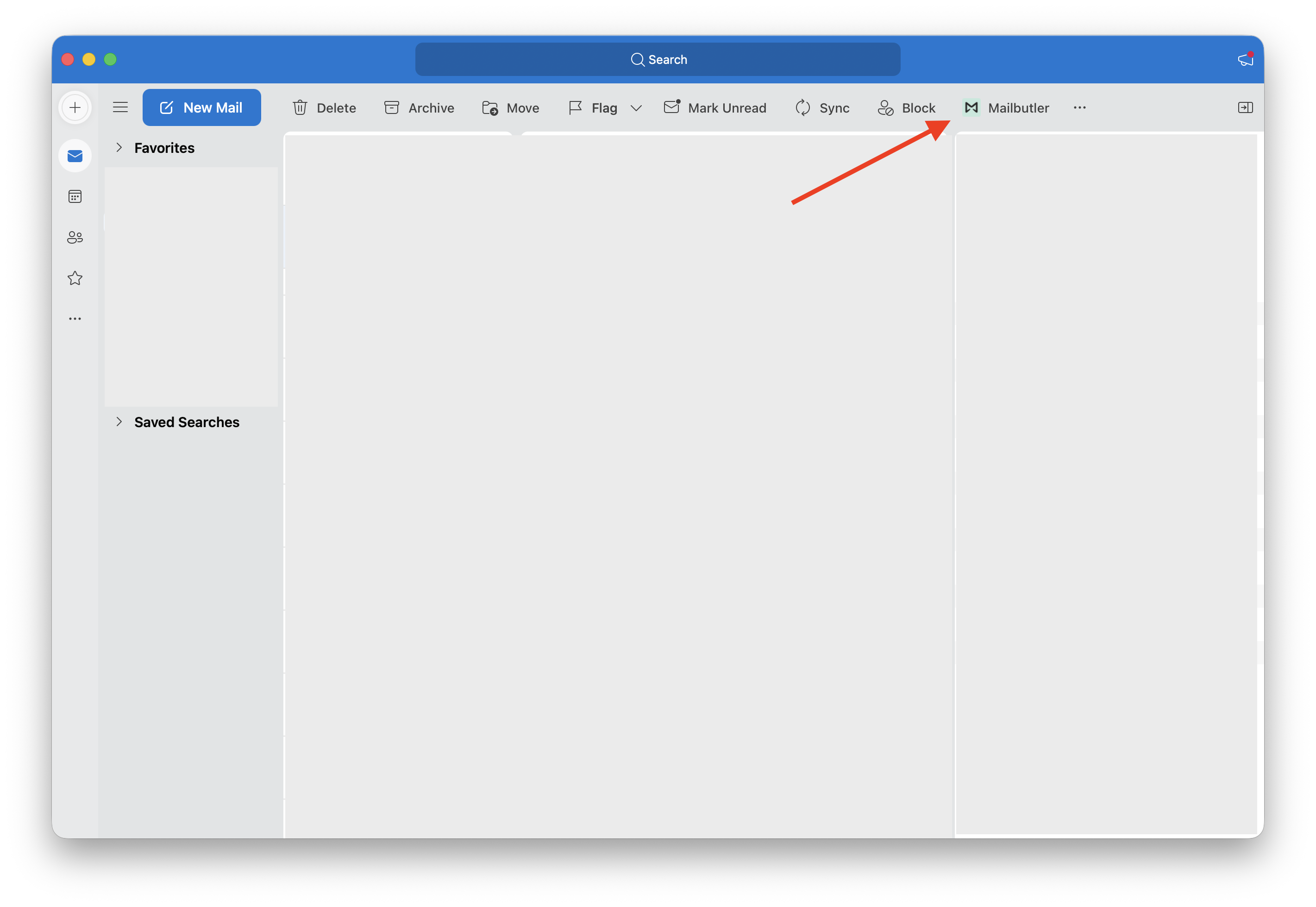
1. Click the Mailbutler icon to open the Mailbutler Sidebar.
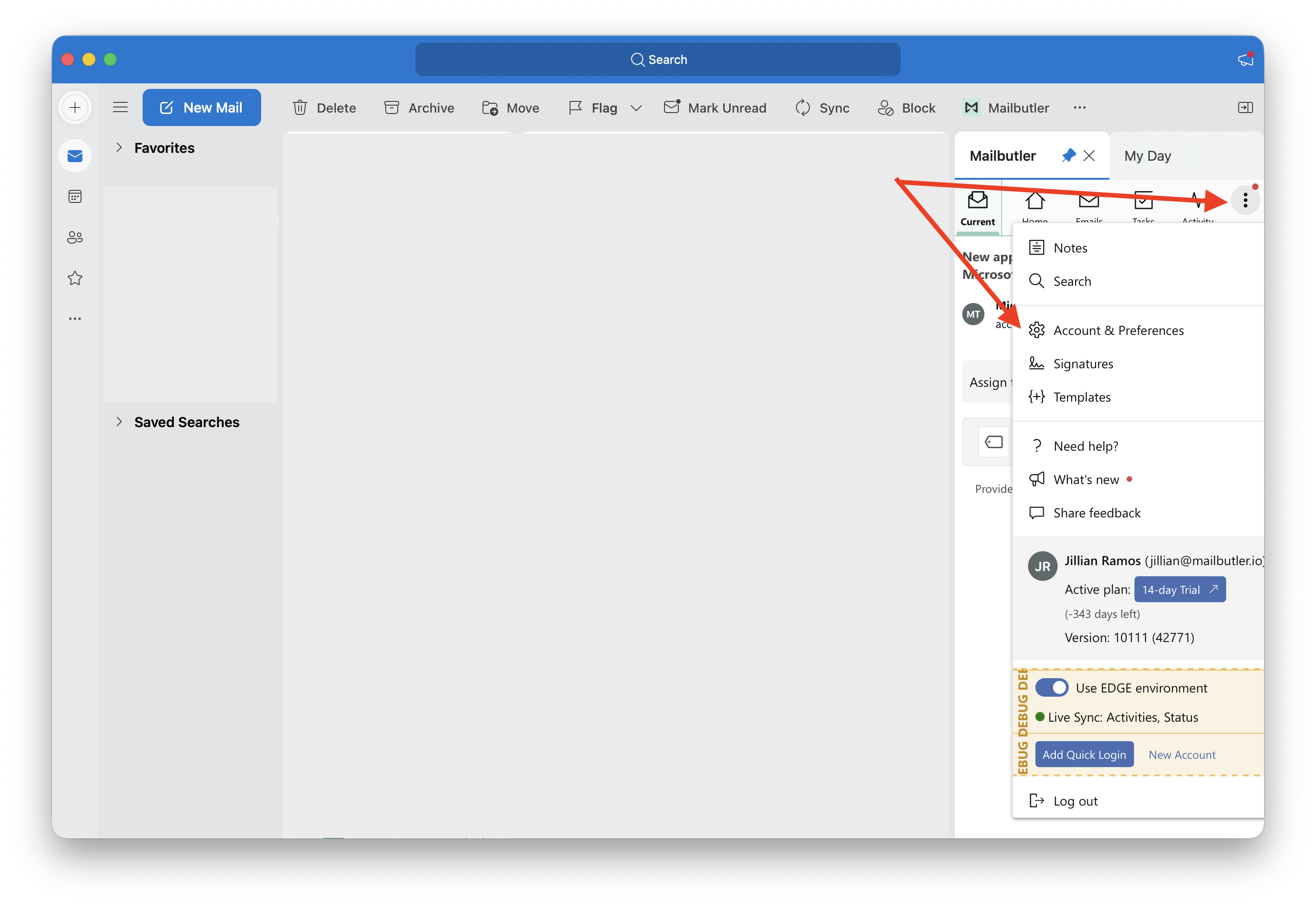
2. In the Mailbutler Sidebar, click the three dots and then Account & Preferences.
A new window will open. Select Automations under Preferences in the sidebar on the left.
4. To create an automation, select Add automation presets or Create automations manually
5. If you already have an automation and want to add another one, select (+) icon in the top right hand corner.
Choose Add automation presets to use a ready-to-use workflow, or Create automations manually to build your own automation from scratch.
If you select create an automations manually, select a trigger from the dropdown list:
Optionally, click +Add a condition if the automation should only run in a specific situations.
Choose an Action Mailbutler should perform
Once the trigger and action are set up, the automation is saved automatically.