

How do I set up Dynamic Content?
Open Account & Preferences in Mailbutler.
Select Signatures under Manage Features in the sidebar on the left.
Select the signature you want to edit. To create a new signature, click the plus icon and select a template.
In the editor on the right, find Dynamic content and click the plus icon next to it.
Select one of the following options:
Add dynamic content to connect a YouTube channel, podcast, or blog.
Add Calendly availability to connect Calendly.
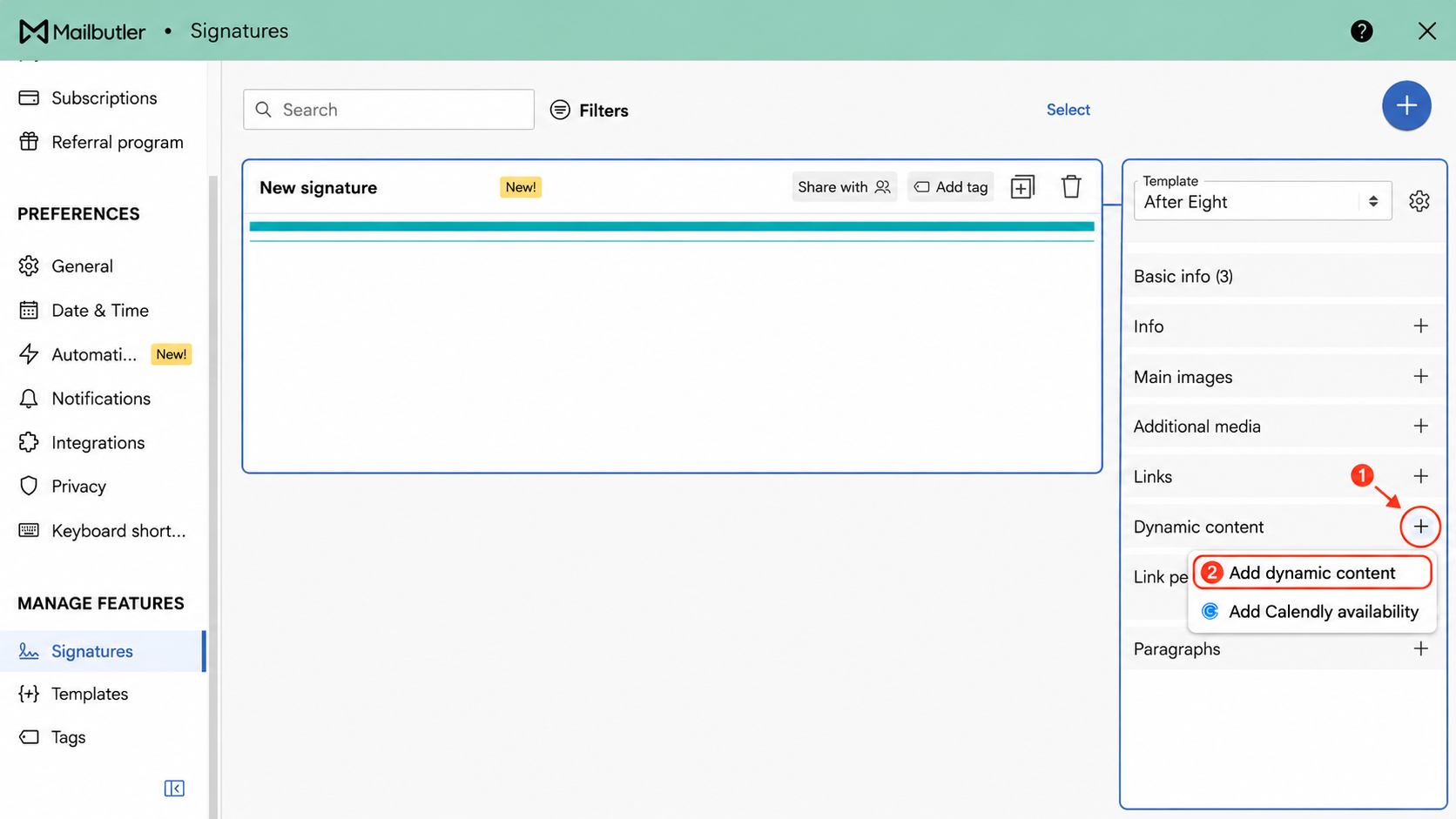
Click the + button beside Dynamic content, then select Add dynamic content.
Select Add dynamic content. A Dynamic content source field is added to the editor, where you can enter the source whose latest content you want to display.
How do I connect a content source?
You can connect more than one content source. Click the plus icon next to Dynamic content to add another Dynamic content source field, then enter a different feed URL in each field.
Paste the public URL or feed URL for your content into the Dynamic content source field. Mailbutler checks the source and displays the available items in the signature preview.
The URL must be publicly accessible and contain published content. The format you need depends on the source you are connecting.
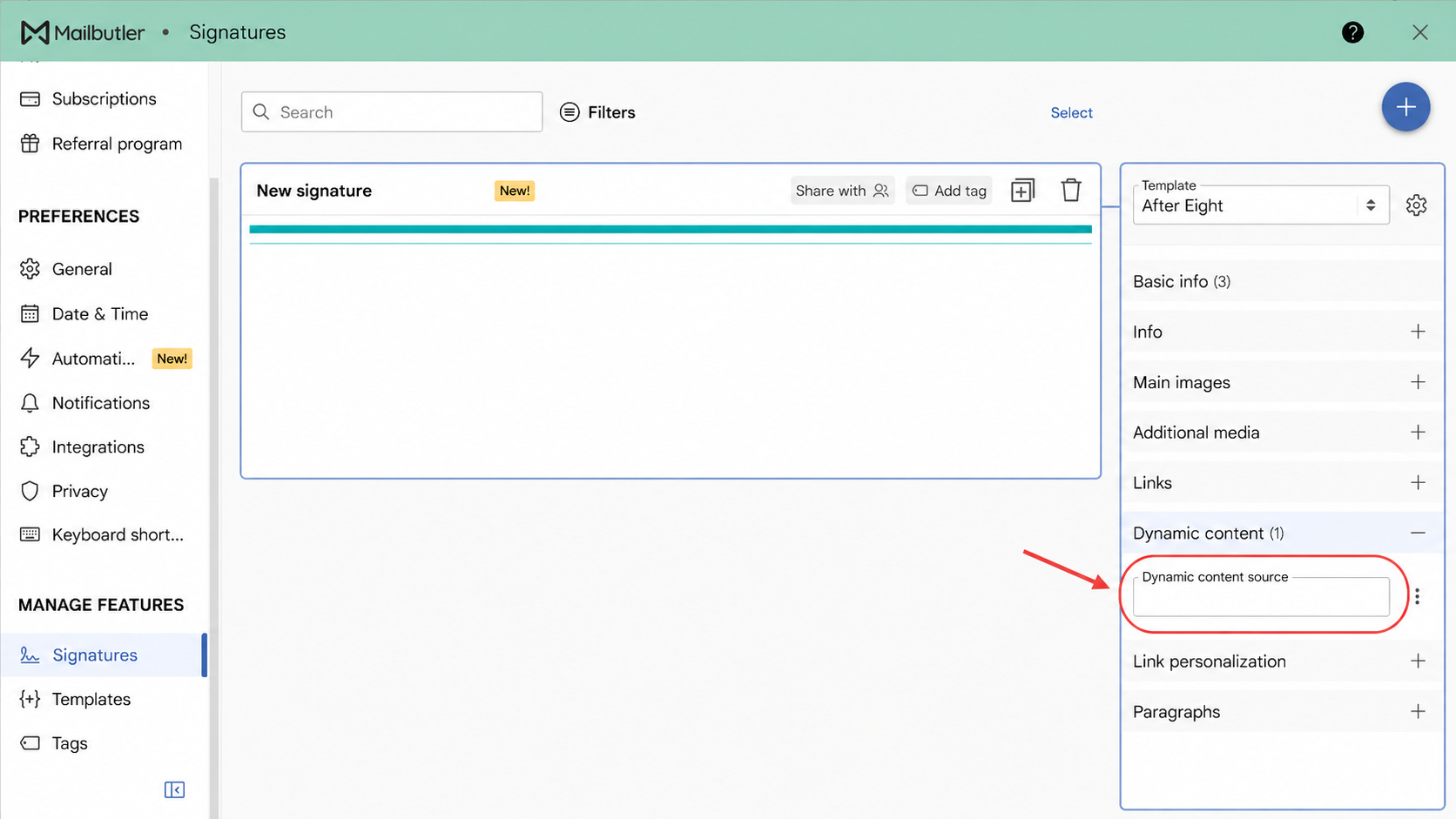
Paste your supported content source into the Dynamic content source field.
YouTube
To connect a YouTube channel, To connect a YouTube channel, use its RSS feed URL instead of a standard video, channel or handle URL.
Sign in to YouTube.
Click your profile picture and open Settings.
Select Advanced settings and copy your Channel ID.
Replace
YOUR_CHANNEL_IDin the following URL with your Channel ID:
https://www.youtube.com/feeds/videos.xml?channel_id=YOUR_CHANNEL_ID
Paste the complete URL into the Dynamic content source field.
Click outside the field and wait for Mailbutler to load the channel’s latest videos.
The latest videos appear in the signature preview.
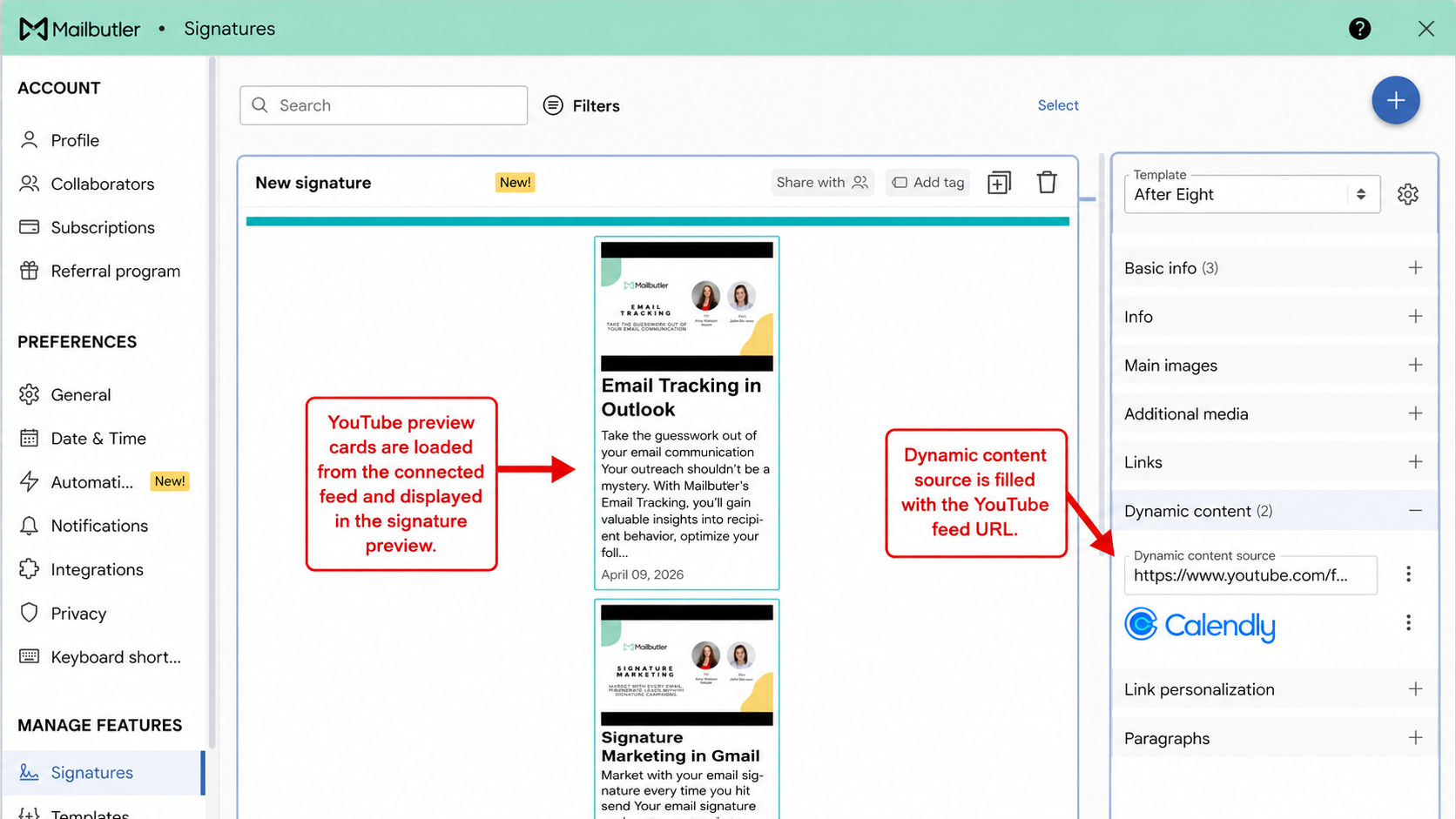
The connected YouTube feed displays the channel's latest videos in the signature preview.
Podcast
You need the public RSS feed URL provided by your podcast hosting platform.
Open your podcast hosting platform
Copy the podcast RSS feed URL
Paste it into the Dynamic content source field
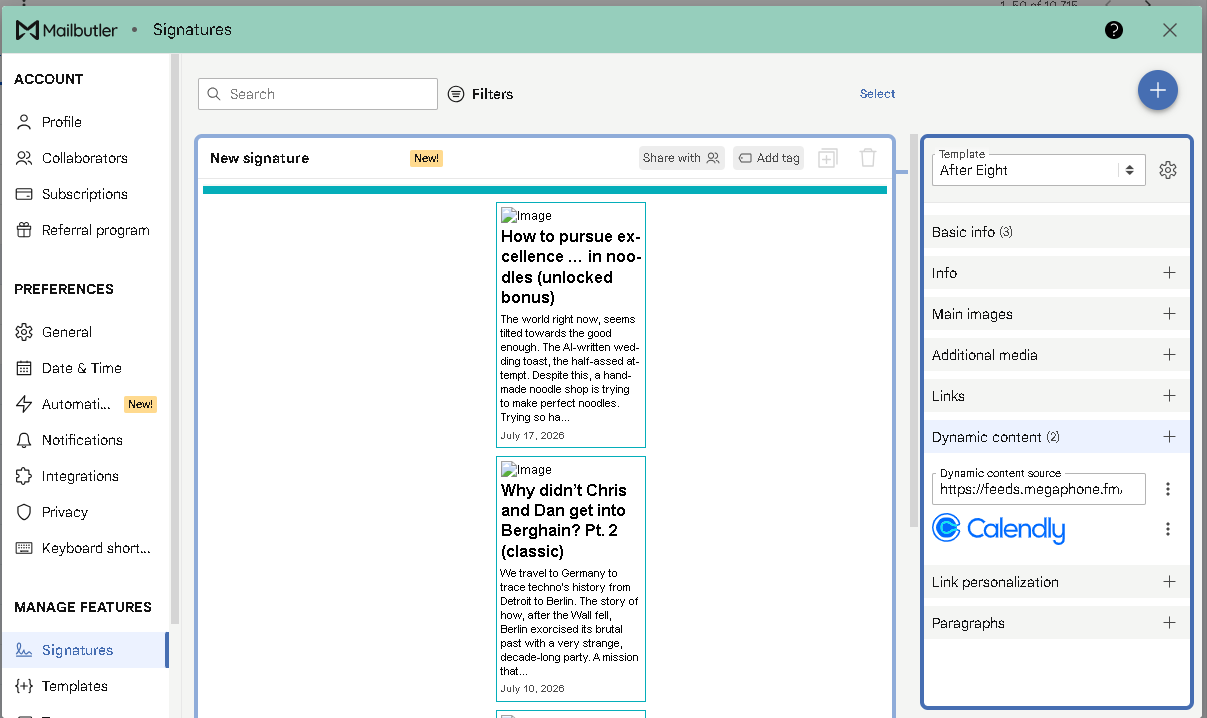
Click outside the field and wait for Mailbutler to load the latest episodes
The available podcast episodes appear in the signature preview.
Blog
Mailbutler can load posts from a public blog or website with a supported feed.
Paste the public blog URL or supported feed URL into the Dynamic content source field.
Click outside the field and allow Mailbutler to check the source.
Confirm that the latest posts appear in the signature preview.
If the blog does not load, confirm that the URL is publicly accessible and points to the blog or its supported feed. Do not manually add endings such as /rss.xml or /feed unless the platform specifically provides that address.
Calendly
Calendly connects through authorization instead of a feed URL.
In the Dynamic content section, click Authorize next to Calendly.
Sign in to your Calendly account.
Approve the requested access.
Return to Mailbutler.
Confirm that Calendly appears in the Dynamic content section.
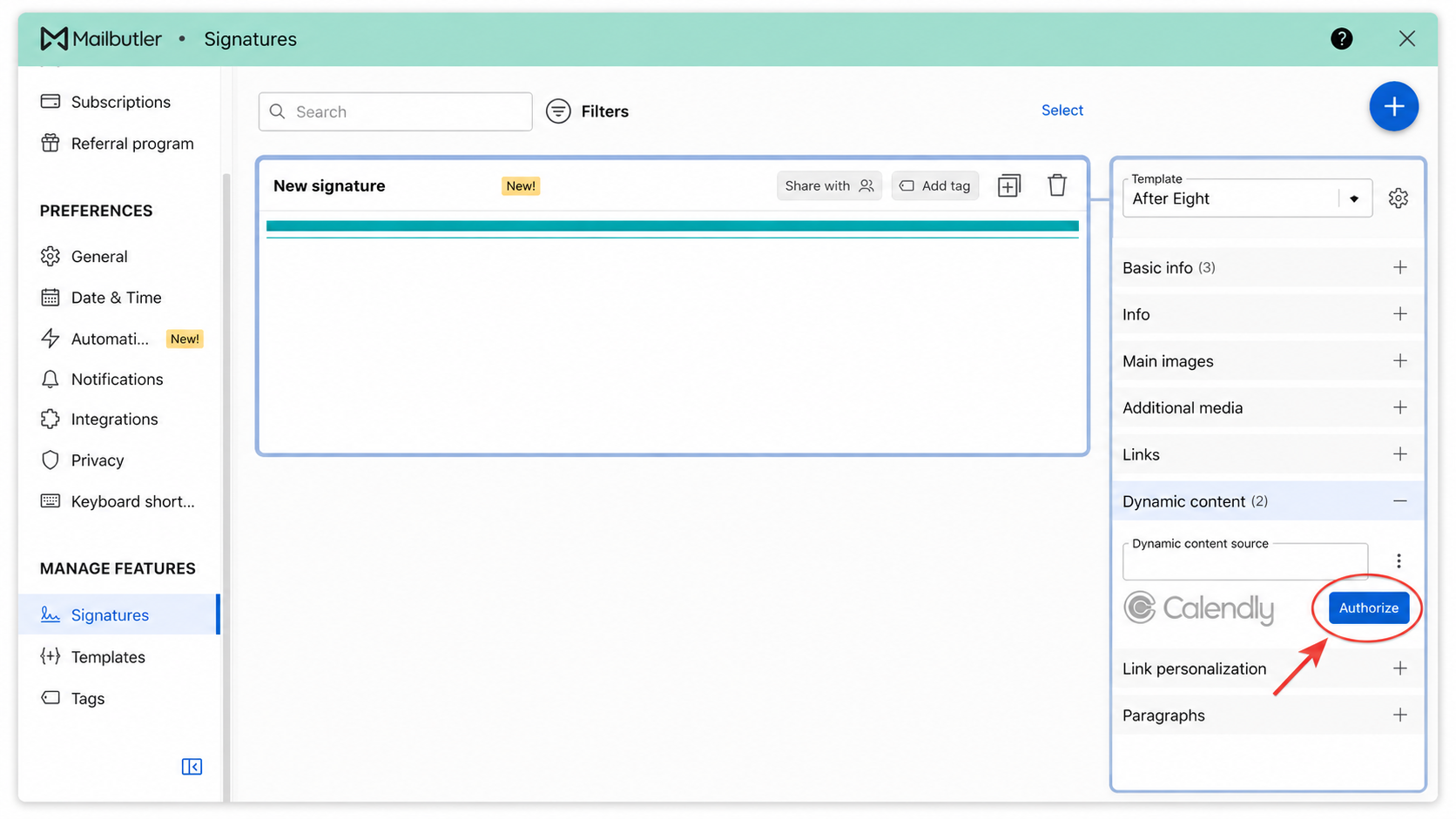
Click Authorize beside the Calendly logo.
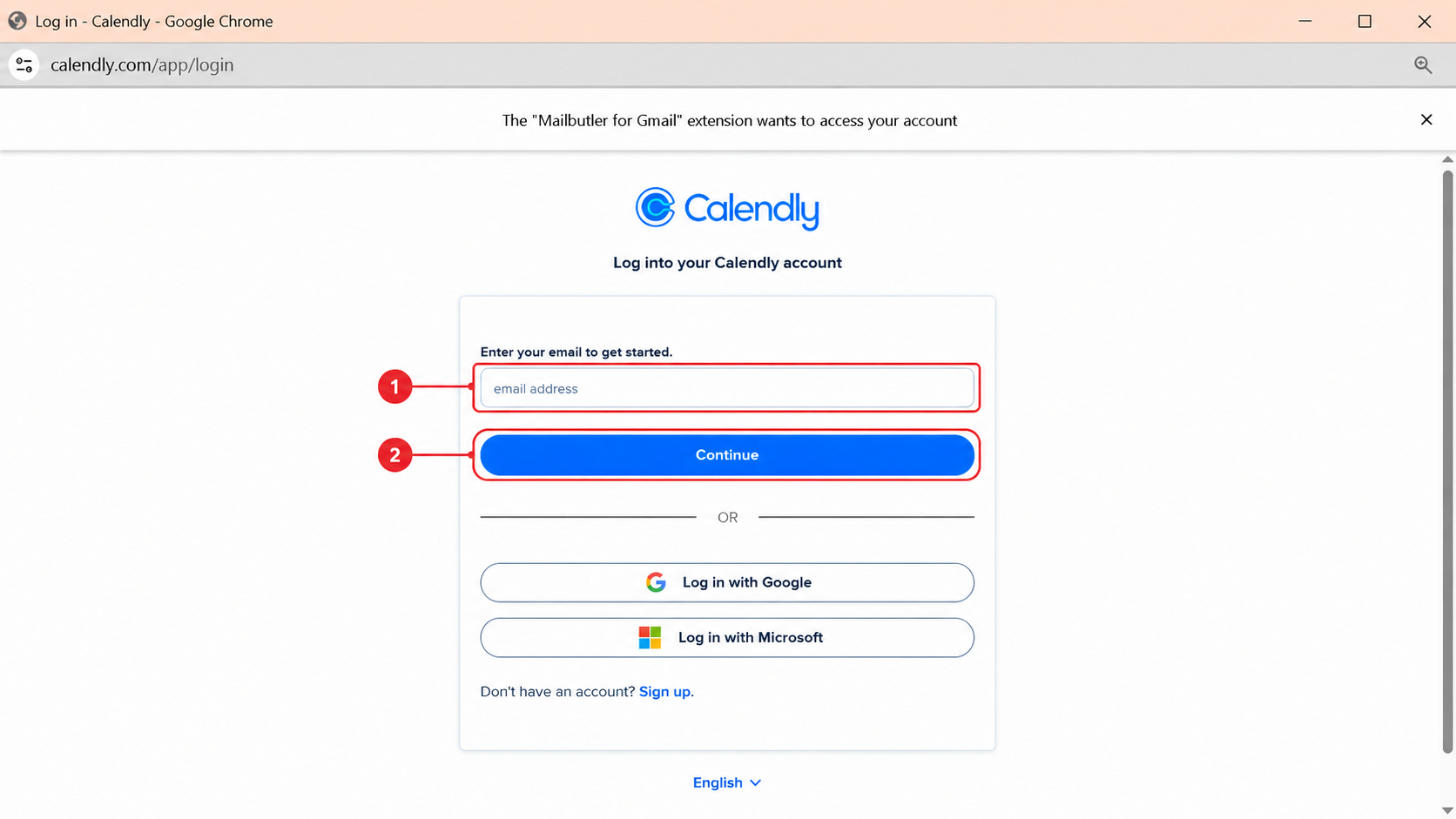
Sign in to the Calendly account that you want to connect.
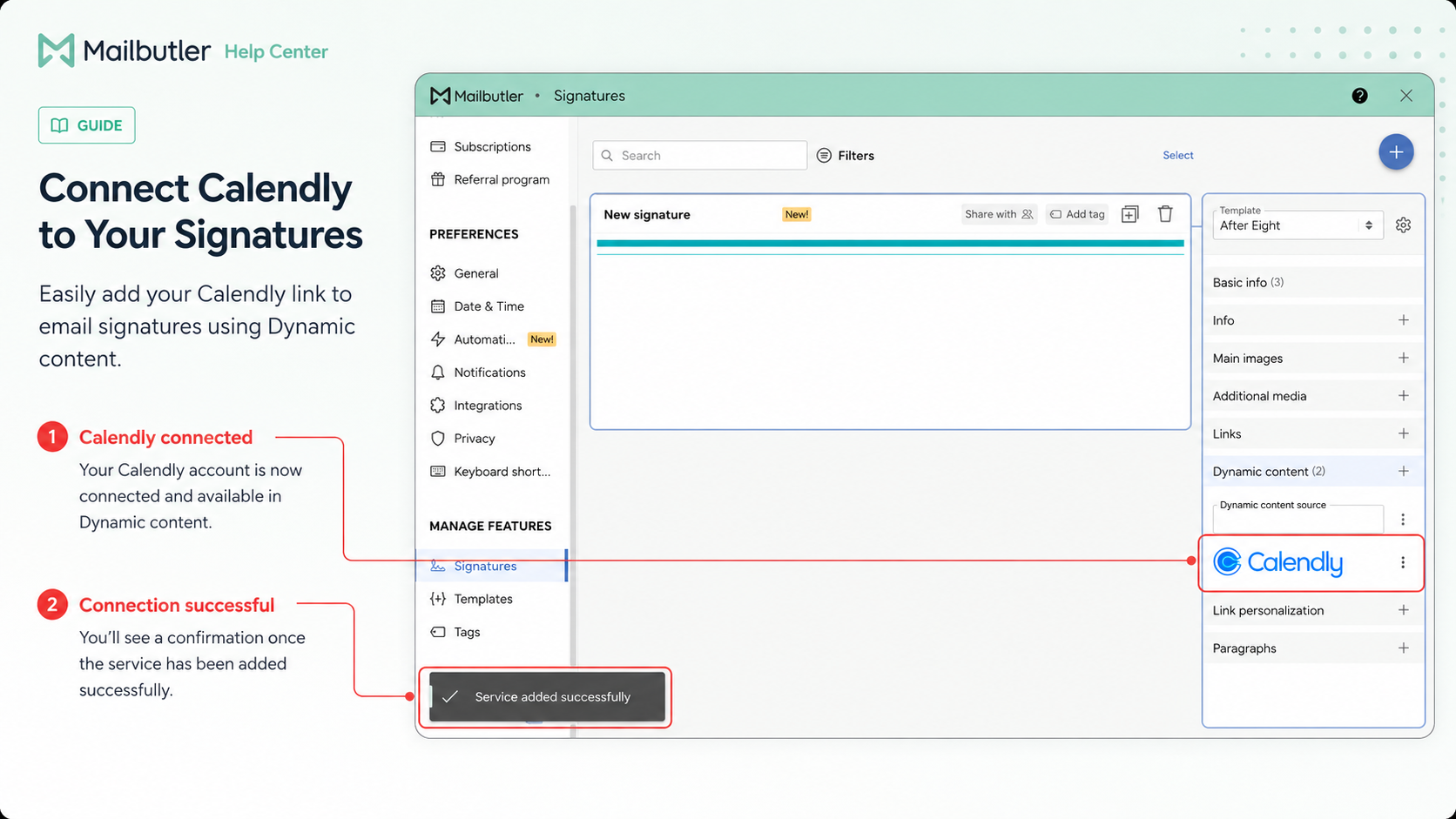
Calendly appears in the Dynamic content section after the connection is completed successfully.
How do I customize Dynamic Content?
After connecting a source, open its settings in the Dynamic content section.
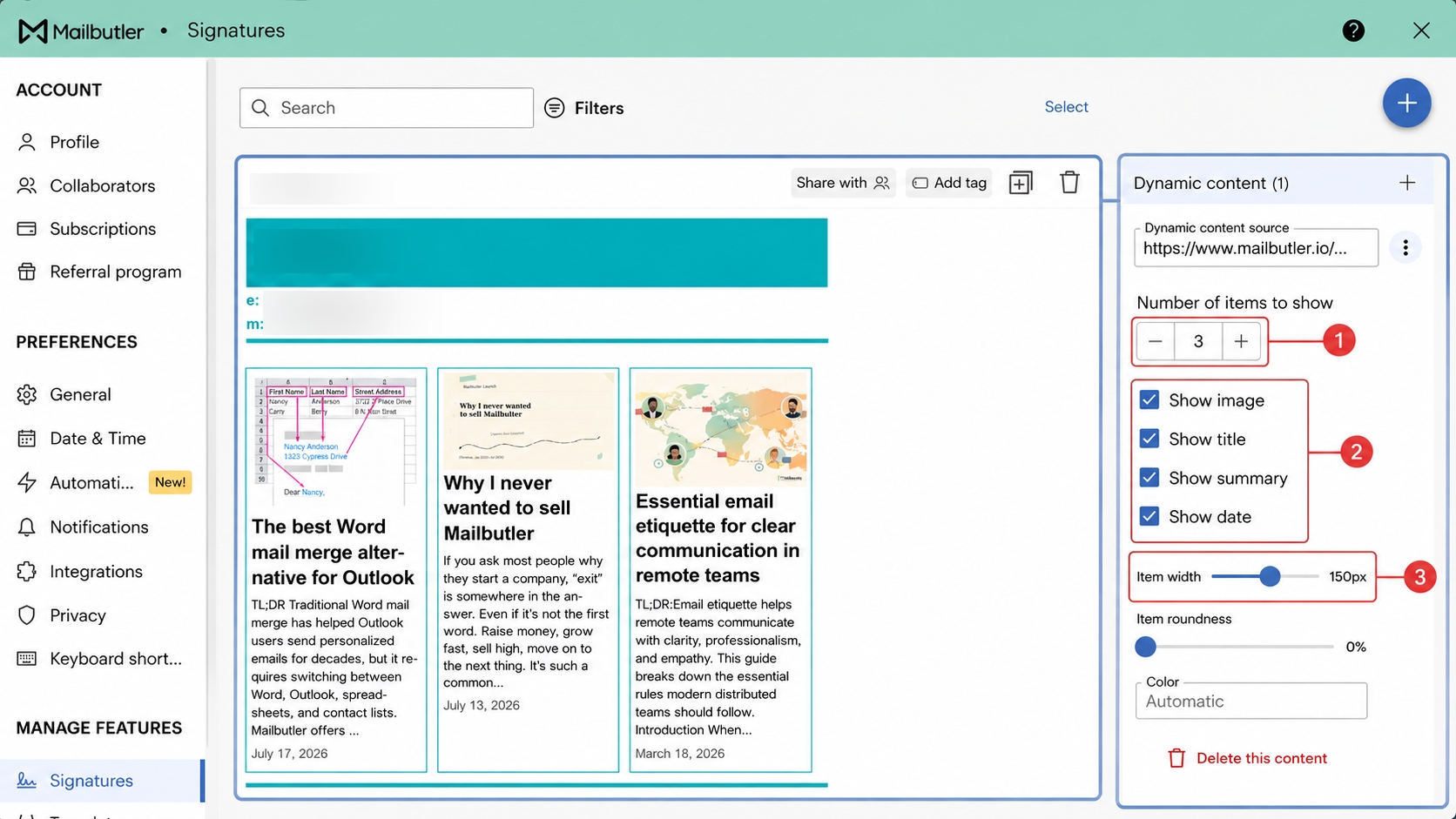
Use the available controls to:
choose how many items are displayed
show or hide the image
show or hide the title
show or hide the summary
show or hide the publication date
adjust the width of the content cards
change the corner roundness
adjust the card color
The available content depends on what the connected source provides. For example, a post without a featured image may be displayed without an image even when the image option is enabled.
If the content cards appear crowded, display fewer items or hide less important information, such as the summary or publication date. You can also reduce the card width or adjust its appearance.
How do I preview Dynamic Content?
The signature preview appears beside the editor and updates after Mailbutler successfully reads the connected source.
Check that:
The correct content source is connected
The latest content is displayed
Images, titles, summaries, and dates appear as expected
The content cards fit neatly within your signature
The Calendly booking link opens the correct page (if applicable)
For a final check, insert the signature into a test email and send it to yourself. Open the email on both desktop and mobile, where possible, to check its layout and links.
How do I edit or remove Dynamic Content?
Open Account & Preferences and select Signatures under Manage Features
Select the signature containing the Dynamic Content you want to change
Expand Dynamic content in the editor
To connect a different source, replace the URL in the Dynamic content source field
To remove a source, open its options and select Delete this content.
To change your Calendly connection, open the Calendly options in the Dynamic content section.
Troubleshooting
“Poorly formatted feed” appears
Mailbutler cannot read the URL in the format entered.
Check that you copied the complete URL
Confirm that the source is publicly accessible
For YouTube, use the channel feed URL containing the Channel ID instead of a regular channel, handle, or video URL
For podcasts, use the RSS feed supplied by the podcast hosting platform
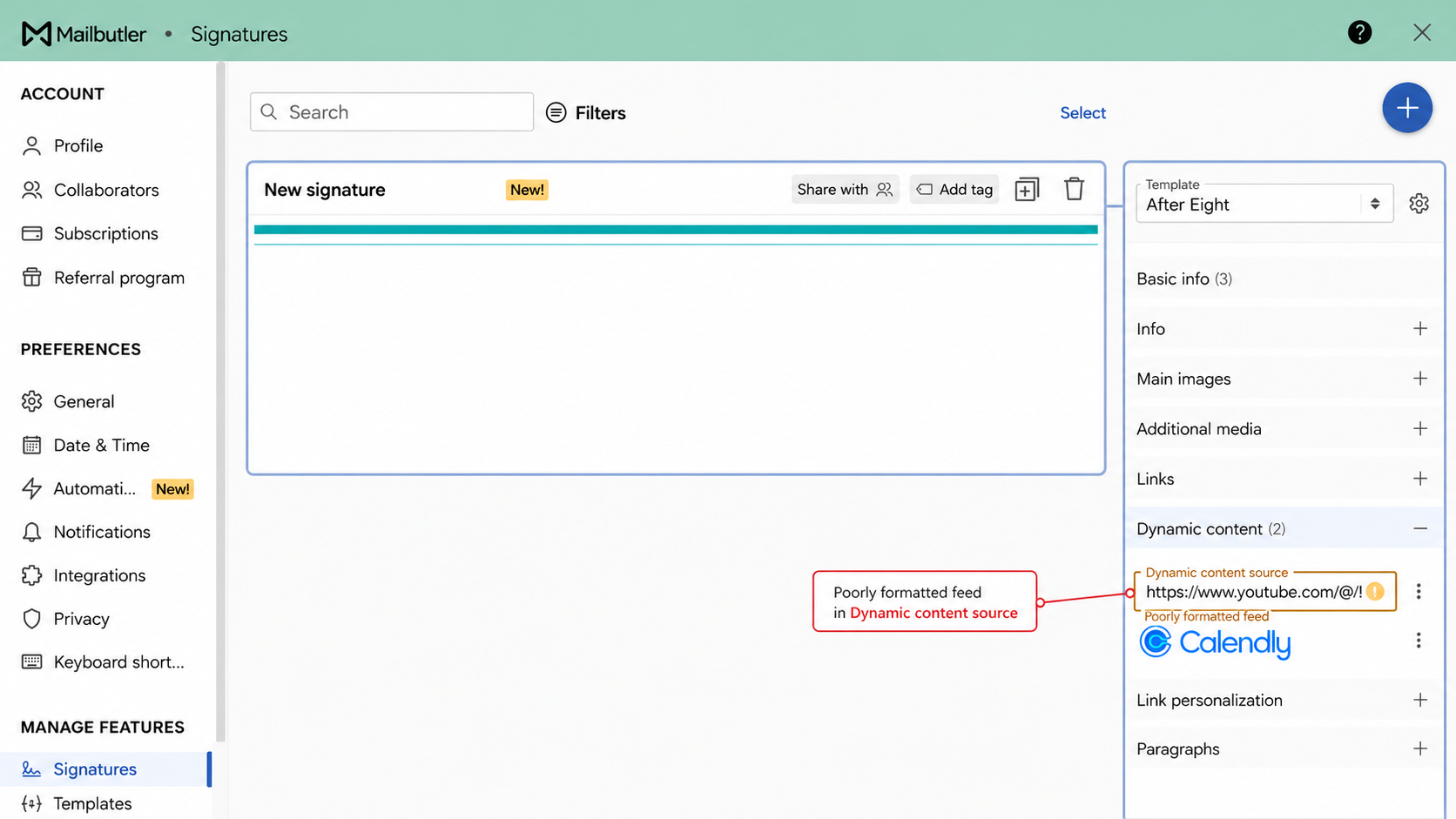
A standard YouTube channel or handle URL may produce a “Poorly formatted feed” error. Use the channel’s complete RSS feed URL instead.
“404 Not Found” appears
The entered address does not exist.
Check the URL and remove any ending that you added manually. Use only the exact blog or feed address provided by the source platform.
Nothing appears in the preview
Click outside the source field and wait for Mailbutler to check it
Confirm that the source is public
Confirm that the source already contains published videos, episodes, or posts
Reload the Signature Editor and check the source again
Try opening the entered URL in a separate browser tab to confirm that it is available
Content does not update
Confirm that the connected source contains newly published content
Wait for Mailbutler to refresh the source
Reload the Signature Editor and check the preview again
Calendly does not connect
Return to the Calendly authorization page
Make sure you approve the requested access
If you closed the page before completing authorization, return to Mailbutler and click Authorize again
Images are not displayed in the received email
The recipient’s email client may be blocking externally loaded images. Ask the recipient to allow images and reopen the email.